

Fix categories with corrections and rules
Correct something once
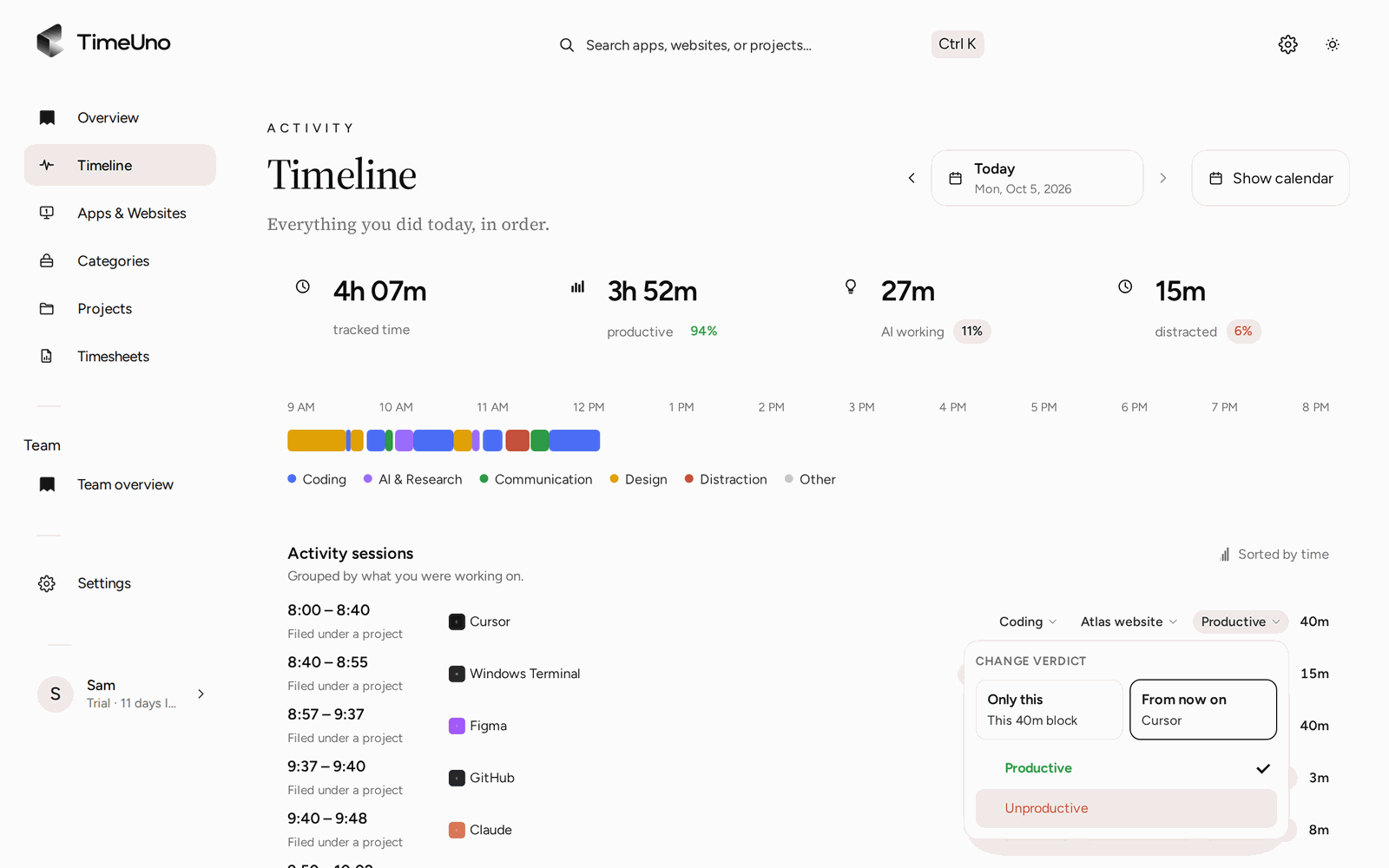
Open the menu on an activity in the Timeline or on the current session card of the Overview to change its category, its verdict (productive or unproductive) or its project. You can also change the category and verdict from the desktop widget, and the category, verdict and project from the extension popup.
The menu asks how far the change reaches:
- Only this: just the block you clicked.
- From now on: the app or site, every time. This is the default when the block is a single app or site.
On the Timeline, a correction shows Undo for a moment.
When TimeUno isn’t sure
Time TimeUno had to guess is tagged Guess. The Timeline, the desktop widget and the extension popup ask Was Slack work? (with the app or site’s name). Answer Work or Not work and it becomes a correction, so it doesn’t ask again. In the widget and the popup, Not now asks again tomorrow.
Rules
After a correction, TimeUno may offer to make it permanent: Make it a rule or No thanks.
Open Settings → Productivity to see:
- Suggested rules. When your one-off corrections for the same site or app keep agreeing (for example, “You marked youtube.com as productive 4 of 5 times”), TimeUno suggests making it a rule.
- Your rules. Add a site (like
github.com) or an app (likeFigma) and choose how it counts: Productive or Distraction (unproductive). - Built-in defaults. How TimeUno counts common apps and sites unless one of your rules says otherwise.
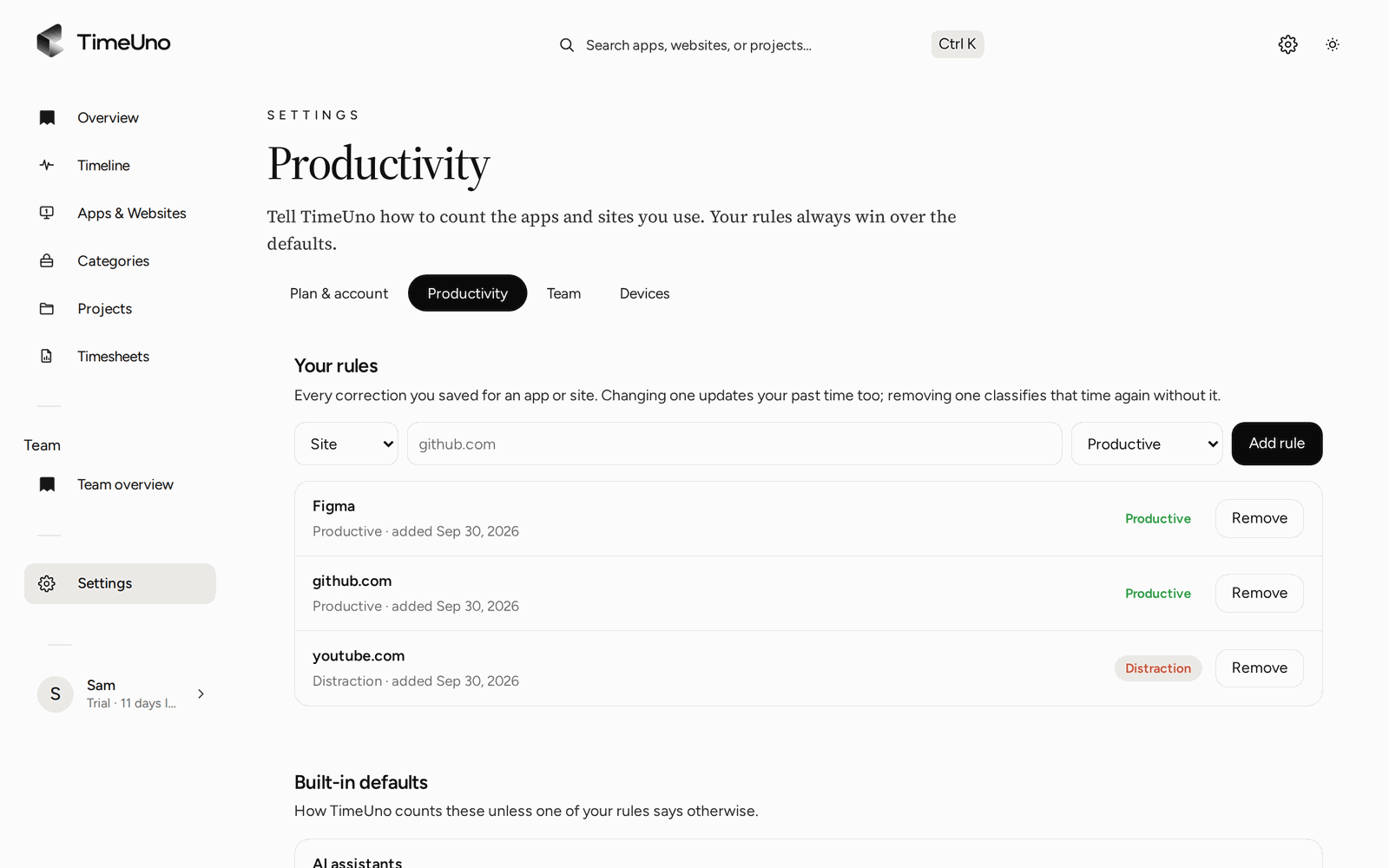
Your rules always win over the built-in defaults and the AI classifier.