

Dashboard: timeline, apps and categories
Sign in at app.timeuno.io. The sidebar has:
- Overview: your day, week or month at a glance. See below.
- Timeline: your day as sessions, with the verdict for each and why it got it.
- Apps & Websites: time per app and site.
- Categories: time per category.
- Projects: time per project. See Projects.
- Timesheets: timesheets for clients. See Timesheets.
- Team overview: on a team plan. See Teams.
- Settings: your plan, productivity rules, team and devices.
The account menu (your name, bottom left) has the workspace switcher, Team, Devices, Plan & settings, Feedback (an ideas and bugs board you can vote on), Help & docs and Sign out.
Find your way around
- Day, Week and Month switch the period at the top. The arrows step back and forward.
- Search in the top bar finds apps, websites and projects.
- The chat button in the corner reaches a person on every page.
Overview
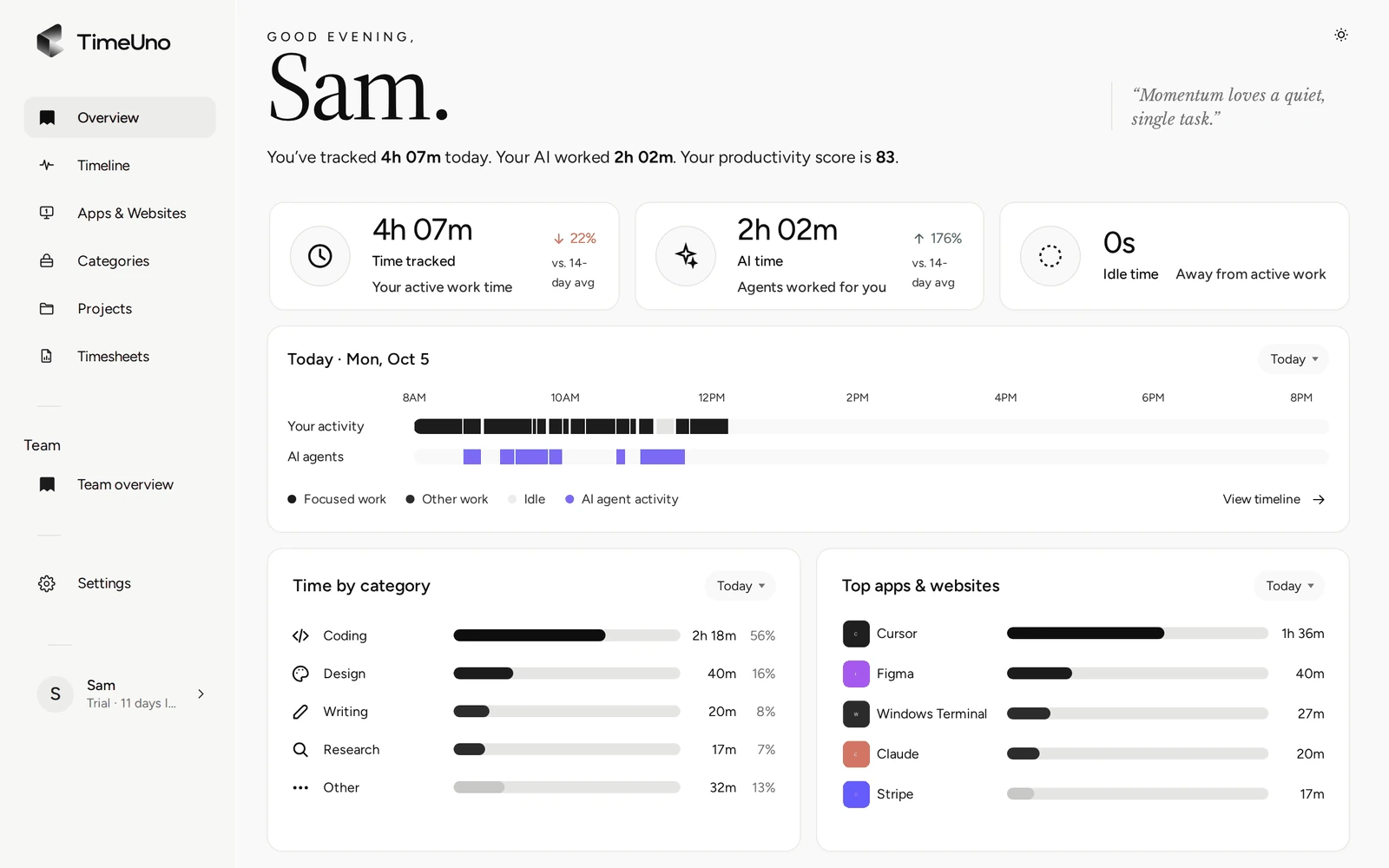
The greeting gives your productivity score: 0 to 100, the grade of your activity weighted by time, where deep work counts most and distractions least (see the desktop widget for the bands). The headline numbers compare the period with your average over the 14 days before today. Below them, a strip shows the shape of the day, with cards for categories, apps and your recent activity.
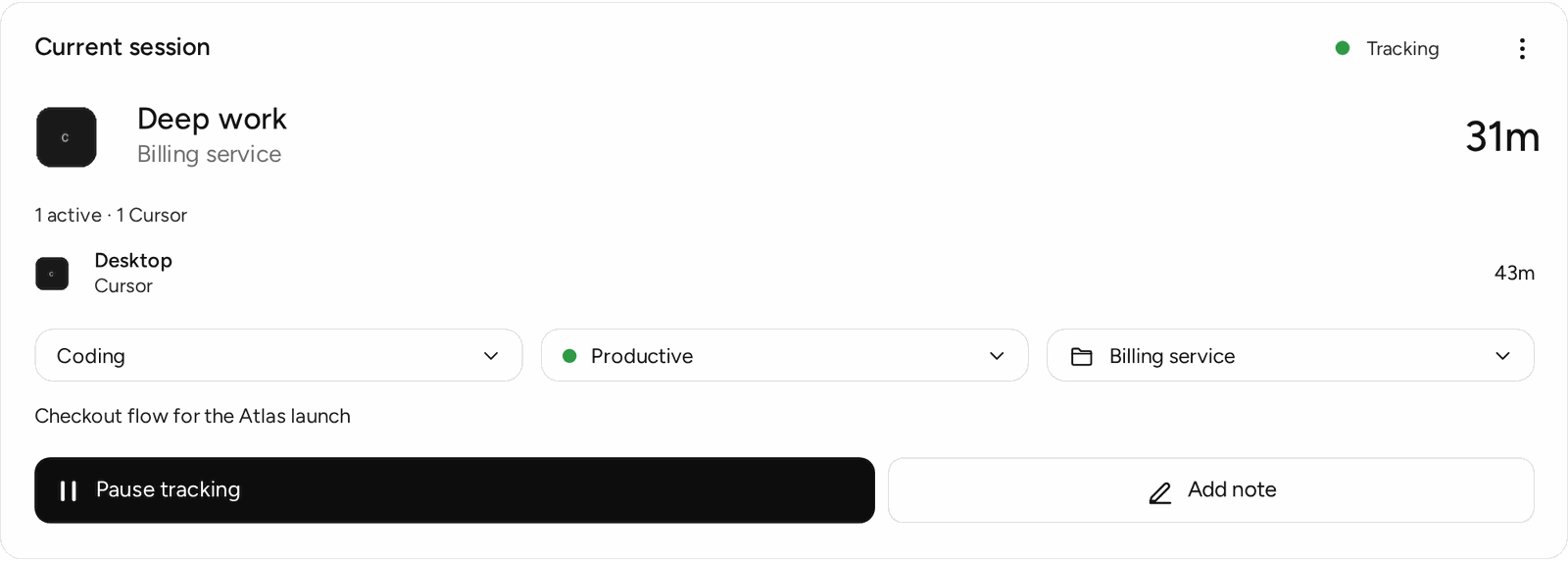
The current session card shows what you’re doing right now and which AI tools are working. From it you can:
- correct the category, verdict or project (Corrections and rules);
- Pause tracking on your desktop app, for 15 minutes, 30 minutes, 1 hour or until you resume.
Timeline
Pick a day with the calendar. Each session shows its verdict and a short line on why it got it. Time TimeUno guessed is tagged Guess and may ask Was this work?. Open a session’s menu to correct it. You can add notes to sessions on the timeline to record what you were working on.
Apps & Websites
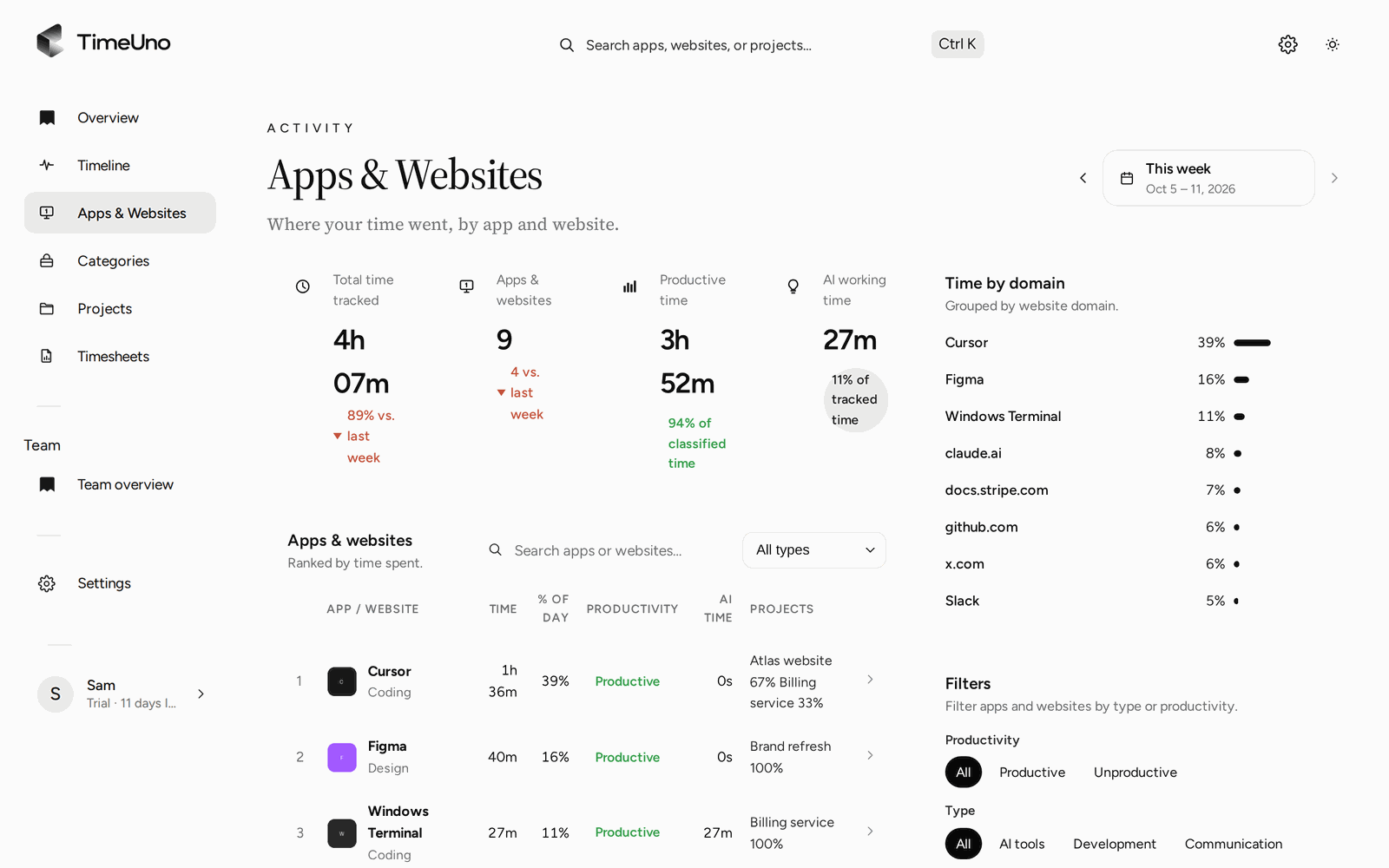
Filter by productivity (All, Productive, Unproductive) and by type (AI tools, Development, Communication, Design, Entertainment, Other), or search. Each row shows time, AI time and the projects it went to.
Categories
Time per category this week, next to last week, with the apps and projects in each.
How fresh is it?
Your apps send time as you work, and new activity shows up a minute or two later. If you were offline, the app keeps the time on your computer and sends it once you’re back.