

Teams: seats, invites and admin view
Invite people
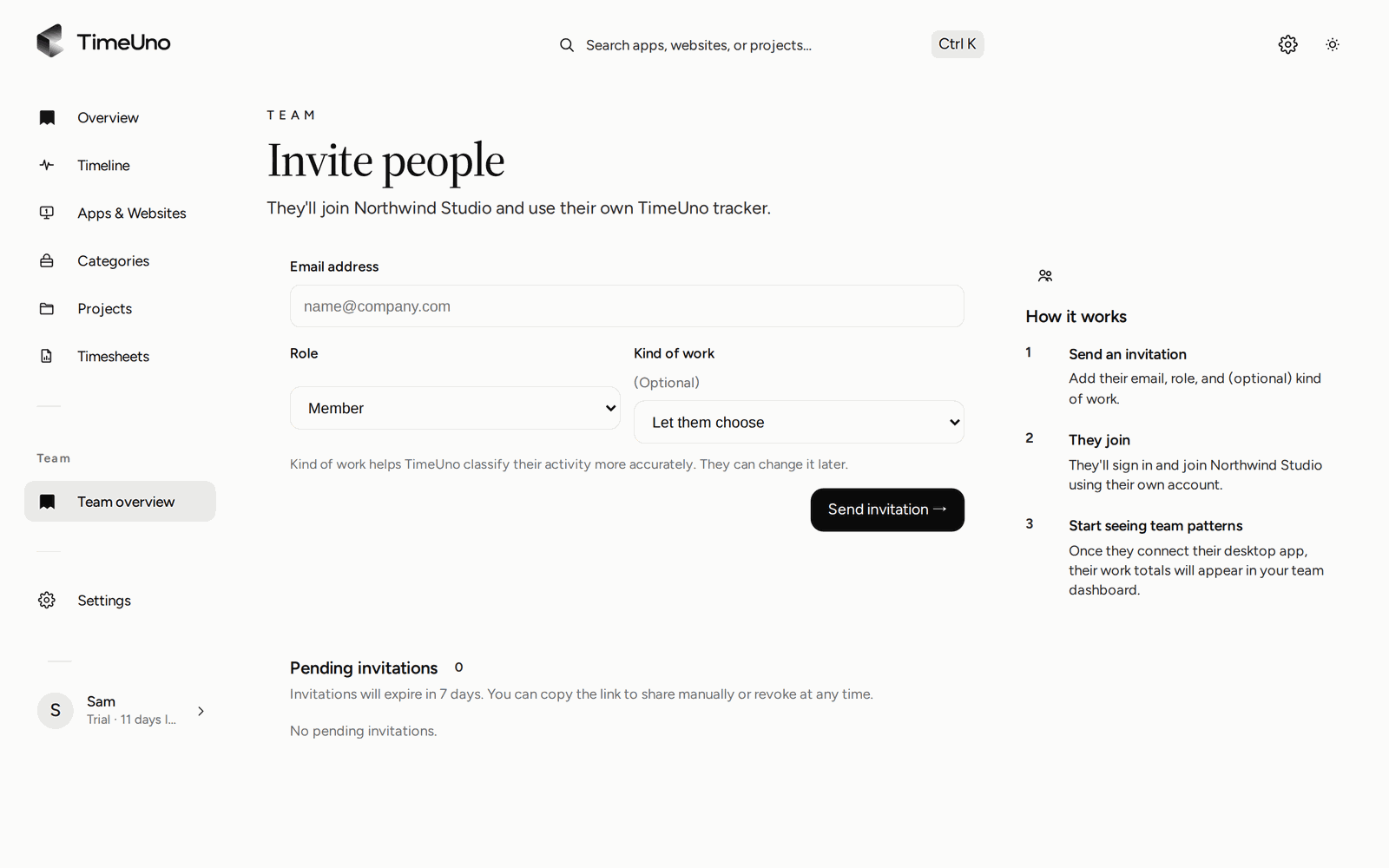
On a Team plan, open Team overview and click + Invite people. Enter an email address and choose Member or Admin. Each person gets an email invitation, creates or signs in to their account, confirms their email, and joins. Each member connects their own devices.
Invitations expire after 7 days. Pending ones are listed on the invite page, where you can copy the link or revoke them.
Seats
Billing follows membership: each member is one seat. An invited member joins the team’s plan as a billed seat and doesn’t start a trial of their own. When someone joins or leaves, the seat count on the subscription follows. The team page shows members, seats and the monthly cost.
Roles
- Owner and admin can invite and remove members, change roles and manage billing. Only an owner can make someone else an owner, from that member’s role menu. A workspace can have more than one owner.
- Members see their own data and the team’s member list.
When a member is removed or leaves, their devices are disconnected from the team.
The Workspace options menu renames the workspace or starts a new team. If you belong to more than one workspace, switch between them from the account menu.
What the team overview shows
Owners and admins see, per person, for the last 7, 30 or 90 days or all time:
- Worked time;
- Productivity, the productivity score (0 to 100, the time-weighted grade of classified time), with the share of time that was productive under it;
- AI usage;
- Trend.
Sort by any of the first three. People who haven’t tracked anything yet show whether their desktop app is connected. The overview also shows the team’s AI spend and the hours spent on shared projects.
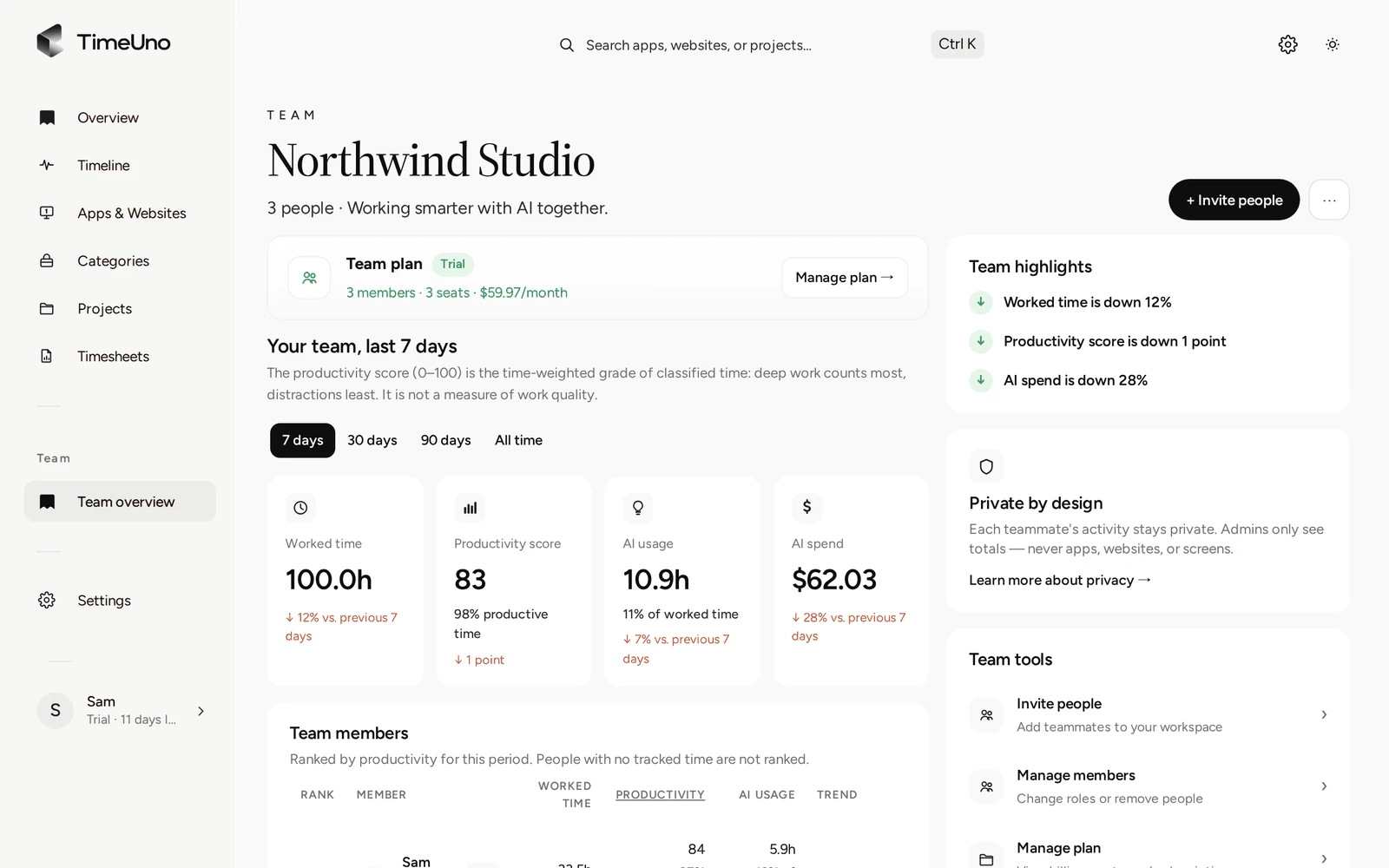
It does not show anyone’s apps, sites, window titles or screenshots. Each person’s detailed day stays visible only to them.