

Create and export timesheets (CSV)
Create a timesheet
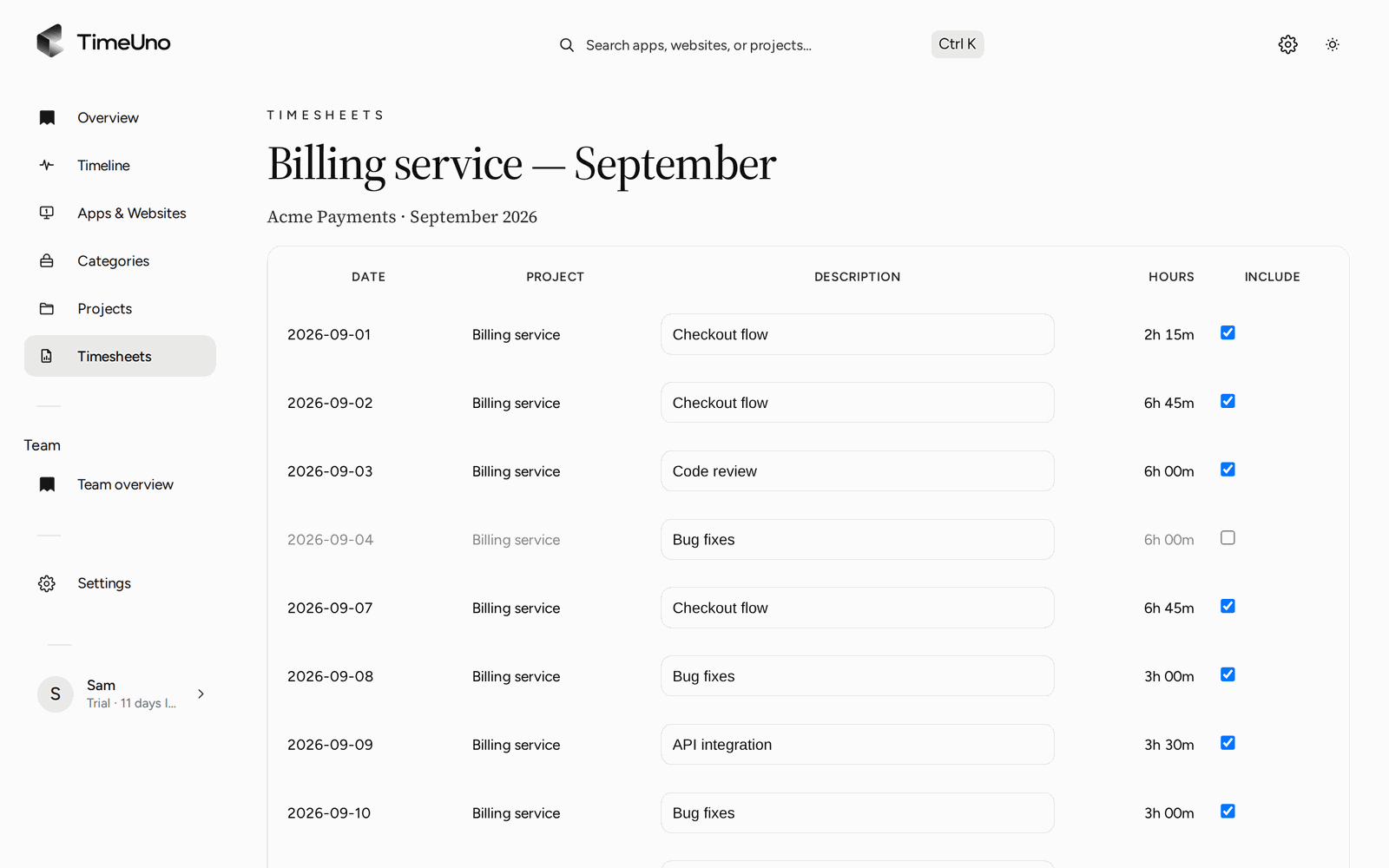
Open Timesheets and click + Create timesheet. Choose the period (This week, Last week or This month), the project, and optionally a client name. TimeUno fills in a line per day from the time you tracked on that project. If nothing was tracked on it in that period, it says so. Under Lines, pick One line per day or One line per work block. A work block joins the time you tracked on the project with breaks of 15 minutes or less, and shows its start and end time on the timesheet, on the page your client sees and in the CSV.
Edit it
- Change a line’s description. Changes save when you leave the box.
- Open Apps and sites under a tracked line to see the apps and sites its time came from. Only you see this; the client doesn’t.
- Click Refresh to rebuild the lines from your latest tracking. Descriptions TimeUno wrote are updated, and a description you edited keeps your text.
- Click ✦ Write descriptions to have AI write the descriptions from each line’s project, hours, apps, sites and window titles, in the language of your app. It only fills lines that still have TimeUno’s text, never one you wrote. The ✦ button next to a line rewrites just that line. AI text is marked AI until you edit it, and Refresh keeps it. AI works through the lines 12 at a time, and a bar shows how many are done. Click Cancel to stop and keep what is written. If it can’t finish, the lines it already wrote stay, and Retry writes only the rest. AI descriptions have a daily limit, and each group of 12 lines counts once.
- Tick the boxes in front of lines (or the one in the header for all of them) to change several at once: Exclude, Include, Set description to give them one description, ✦ Write with AI, or delete the lines you added by hand. Clear selection ends it.
- Switch Lines between One line per day and One line per work block to regroup a draft. If lines have changed hours, are left out or have a description you or AI wrote, TimeUno asks first. Each new line keeps the description and the Include setting of the line it overlaps most. Changed hours stay only on a line that covers the same time as before; a line that splits or merges goes back to its tracked hours.
- Untick Include to leave a line out. The total follows.
- Click Mark ready when it’s final. A ready timesheet is locked.
- Click Download CSV to send it on.
Rates and billing
Owners and admins set the currency, default rate and rounding (none, 6, 15 or 30 minutes; nearest or up) under Settings, a rate per person on Team, and a rate and billing type (Hourly, Fixed fee with an optional budget, or Non-billable) on each project and client. A timesheet takes the project rate first, then the client, the person and the workspace default, and keeps it until you click Re-apply current rates on a draft. Untick Billable to bill a line at nothing. Your client sees amounts on the page they get, and chooses how non-billable lines show: hidden, 0 or No charge. Members only see hours.
PDF export and company details
Owners and admins add the company name, address, VAT or tax ID and a logo (PNG or JPEG, up to 512 KB) under Settings, Company details. Leave a field empty to keep it off the PDF. Click Download PDF in the timesheet editor, or let your client click it on their page, to get a printable timesheet with your logo and company details at the top, the sheet name, period, member and client, one row per line (date, time for work blocks, description, hours and amount), the totals, and the client’s answer once they have given one. It follows the same billing rules as the page your client sees: lines you leave out, and non-billable lines set to hidden, stay off it, and members only get hours. The PDF is written in the language of the person who created the timesheet. It uses one bundled font that covers Latin, Cyrillic, Greek and Japanese; characters outside those, such as Korean, Arabic, Hebrew or Thai text in a description, may not print.
Repeat and reminders
Open Repeat on a timesheet (or Repeating on the list) to have TimeUno draft it for you every week, every two weeks or every month. The draft appears once the period has ended, plus a day of grace, in your time zone. Periods with no tracked time are skipped. If you leave three drafts in a row untouched, the schedule pauses and TimeUno emails you; resume it from the list. Turn on Send the link to the client to email the approval link as soon as you mark a draft Ready.
Unanswered approval links get reminders: by default after 3 days, then every 3 days, at most twice, and once more a day before the link expires. You get a copy of each. Change the defaults in Settings, for one client in Clients, or for one link when you share it. Reminders are only sent for links TimeUno emailed, and stop when the client answers, you revoke the link, or the sheet goes back to draft.
The list
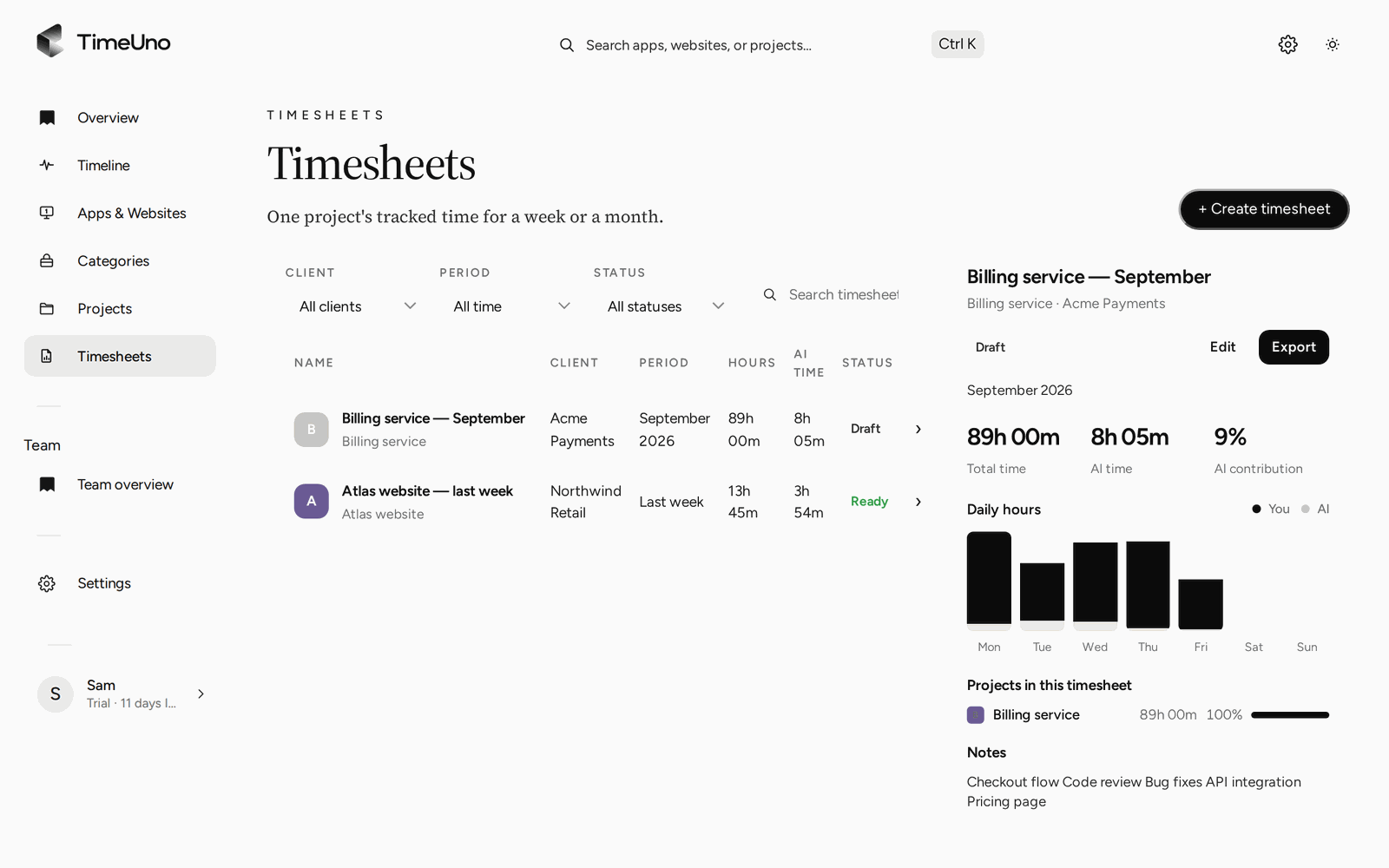
Filter your timesheets by client, period and status (Draft or Ready), or search them. Click one to open it. Beside the list, a preview of the first timesheet shows its total time, AI time, AI contribution, hours per day, the projects in it and its notes. Export downloads the previewed timesheet as CSV, and Edit opens it.
History
Under the editor, History lists what happened to the timesheet, newest first: created, status changes, links shared (with expiry, whether a PIN protects it, and whether it was sent automatically), opened by the client, reminders sent, the client’s decision with their comment, revoked links, exports and refreshes. It is read-only and shown for every status. In the list, a small badge next to the status shows whether the client has opened the link or approved, rejected or asked for changes.