

Switching from Clockify Move from Clockify to TimeUno, by hand, in one sitting.
TimeUno has no Clockify importer. Nothing copies over on its own. This page covers what stays behind, what you rebuild, and the steps to get your projects, timesheets and team running in TimeUno.
Start tracking without Clockify 14-day trial, card required
What does not come with you
TimeUno has no Clockify importer, so nothing moves on its own. Before you close your Clockify account, export whatever reports you might need later: Clockify’s own export is the only copy of that history once the account is gone.
| In Clockify | In TimeUno |
|---|---|
| Projects | Recreate by hand, or let TimeUno detect them from your editor |
| Clients | No client list; type the name on each timesheet |
| Rates | Not tracked; stays in your invoicing tool |
| Past time entries | Not imported; keep your Clockify export for the record |
| A running timer | Nothing to carry over; there is no timer to start |
Set up TimeUno in one sitting
- Export your Clockify reports and cancel the plan once you are sure you have what you need. Do this first so you are not reconstructing history later.
- Install the TimeUno desktop app on your Mac, Windows or Linux computer, and add the browser extension so time on the web lands under the right project too.
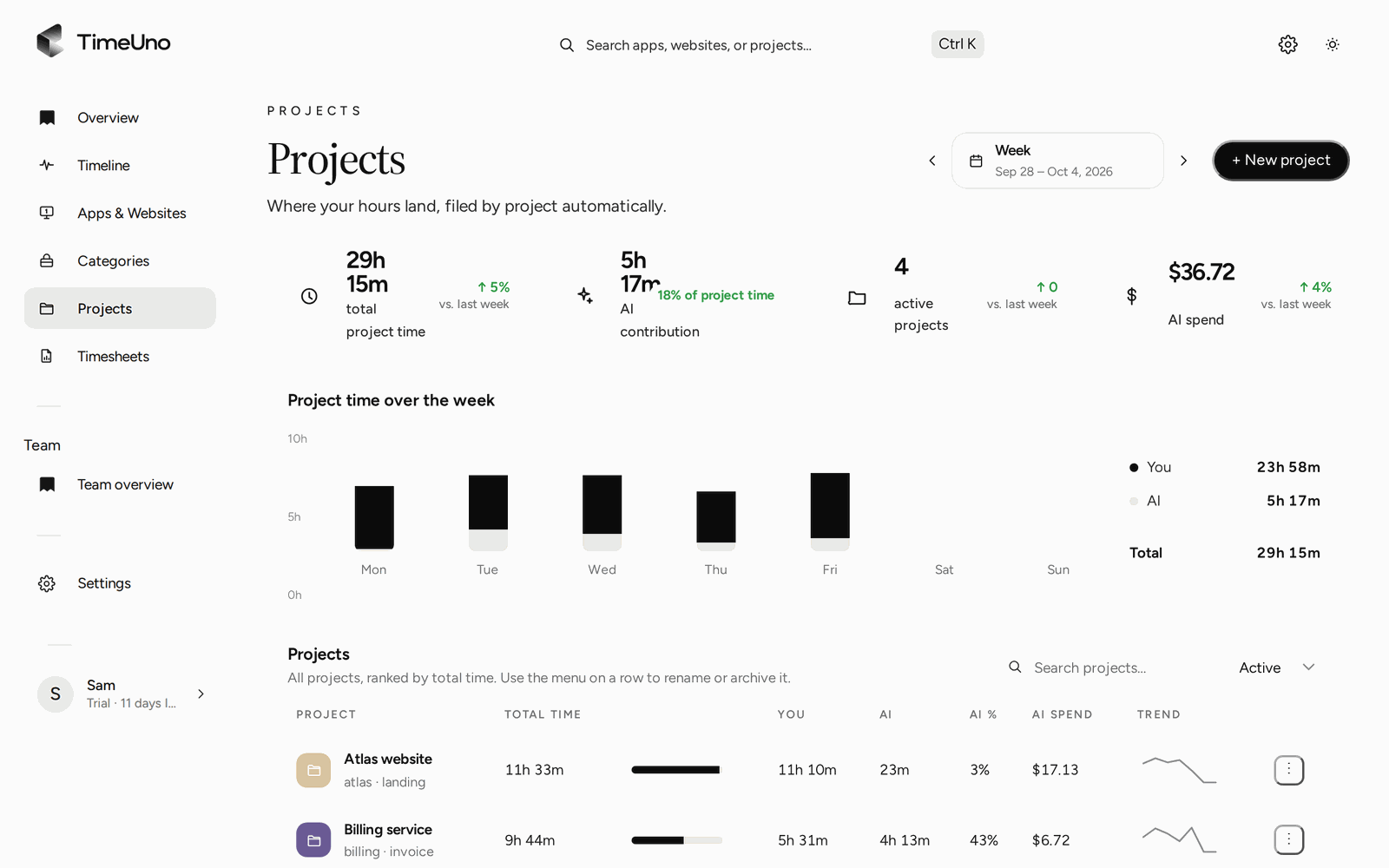
- Add one project per client or job, with a few keywords that show up in your window titles or URLs. If you work in code, TimeUno also asks to track an editor project the first time it sees one.
- Work a normal week. Once a week, open the Projects page and move anything under Review unassigned time to the right project.
- Open Timesheets, click + Create timesheet, choose the period and project, add the client name, then click Download CSV when it is ready to bill.
- Bringing a team: during company setup, paste a list of email addresses or upload a CSV to invite everyone at once. Add anyone else later from Team overview, one address at a time.
- Once a normal week in TimeUno looks right, cancel the old Clockify subscription.
What is different day to day
There is no timer to start or stop. The desktop app and browser extension record the app, site or editor project in front of you, and file the time under a project without a click. Time TimeUno cannot place on its own waits under Review unassigned time on the Projects page until you move it.
Billing stays outside TimeUno. A timesheet shows hours per client, not an amount, and you export it as CSV into whatever invoicing or payroll tool you already use.
For a side by side look at tracking, projects and pricing, see TimeUno compared with Clockify.
Updated 18 October 2026
Questions people ask
Can I import my Clockify data?
No. TimeUno has no Clockify import and no CSV import for past entries. Export your Clockify reports before you close that account, and keep them for your records.
Do my hourly rates carry over?
No. TimeUno tracks hours, not money. There is nowhere to enter a rate. Keep rates in your invoicing tool and multiply them by the hours on a TimeUno timesheet.
Where do clients go?
There is no client list to migrate. Type the client's name on each timesheet when you create it, or add it as a keyword on a project so time files under that client on its own.
Do I need to start a timer like in Clockify?
No. The desktop app and browser extension record what you work on in the background. There is no start or stop button to remember.
How do I bring my team over?
During company setup you can paste a list of email addresses or upload a CSV to invite everyone at once. After that, invite people one at a time from Team overview.
How much does switching cost?
See current plans and the trial length on the pricing page. This page does not list prices because they change.