

Pause tracking and screenshot settings
Pause tracking
- Desktop widget: Pause, then Pause for 15 minutes, 30 minutes, 1 hour or Pause until I resume. Resume starts again. While paused, the widget says Paused · back at the time it resumes.
- Desktop app window and tray menu: Pause and Resume.
- Extension popup: Pause pauses the browser, and the desktop app too once the two are linked.
- Dashboard: the current session card on Overview pauses or resumes the desktop app remotely, with the same choices.
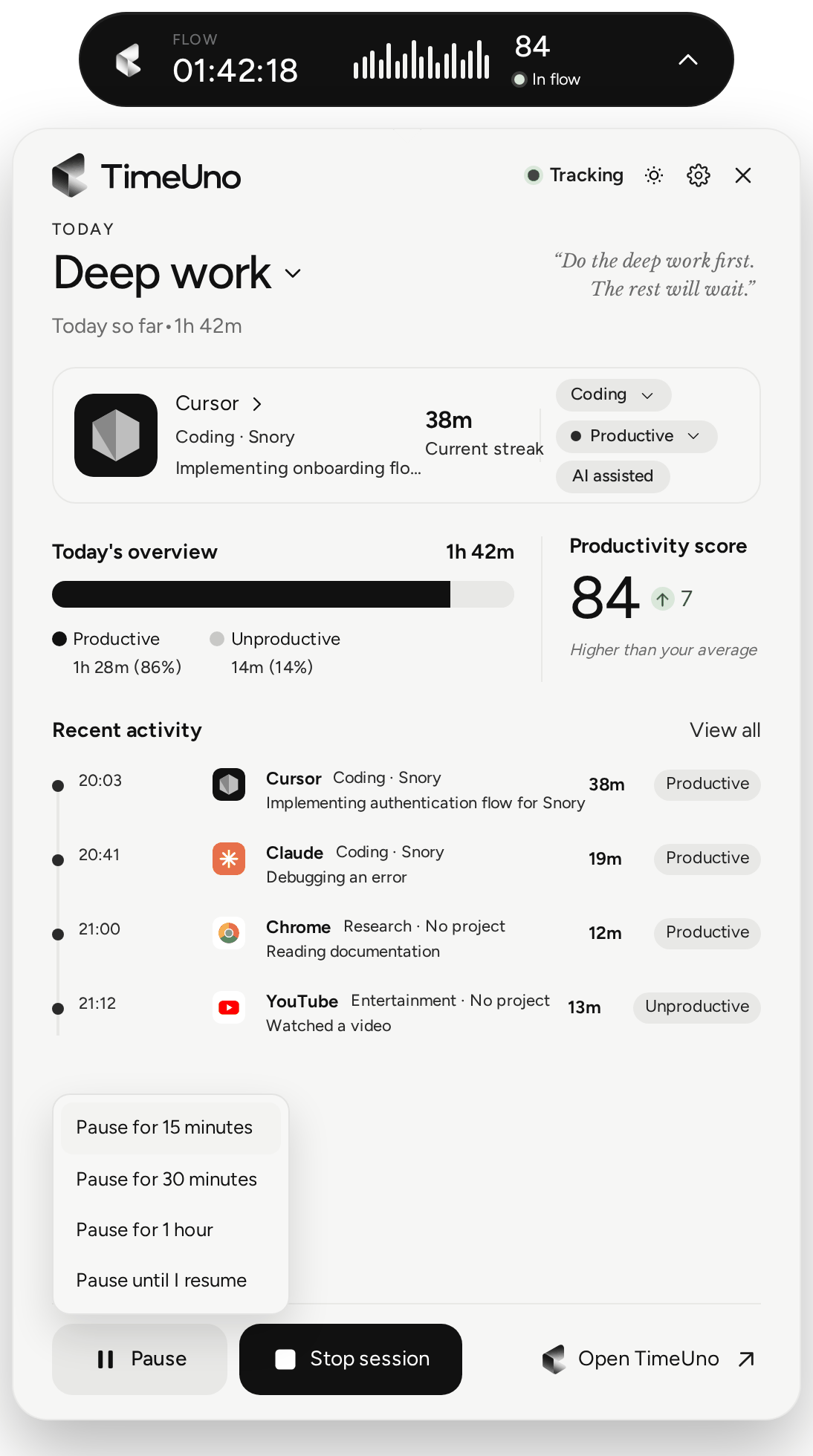
A paused computer records nothing about your screen and sends nothing until you resume.
Stop session in the widget ends the current session; tracking waits until you click Start session.
Screenshots and on-screen text
On Windows, macOS and Linux desktops, the desktop app takes a screenshot of the window you’re using about once a minute, and reads the text on screen on your computer. That is how it sees AI tools working inside terminals and remote sessions. It takes none while you’re idle or while your plan is inactive.
Both are on by default. They capture whatever is on screen, and the text is uploaded with your activity and may be used to classify it. Screenshots are stored privately and never shown in the dashboard, not even to a team admin.
Turn either off on each computer in the app’s Settings under Privacy: Capture screenshots and Read on-screen text. The workspace owner or an admin can also turn either off for everyone, under Settings → Privacy & capture in the dashboard. Then TimeUno stores none of it, even from a computer that still captures it. With both off, only app names and window titles are recorded.
The switches only appear where capture can work: on Windows, on a Mac with the Screen Recording permission (see macOS), and on Linux under X11 or GNOME with window tracking turned on (see Linux).