

The desktop widget
The desktop app lives in the system tray (the menu bar on a Mac) and shows a small widget that stays on top of your windows. Drag it anywhere; it remembers where you put it.
Three sizes
- Dot: the TimeUno mark. A marker shows when an AI tool is working or when TimeUno has a question for you. Click it to open the pill.
- Pill: a black bar with what you’re doing, the time, and your productivity score. Click it to open the panel. It folds back to the dot after 10 seconds without the pointer on it.
- Panel: the full view, described below. Click outside it to fold it back to the pill.


The panel
The panel shows the live session, or the whole day if you switch This session to Today at the top:
- the app you’re in, with its category and verdict. Click either to correct it (see Corrections and rules);
- how long you’ve been at it, and an overview of the session;
- Productivity score: 0 to 100, the grade of your activity weighted by time. Deep work counts most, engaged work a little less, distractions least; idle time is left out. A day of only engaged work scores about 75. 80 and up is In flow, 60 and up Productive, 40 and up Mixed, below that Distracted. The arrow compares it with your average over the last 14 days, in points;
- your recent activity. View all opens the full list, which you can filter by productive, unproductive or app.
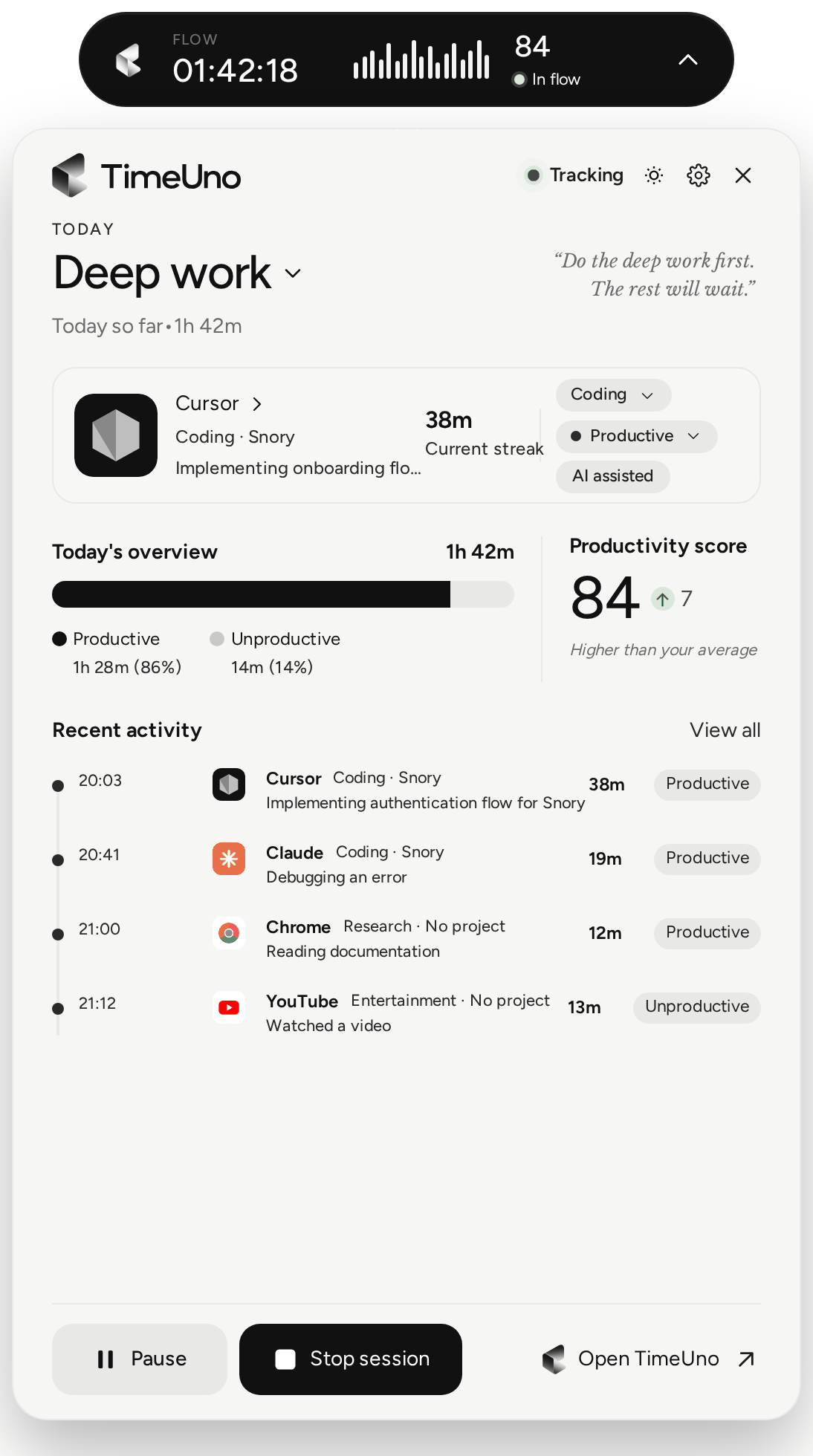
At the bottom:
- Pause stops tracking for 15 minutes, 30 minutes, 1 hour or until you resume. See Pause and capture settings.
- Stop session ends the session; Start session starts a new one.
- Open TimeUno opens your dashboard.
Questions the widget asks
- Was Slack work? when TimeUno isn’t sure. Answer Work, Not work or Not now.
- Track X as a project? the first time it sees a new project folder. Add or Don’t add.
- Always? after you’ve corrected the same app or site the same way a few times. Make it a rule or No thanks.
- If you spend a couple of minutes in a browser without the extension, it offers to install it, once.
Settings
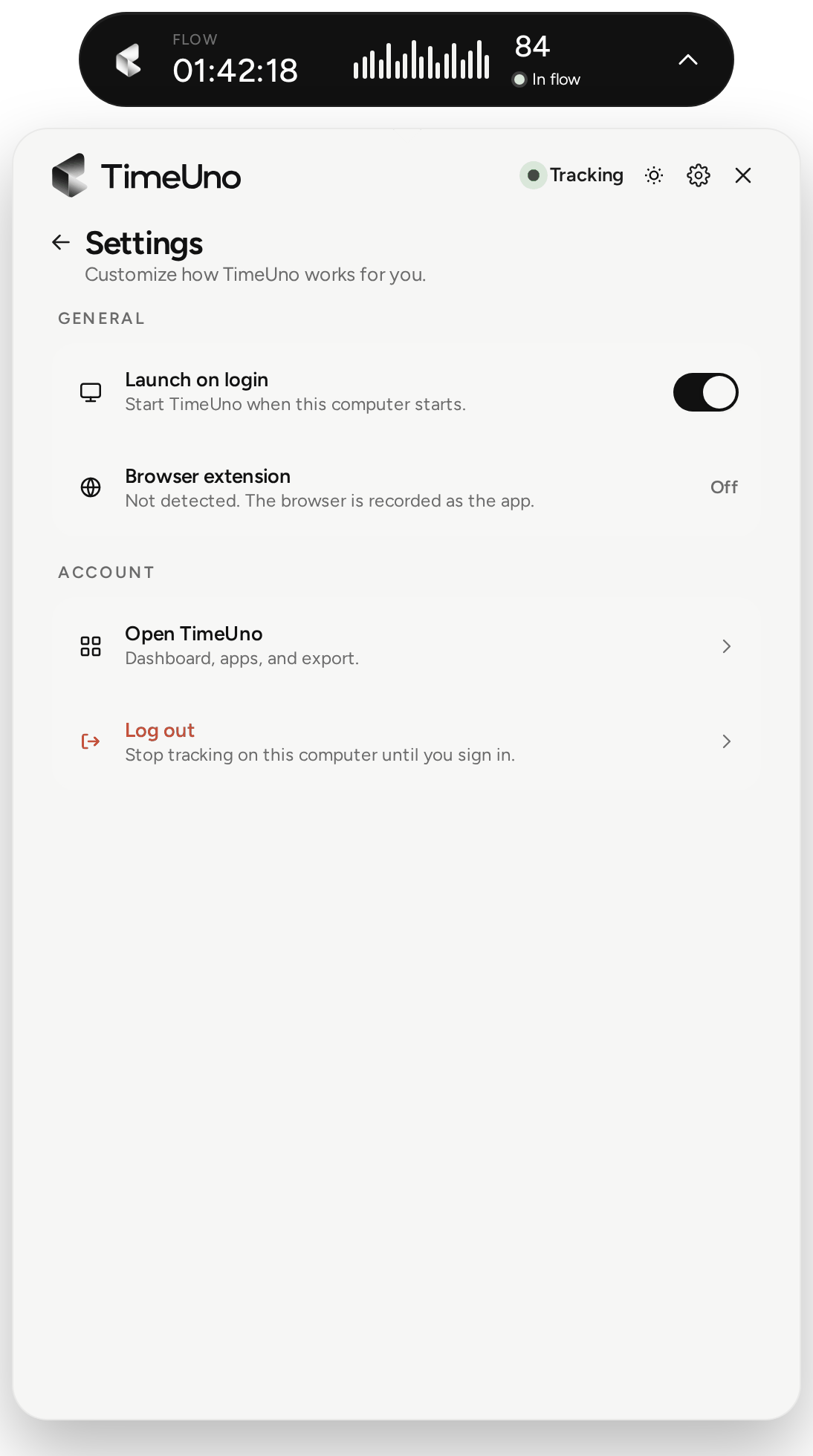
The gear opens:
- Update: shows TimeUno x.y is ready when an update is waiting. See Updates.
- General: Launch on login, and whether the browser extension is connected.
- Setup: on Linux with GNOME, the window tracking step. See Linux.
- Privacy: Capture screenshots and Read on-screen text.
- Account: Open TimeUno, and Log out, which stops tracking on this computer until you sign in again.
The tray menu
Click the TimeUno icon in the tray or menu bar for: today’s tracked time, Open TimeUno (the main window), Open my dashboard, Hide floating widget / Show floating widget, Pause tracking / Resume tracking and Quit TimeUno.