

Comparisons Timing app review: Mac time tracker, plans and limits
Nov 14, 2026 · 9 min read
Timing app review: Mac time tracker, plans and limits
Timing is a Mac-only automatic time tracker with rules and reports. Plans, team limits and who should pick it, from vendor docs as of November 2026.
Is Timing a good automatic time tracker for Mac?
Yes, for Mac-only freelancers who bill clients. Timing is an automatic time tracker for macOS that records the apps, documents and websites you use, then files that time into projects with rules you write. It does not run on Windows. TimeUno, an automatic time tracker for Mac and Windows, is the comparison here.
Based on the vendor's public documentation and pricing as of November 2026; we did not run a long-term test. We make TimeUno, a competing tracker, so this review also says where TimeUno is the weaker choice.
Last reviewed: November 2026. We read the Timing pricing page and its help pages on 10 November 2026 and link them in the sources.
What does Timing do?
Timing runs in the background on a Mac and logs app activity, including document paths, website domains and window titles. You sort that activity into projects, mostly through rules, and you can add manual time entries and timers when you want them. Reports then turn the sorted time into timesheets you can export. It is sold as a subscription outside the Mac App Store because of sandbox limits.
How much does Timing cost?
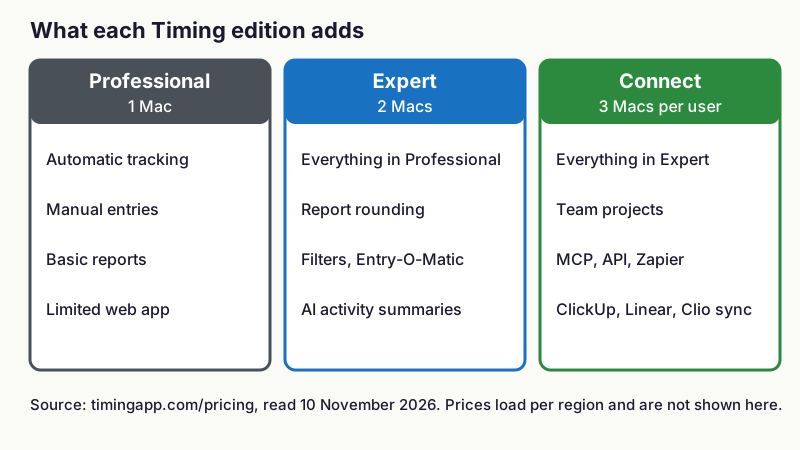
Timing sells three editions, Professional, Expert and Connect, and all three are subscriptions. Professional covers one Mac for one person, Expert covers two Macs, and Connect covers three Macs per user and adds team features. The pricing page offers a 30-day free trial with no credit card.
The pricing page loads its amounts by region and currency, so we could not read a fixed figure from it. See Timing's pricing page and use the monthly and annual toggle for your currency. Our TimeUno vs Timing comparison sets the two side by side.
Billing is upfront for the first month or year. The pricing FAQ says annual plans get no pro-rated refunds. You can upgrade between editions at any time with a pro-rated difference.
!Three columns showing what Timing Professional, Expert and Connect each include, from one Mac up to three Macs per user
Figure 1: Timing editions as listed on its pricing page, read 10 November 2026. Amounts are not shown because the page prices by region.
One licensing detail matters for teams. Each subscription seat is for one person, so each employee needs their own seat, and Timing does not allow two people to share one.
What does each Timing edition include?
The editions differ on reports, integrations and power-user features more than on tracking, which is the same across all three. Professional has automatic tracking, manual entries and basic reports, with limited web app access.
Expert adds the full web app, billing status tracking, customizable reports, report rounding, AI activity summaries, filters, Entry-O-Matic, automatic meeting detection and calendar and Reminders support. It also adds iOS activity import and partial ClickUp and Linear task import. Connect adds two-way ClickUp, Linear and Clio sync, a GrandTotal invoicing integration, scripting, the Web API, Zapier, an MCP integration for AI agents and team functions.
Does Timing work on Windows?
Timing tracks on macOS only. Timing's own pages describe it as automatic time tracking for Mac. There is no Windows or Linux tracker.
A web app exists for timers, reports and team management. The web app does not record activity from another computer. If you work on a Mac and a Windows PC, Timing sees only the Mac. See best time tracking apps for Windows if that applies to you.
How do Timing's rules work?
Timing's rules decide which project each recorded activity belongs to. A project rule checks properties such as keywords from the title, the website domain, the full URL, the file path, the window title, the application, the device, the start time and the day of the week. Rules can be nested into groups and accept regular expressions.
The fastest way to make a rule is to option-drag an activity onto a project. If several rules match one activity, the first project in your rule order wins, so you put specific projects above broad ones.
!Flow diagram showing an activity checked against project rules from the top of the rule order and assigned to the first project that matches
Figure 2: How Timing's rule order works, with made-up project names. Source: Timing help page on rules.
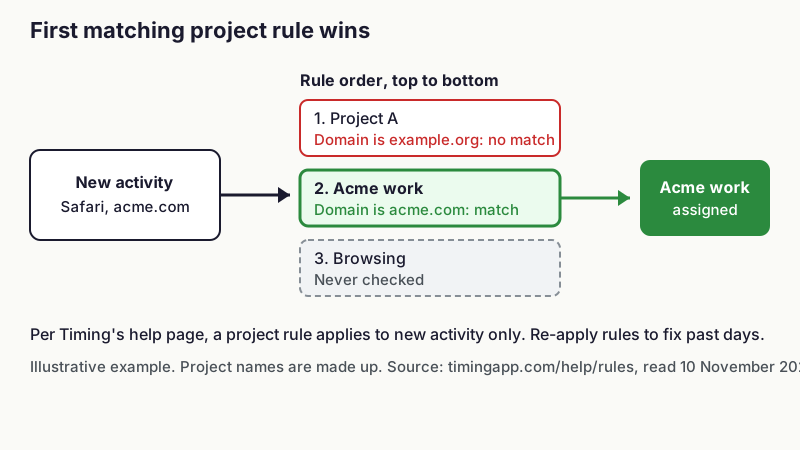
Two limits come from the documentation. Project rules apply only to activity tracked after you change them, so past days need a manual re-apply, which works on the visible date range. An activity can belong to only one project, which makes projects behave like buckets.
Timing's rules give you precise control at the cost of setup time. Expect to write and order several rules before a week of data files itself correctly.
What reports and exports does Timing have?
Reports are where Timing is strongest for billing. Timing says it cannot create invoices itself, but its reports are built to feed one. The Easy report mode lets you pick columns, group by day, week, month or year and choose whether to include only manual entries or automatic app time too.
Rounding goes up, down or to the nearest interval of 1, 5, 6, 10, 12, 15 or 30 minutes, or one hour. Exports come as Excel, CSV, PDF, HTML or JSON. Advanced reports add presets such as timesheets, time per app and raw app usage. Grouping by top-level project or by project hierarchy needs Expert.
TimeUno exports CSV and PDF only, so Timing has the wider export range. Neither tool creates invoices on its own.
Can teams use Timing?
Team features need the Connect edition. A manager sets up a team in the web app and shares projects, and members record time against them. The manager reviews those times in the web app, not in the Mac app.
Timing limits what a manager can see. Managers see the total time on each team project, and they cannot see which apps, documents or websites a member used. A member's non-team projects stay private.
What AI features does Timing have?
Timing has two AI features. AI activity summaries are on Expert and Connect on the pricing page. The MCP integration is on Connect only and lets an AI agent work with your Timing data.
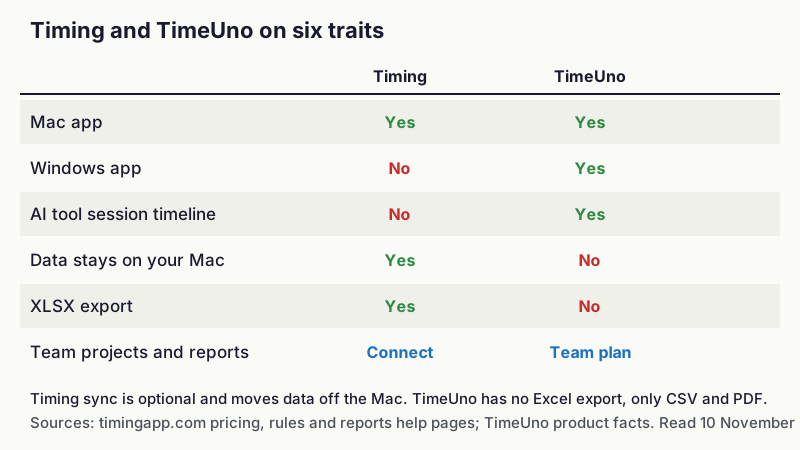
This is different from tracking AI tools. Timing records your own activity on the Mac. It does not record Claude Code or Cursor sessions as a separate timeline of agent work. TimeUno records that second timeline, and it has its own MCP server so you can ask Claude or ChatGPT about your time.
!Matrix comparing Timing and TimeUno on Mac app, Windows app, AI session timeline, local data, Excel export and team features
Figure 3: Timing and TimeUno on six traits, from vendor documentation read 10 November 2026.
What are Timing's pros and cons?
Pros, taken from the documentation:
- Rules can match on keywords, domains, paths, titles, applications, devices and time of day, with nesting and regular expressions.
- Reports export to Excel, CSV, PDF, HTML and JSON, with rounding down to 1-minute steps.
- Tracked time stays local unless you turn on sync.
- A 30-day trial needs no credit card.
- Connect adds the Web API, scripting, Zapier and two-way ClickUp, Linear and Clio sync.
Cons:
- It tracks on a Mac only, with no Windows or Linux tracker.
- It has no timeline for AI coding agents.
- Project rules take time to set up, and they do not apply to past activity until you re-apply them.
- Team features, MCP and the full integration list need the top edition.
- It has no built-in invoicing.
- It is not sold on the Mac App Store.
Who is Timing for?
Timing fits you if you work only on a Mac, bill clients from tracked time, and want fine control over how activity is sorted. It also suits you if you want XLSX or PDF timesheets with rounding and a trial without a card.
Pick something else in these cases:
- You use Windows alongside a Mac. TimeUno or another cross-platform tracker covers both.
- You run AI coding agents and want their working time counted. TimeUno records that.
- You want a free tracker. Best free time tracking apps lists them.
- You want to compare more Mac options. See best time tracking apps for Mac and best automatic time trackers.
Where TimeUno is the wrong pick: it has no free tier (a 14-day trial instead), no mobile app, no Linux desktop app, no invoicing, no Jira sync and no Excel export. If you need Clio or ClickUp sync, Timing Connect is the better fit.
Where can you try TimeUno?
TimeUno runs on macOS and Windows and tracks AI tool sessions as a second timeline. It costs $9.99 a month, or $8.33 a month billed yearly, after a 14-day trial. See timeuno.io and the MCP server.
FAQ
Is Timing available for Windows?
No. Timing tracks on macOS only. Its web app handles timers, reports and team management, but it does not record activity on a Windows computer.
How much does Timing cost?
Timing has three subscription editions: Professional, Expert and Connect. The pricing page sets the amount by region and currency, and it offers a 30-day trial with no credit card. Check the page for the figure you will pay.
Does Timing track automatically?
Yes. It records apps, documents and websites in the background, and you assign that time to projects with rules or by hand. Manual timers and entries are available too.
Can Timing create invoices?
No. Timing's help says it cannot create invoices by itself. You export a report as PDF, CSV or Excel, and Connect has a GrandTotal integration for invoicing.
Does Timing track Claude Code or Cursor?
It records the Mac apps you use, but it has no separate timeline for AI agent sessions. Its MCP integration on Connect lets an AI agent read and manage your Timing data, which is a different job.
Sources and checks
Read on 10 November 2026. Vendors change plans often, so confirm before you buy.
- Timing: pricing
- Timing: rules in depth
- Timing: reports and exports
- Timing: Timing for Teams