

Automatic time tracking Automatic time tracking, and how to correct it when it is wrong.
TimeUno records what you do at your computer without a timer: the app, the window, the site, the project and your idle time. No tracker gets every stretch right, so you also get the tools to fix the ones it misses.
Start 14-day trial 14-day trial, then $14.99 a month
What automatic time tracking means
A timer tool records only the time between the moment you press start and the moment you press stop. Automatic time tracking removes that step: software watches what is in front of you and builds the record while you work.
That has two limits worth knowing before you choose one. The tracker only sees work done at a computer, and it has to guess what some of that work was. A site like YouTube can be research or a break. A folder name does not say which client a task was for. A good automatic time tracker is the one that lets you correct those guesses quickly.
How TimeUno tracks time on its own
Setup takes a few minutes. After that, no daily action is needed.
- Install the desktop app on your Mac or Windows computer and sign in. Click Start tracking. Nothing is recorded before you do.
- Add the browser extension if you work in the browser. Without it, a browser shows up as just “Chrome” or “Firefox”.
- Work as usual. New activity appears on the dashboard a minute or two later. If you were offline, the app keeps the time on your computer and sends it once you are back.
- Open the Overview, the Timeline or the Projects page to read the result.
Time with no keyboard or mouse input is marked idle and kept apart from the time you were working. If you run AI coding tools, they appear on a second timeline next to yours. That is the part of the day a plain app tracker cannot see, and it has its own page: AI time tracking.
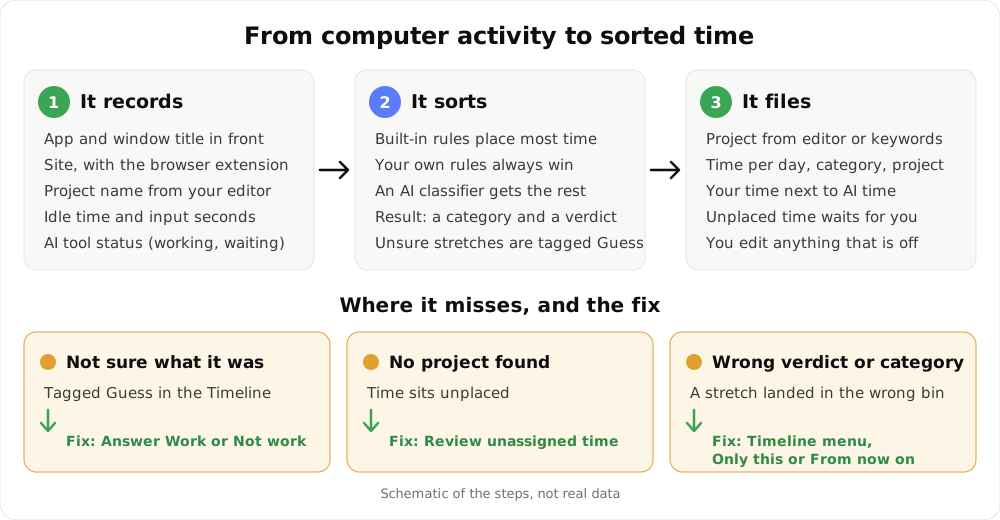
A schematic of the steps, not real data.
What it records, signal by signal
| Signal | Where it comes from | What it is used for |
|---|---|---|
| The app in front and its window title | Desktop app | Category and verdict |
| The site, address and title of the tab | Browser extension | Telling which site the window shows |
| The project name in an editor | package.json, Cargo.toml, go.mod, pyproject.toml or the folder name | Filing time under a project |
| Idle time and seconds with any input | Desktop app | Separating idle time from work |
| Working, waiting or done status of AI tools | AI tool integrations | The AI timeline |
| On-screen text | Read on your computer, on by default | Placing time that rules cannot place |
Every stretch gets a category (coding, design, writing, email, communication, meetings, research, learning, marketing, sales, admin, browsing, social, entertainment or other) and a verdict: productive or unproductive. Built-in rules place most time. Apps that can go either way, such as Slack, YouTube or X, are judged from the window title and what you were doing. Whatever the rules cannot place goes to an AI classifier. Your own rules always win over both.
What it does not record
TimeUno sees enough to file your time and not what you wrote.
- It counts seconds with input. It never records what you typed or where you clicked, and it never reads what you type into fields.
- From AI tools it sends metadata only: session times, working or waiting, model, tokens, cost, project folder and conversation title. Prompts, answers and code never leave your device.
- The on-screen text reading happens on your computer. It skips password managers and private or incognito windows, and it reads nothing while you are idle. The text is deleted once your time is sorted.
- You can turn that reading off per computer under Settings, Privacy. With it off, only app names and window titles are recorded.
On a team, admins see worked time, the productivity score and AI usage per person. They never see apps, sites, window titles or screenshots. The exact list lives on the privacy page.
Where automatic tracking goes wrong
Automatic tracking is not a mind reader. These are the situations where you will need to step in, and what to do.
| Situation | What TimeUno does | Your fix |
|---|---|---|
| An app that could be work or a break | Judges from the title and the site. If unsure, tags the time Guess | Answer Work or Not work when it asks, for example “Was Slack work?” |
| A wrong verdict or category | Keeps what it decided | Open the activity menu in the Timeline and change it |
| A new project folder | Asks “Track X as a project?” | Choose Add or Don’t add |
| Time it cannot file under any project | Leaves it unplaced | Find it under Review unassigned time on the Projects page |
| Work away from the computer | Records nothing | Not tracked. TimeUno has no mobile app |
| Tracking paused or stopped | Records nothing | Resume from the widget, tray or dashboard |
| A browser shown as just “Chrome” | Only knows the app, not the site | Install and connect the extension |
Fix a wrong verdict in a few seconds
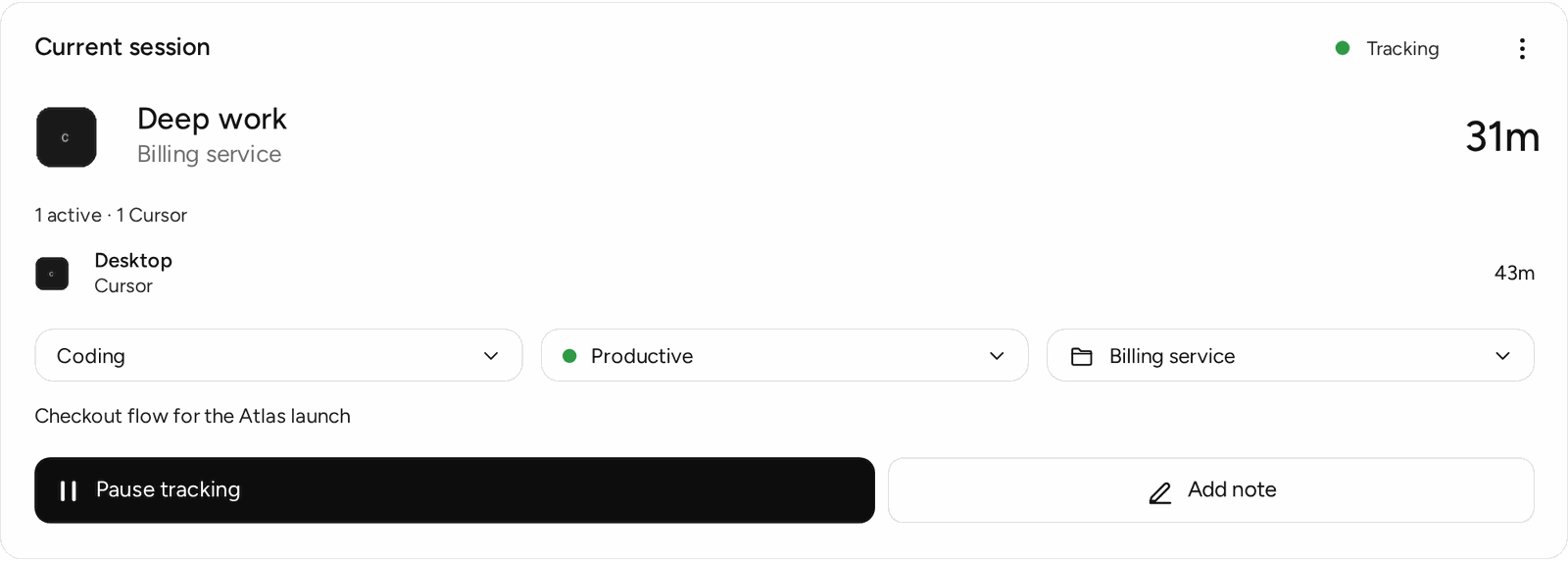
Open the menu on an activity in the Timeline, or on the current session card of the Overview. You can change its category, its verdict or its project. The menu asks how far the change reaches: Only this for the one block, or From now on for that app or site every time. A correction shows Undo for a moment.
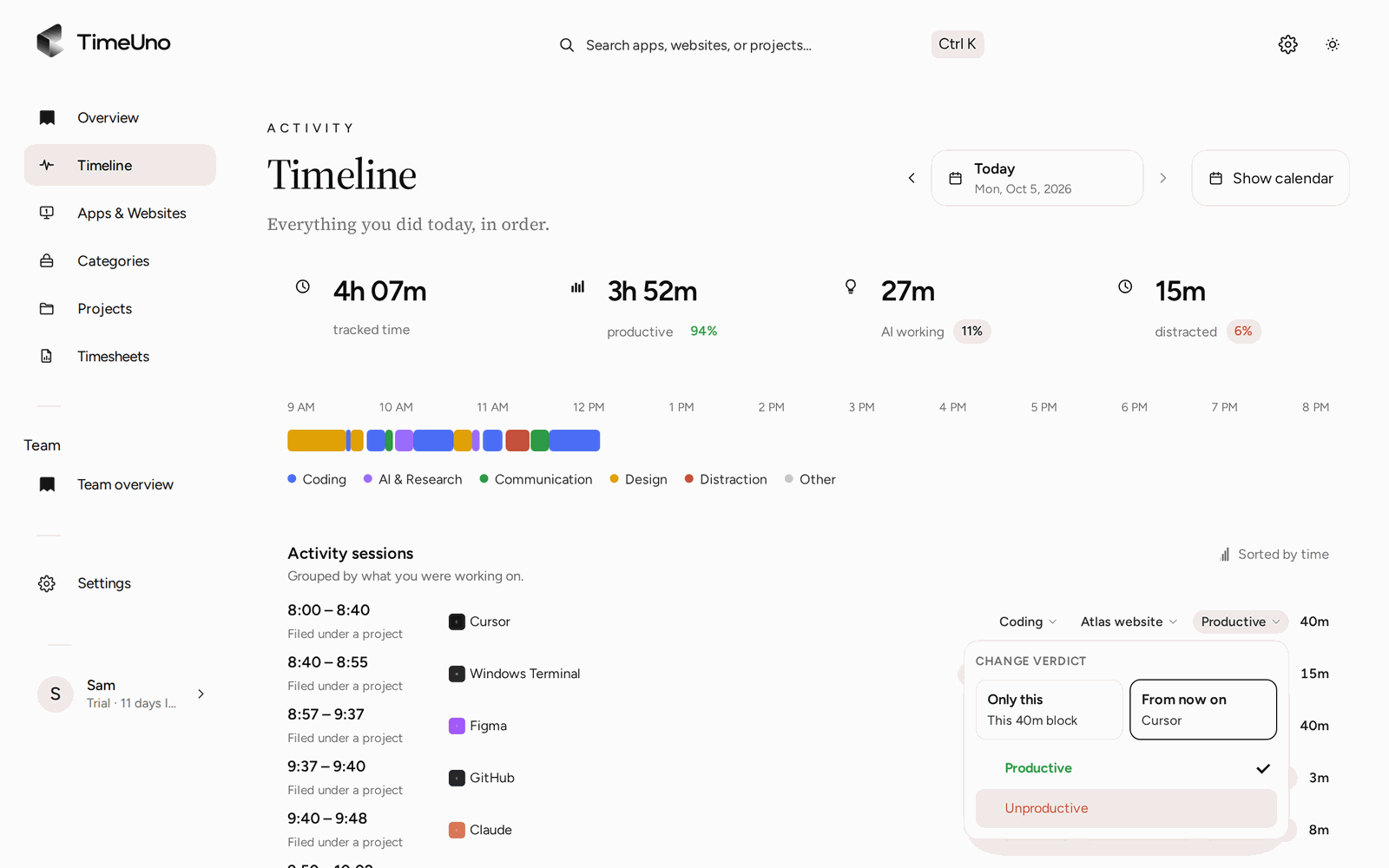
Set the verdict for one block, or for the app or site from now on.
The verdict says whether a stretch counts as productive or unproductive. It does not move time between projects. To file a stretch under a different project, change its project from the same menu.
When your one-off corrections for a site or app keep agreeing, TimeUno suggests making it a rule. Under Settings, Productivity you can add a site such as github.com or an app such as Figma and mark it Productive or Distraction. Your rules always win over the built-in defaults and the AI classifier. So the same correction is done once, not every week.
Review unassigned time on the Projects page
Time with no project does not disappear and does not get guessed into the wrong client. The Projects page shows one week at a time: total project time, the split between you and your AI tools, and a table of every project ranked by time. Time that could not be filed shows under Review unassigned time, and you move any activity to the right project from the Timeline.
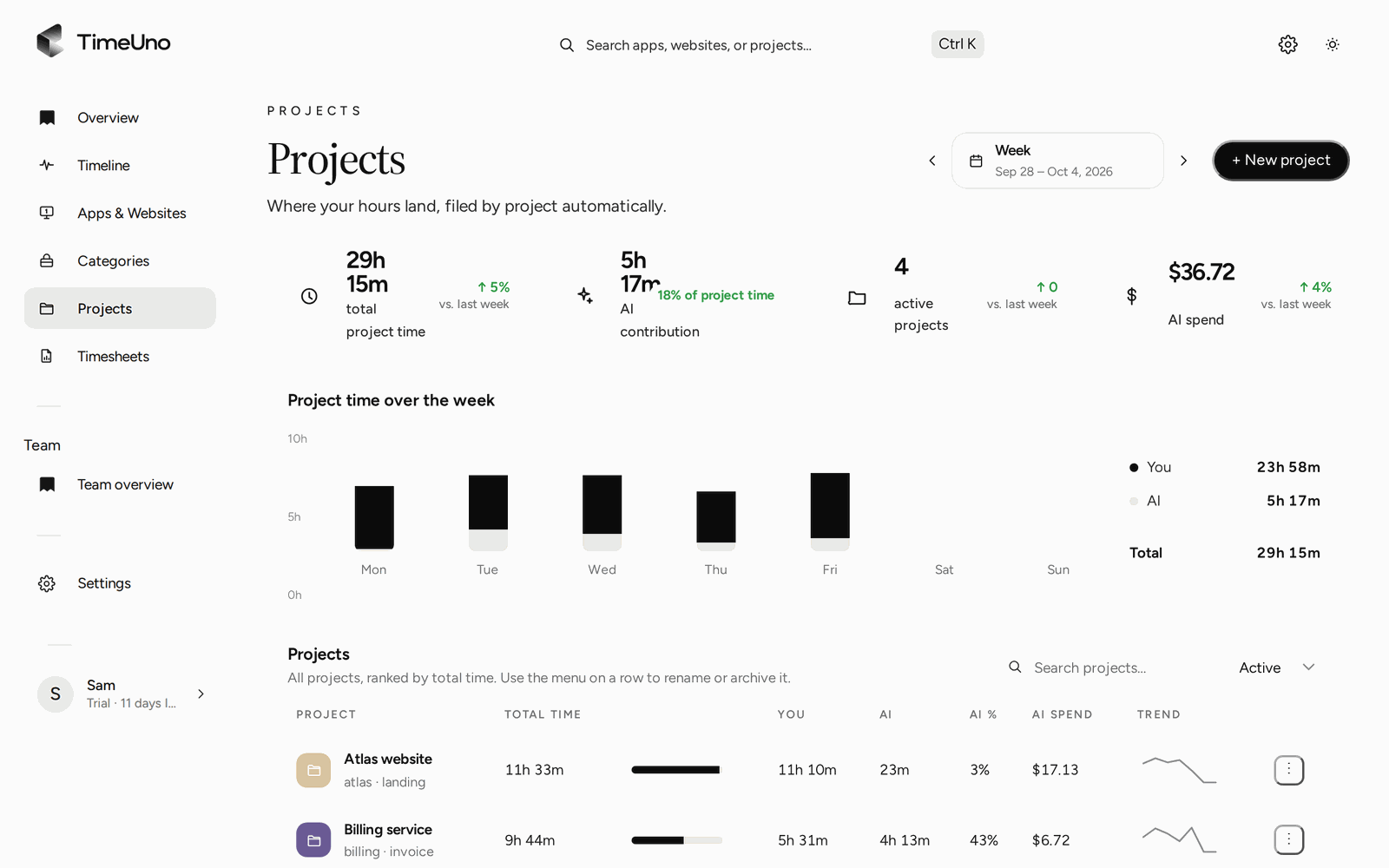
Projects show your time and AI time per project. Unplaced time waits under Review unassigned time.
A short routine keeps the record clean: glance at the unassigned time once a week before you build a timesheet, answer any Was this work? questions as they come up, and turn repeated corrections into rules.
Pause when you need to
Automatic does not mean always on. From the desktop widget you can pause for 15 minutes, 30 minutes, 1 hour or until you resume. The tray menu, the extension popup and the Overview’s current session card pause too. A paused computer records nothing about your screen and sends nothing until you resume.
Timer or automatic tracking?
| If this is true for you | A timer fits | Automatic fits |
|---|---|---|
| Your work happens at a computer | Possible | Yes |
| You forget to start the timer | No | Yes |
| You work on a phone or away from a screen | Yes | No |
| You want to log one named task by hand | Yes | Less so |
| You want AI tool time next to your own | Rarely | Yes |
Timer tools differ in what they offer and what they cost. Check each one’s current plans before you decide.
Limits
TimeUno runs on macOS 11 and newer and on Windows, with Linux in testing, and has no mobile app. It is not a certified time clock and does not make anyone compliant with working time law. For the step after tracking, see automatic timesheets: they are built from the project time you already recorded and exported as CSV or PDF.
Updated 28 October 2026
Questions people ask
Does automatic time tracking need a timer?
No. After you install the desktop app and click Start tracking, TimeUno records the app or site in front of you on its own. You can pause it, but there is no start button to remember each day.
Does TimeUno record what I type?
No. It counts how many seconds had any keyboard or mouse input, never what you typed or where you clicked. For AI tools it sends metadata only, and your prompts, the answers and your code stay on your device. The full list is on the privacy page.
Can my employer see my apps and websites?
On a Team plan, admins see worked time, the productivity score and AI usage per person. They never see anyone's apps, sites, window titles or screenshots. TimeUno is not employee monitoring software.
What if it puts time under the wrong project or verdict?
Open the activity in the Timeline and change its category, verdict or project, either for only that block or from now on. Time it could not place waits under Review unassigned time on the Projects page.
Where does it run?
On macOS 11 or newer and Windows, with a Linux version in testing. There is a browser extension (Firefox is live) and a headless agent for servers. There is no mobile app.
How much does it cost?
Individual is $14.99 a month, or $10.49 a month billed yearly. Team is $19.99 per seat a month, or $13.99 per seat billed yearly. Both start with a 14-day trial, and there is no free plan.