

Time tracking dashboard A time tracking dashboard that answers one question: where did the day go?
Most dashboards show charts of numbers you typed in yourself. The TimeUno Overview is built from time recorded as you work, so you open it to read, not to fill in. Here is what is on it, what to check and when.
Start 14-day trial 14-day trial, then $14.99 a month
What a dashboard is for
A time tracking dashboard turns recorded hours into something you can read in a minute. It earns its place if it answers three things: how much time was tracked, what it went to, and whether anything looks wrong.
It fails when it is a wall of charts you have to feed by hand. If the numbers come from timers you forgot to start, the dashboard shows your memory, not your week. TimeUno records the app in front of you, idle time and the seconds with keyboard or mouse input, so the dashboard fills itself. It never records what you type.
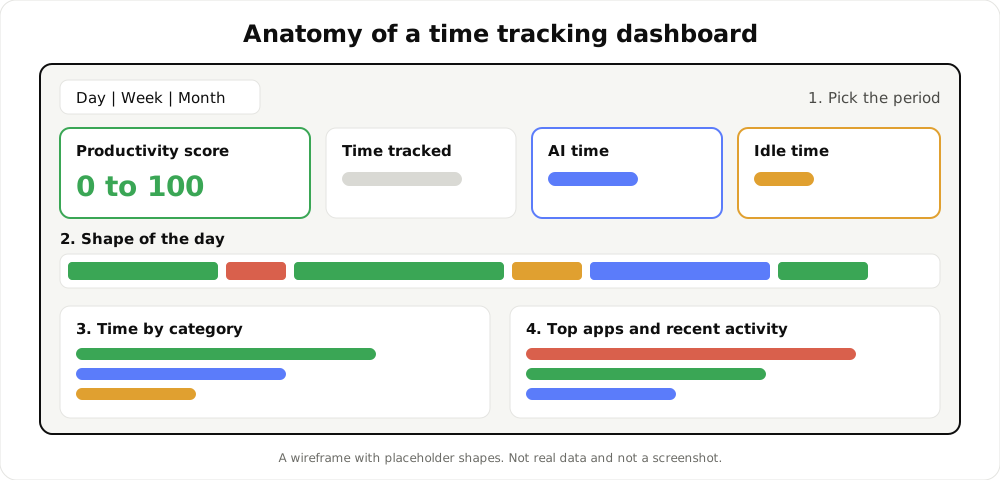
A wireframe with placeholder shapes, not real data. It shows the order in which to read a dashboard.
Walking through the Overview
Sign in at app.timeuno.io and the sidebar opens on Overview. From top to bottom:
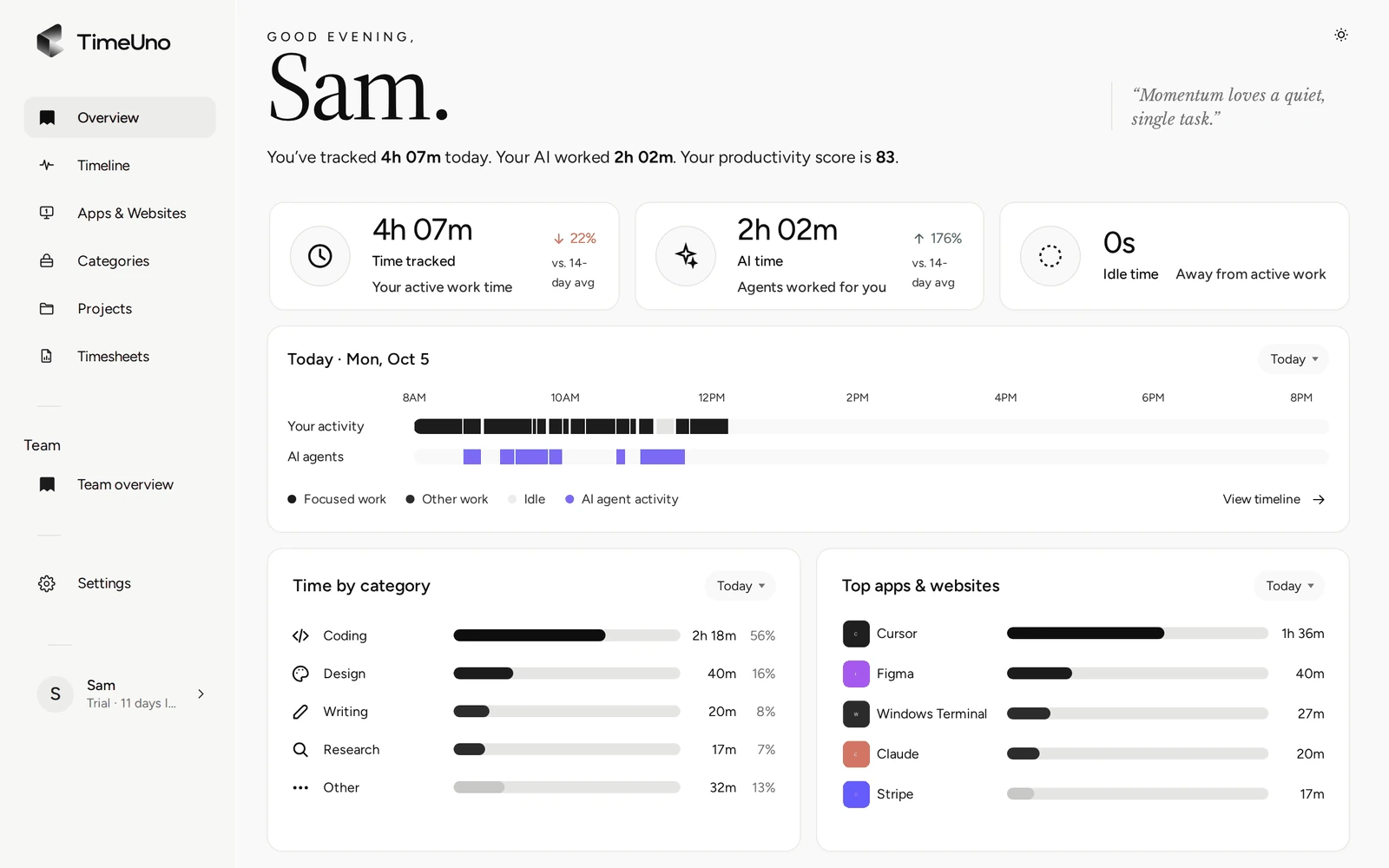
- Period switch. Day, Week and Month at the top. The arrows step back and forward. The search in the top bar finds apps, websites and projects.
- Productivity score. The greeting gives a score from 0 to 100. It is the grade of your activity weighted by time, where deep work counts most and distractions least.
- Headline numbers. Time tracked, AI time and idle time, compared with your average over the 14 days before today.
- The shape of the day. A strip showing how the hours were laid out: where the long blocks were, where the gaps are.
- Cards. Time by category, top apps and your recent activity.
- Current session. What you are doing right now and which AI tools are working. You can correct the category, verdict or project from it, or pause tracking for 15 minutes, 30 minutes, 1 hour or until you resume.
The Overview for a day.
The rest of the sidebar goes deeper on the same time. Timeline lists the day as sessions. Apps & Websites shows time per app and site, with time, AI time and the projects each went to. Categories compares this week with last week. Projects shows time per project, and Timesheets turns it into sheets for clients.
What to look at every day
Two minutes at the end of the day is enough.
- Day view, time tracked. Does the number match how the day felt? A big gap usually means a stretch spent away from the computer, or a computer that was not connected.
- The shape of the day. One long block is a different day from forty short ones. The strip shows which one you had.
- Top apps. Anything near the top that should not be there is worth a note.
- Guessed time. On the Timeline, time TimeUno guessed is tagged Guess and may ask Was this work? Answer it while you still remember.
Corrections are the part that makes the dashboard honest. If a stretch got the wrong verdict, set it yourself. Your correction is remembered and becomes a rule, so the same mistake is less likely tomorrow. TimeUno does not move time between projects for you, so check the project on anything that matters for billing.
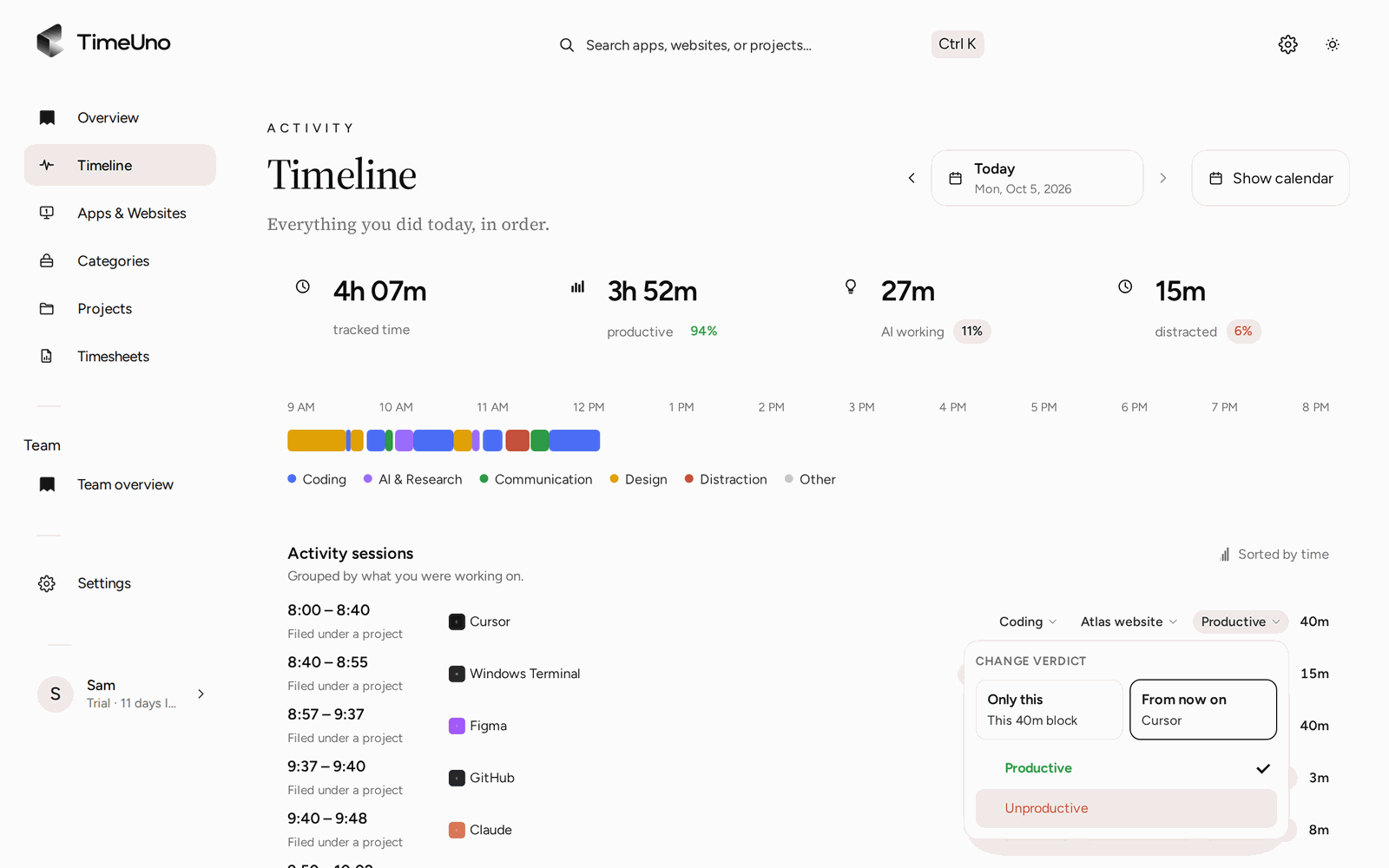
Correcting a session on the Timeline.
What to look at every week
Switch to Week and step back one period so you have something to compare.
- Categories this week against last week. If coding shrank and communication grew, you can see where the hours went.
- Productivity score trend. One low day means little. Three in a row is a pattern worth a look.
- Projects. Does each project have about the time you expected? An unexpected one is a prompt to check scope or billing, not a verdict.
- Timesheets. If you bill, build the sheet from the week’s project time, edit the lines and mark it ready. See automatic timesheets for how that works.
A monthly look is the same routine with a longer lens, mostly for projects and categories.
What the team overview shows admins
On a Team plan, Team overview is the admin’s version of the dashboard. Owners and admins see, per person, for the last 7, 30 or 90 days or all time:
- Worked time
- Productivity, the 0 to 100 score with the share of time that was productive
- AI usage
- Trend
You can sort by any of the first three. People who have not tracked anything yet show whether their desktop app is connected, which is usually the first thing to fix. The page also shows the team’s AI spend and the hours spent on shared projects.
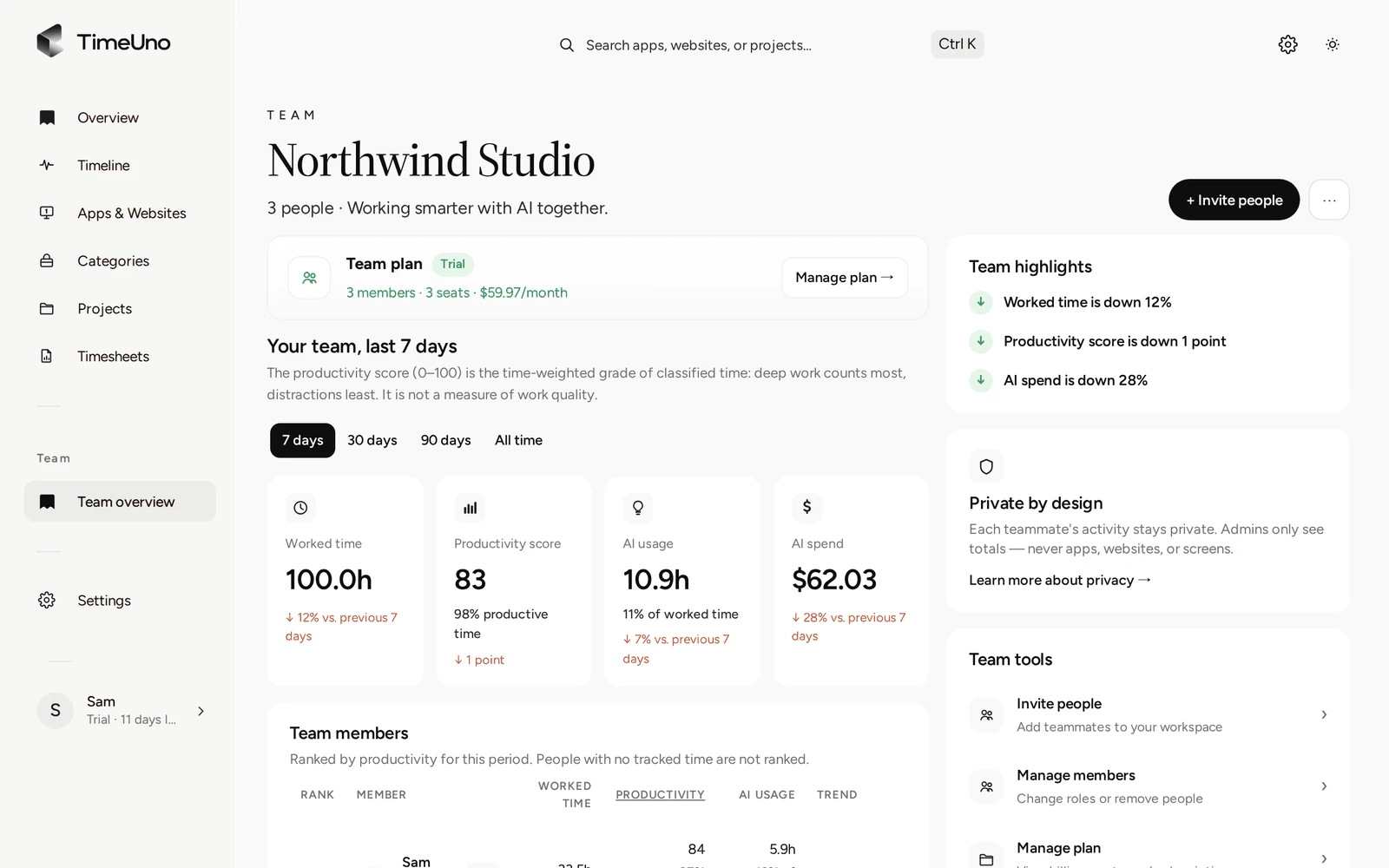
The Team overview for the last 7 days.
What it leaves out is on purpose. Admins never see anyone’s apps, sites, window titles or screenshots. Each person’s detailed day, the Overview and the Timeline, is visible only to them. TimeUno is not employee monitoring software, and the overview is meant for workload, not surveillance. The numbers tell you how much was worked and how much AI help was used, and a conversation does the rest.
What the dashboard does not do
- It runs on macOS 11+ and Windows desktop apps, with a Firefox extension for sites. Linux is in testing. There is no mobile app, so time away from a computer is not recorded.
- It is not a certified time clock. If you must keep clock-in records, check your local rules.
- It does not create invoices or connect to accounting software. Timesheets export as CSV or PDF.
- The browser extension sends the site, address, title and up to 4,000 characters of visible page text. On-screen text reading is on by default and can be turned off per computer.
Pricing
There is no free plan. Every plan starts with a 14-day trial, a card is added at the start and it is charged when the trial ends. Individual is $14.99 a month ($10.49 billed yearly). Team is $19.99 per seat a month ($13.99 billed yearly).
To compare dashboards across tools, read best automatic time trackers in 2026 and check each tool’s current plans. For the score itself, see the productivity tracker page.
Updated 28 October 2026
Questions people ask
What does the TimeUno dashboard show?
The Overview shows your productivity score from 0 to 100, headline numbers compared with your average over the 14 days before today, a strip with the shape of the day, and cards for categories, apps and recent activity. Other pages show the Timeline, Apps & Websites, Categories and Projects.
Can I switch between day, week and month?
Yes. Day, Week and Month switch the period at the top of the dashboard, and the arrows step back and forward.
How fresh is the data?
Your apps send time as you work, and new activity shows up a minute or two later. If you were offline, the desktop app keeps the time on your computer and sends it once you are back.
What does a team admin see on the dashboard?
On a Team plan, owners and admins see worked time, the productivity score, AI usage and a trend per person, for the last 7, 30 or 90 days or all time. They never see anyone's apps, sites, window titles or screenshots.
Is there a mobile dashboard or a free plan?
No to both. The dashboard runs in the browser at app.timeuno.io, and TimeUno has no mobile app. Every plan starts with a 14-day trial, with a card added at the start.