

Blog Productivity Jira Time Tracking Per Ticket Without a Plugin
Productivity · Nov 14, 2026
Jira Time Tracking Per Ticket Without a Plugin
Jira time tracking per ticket, four ways: native worklogs, Tempo, Everhour or Harvest, and tracking automatically then copying hours into Jira.
How do you do Jira time tracking per ticket?
You have four options: log time by hand with Jira's own Log work field, install a marketplace app such as Tempo, Everhour or Harvest, track automatically and copy hours into worklogs, or combine the last two. Pick by how much you need Jira reports to match your hours.
This guide compares the four with one rule: say what each one does not do. TimeUno, the app we make, is an automatic time tracker for macOS and Windows, and it does not sync with Jira. It sees the time you spend in Jira automatically, and you decide what goes into a worklog.
| Method | Plugin in Jira | Timer to start | Hours land in Jira worklog |
|---|---|---|---|
| Native Log work | No | You type the time | Yes, by hand |
| Tempo Timesheets | Yes | Yes, a Tempo tracker, plus suggestions | Yes, by default |
| Everhour or Harvest | Yes | Yes | Everhour: if sync is on. Harvest: shown on the issue |
| Track automatically, copy to Jira | No | No | Yes, by hand |
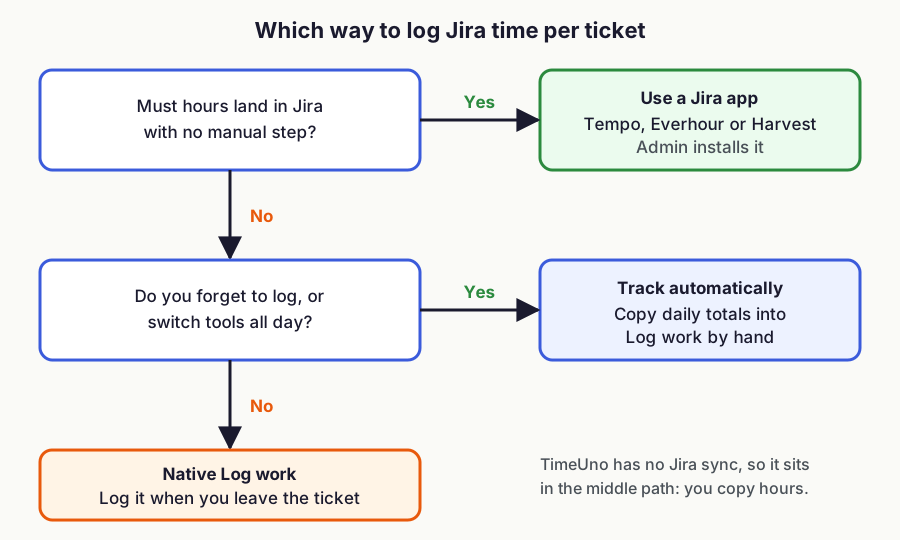
!Decision flowchart: use a Jira app if hours must land in Jira with no manual step, track automatically and copy if you forget to log, otherwise use native Log work
Figure 1: which of the four ways fits. Based on the comparison above and the vendor docs listed under Sources.
Last reviewed: November 2026.
What does Jira's built-in time tracking do?
Jira Cloud has a Time tracking field and a Log work action on every work item. You enter time in weeks, days, hours and minutes, for example 2d 4h 30m, and Jira shows time logged against the estimate. It needs no extra app and no extra cost.
Atlassian documents the steps: open the work item, choose More actions, then Log work. If you do not see the field, an admin has to enable it and you need the Work on work items permission. See Log time on a work item (Atlassian Support, checked November 2026).
The Log work form has no timer, so you enter the time yourself and the entry is only as good as what you remember at 5 pm or on Friday. Two small rules help:
- Log work when you leave a ticket, not at the end of the day.
- Write the unit every time. A bare "2" uses the default unit your Jira admin set, which may not be hours.
What do the Log work fields and the Remaining estimate do?
Log work records time spent, a start date and a comment, and it can change the ticket's Remaining estimate. The Remaining estimate is the usual trouble spot, because editing or deleting a worklog later does not rewrite it for you.
Atlassian's Data Center documentation lists the Log Work fields: Time spent, Date started, Remaining estimate and Work description. Remaining estimate has five choices: Adjust Automatically, Use Existing Estimate, Set to, Reduce by and Leave unset. Source: Logging work on issues (Atlassian, Data Center; Cloud's window may differ).
!Bar chart of the Remaining estimate after logging 3 hours on an 8 hour ticket: 5 hours with Adjust automatically, 8 with Use existing estimate, 4 with Set to 4h, 7 with Reduce by 1h
Figure 2: how each Remaining option treats a 3 hour worklog on an 8 hour ticket. The numbers are illustrative; the options are from Atlassian's documentation.
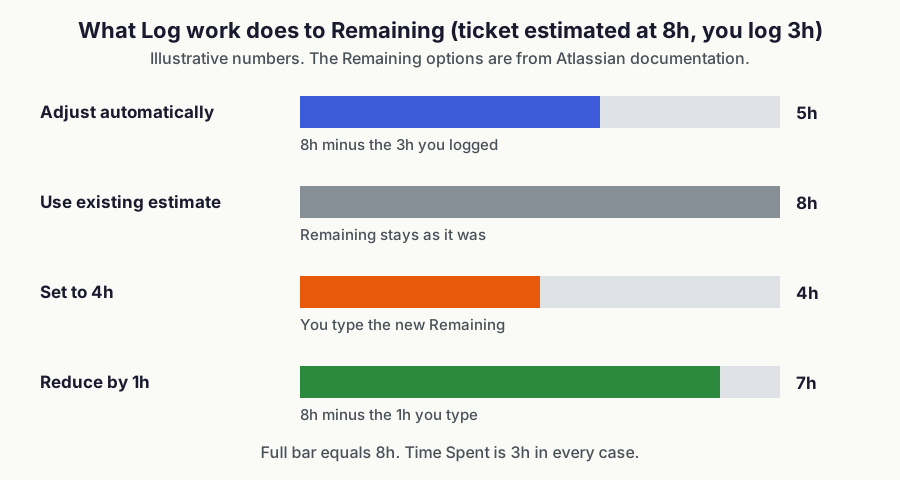
For Jira Cloud, Atlassian says that when you edit or delete a worklog, the previous values do not change and are used to calculate the remaining time. If Remaining is not what you expect, fix it by hand in the Edit work log window. Edit and delete rights are separate permissions for your own and for everyone's worklogs.
Two admin settings change what your units mean. Admins set working hours per day, working days per week, the time display format and the default unit under Jira's time tracking settings. On Data Center the default conversion is 1 week = 5 days and 1 day = 8 hours, so write "3h" rather than "3d" if you mean hours. Source: Configure time tracking (Atlassian, as of November 2026).
How do you see time per ticket afterwards?
Search worklogs with JQL, and read the time tracking report for estimate against actual. JQL has worklogDate and worklogAuthor fields, so a query like worklogAuthor = currentUser() AND worklogDate >= startOfWeek() lists the tickets you logged on this week. The fields only exist when time tracking is on, and for a ticket with more than 1,000 worklogs JQL searches only the most recent ones.
Atlassian also documents a time tracking report that compares original and current estimates, and a work ratio field (time spent divided by original estimate, times 100). Sources: JQL fields, Log time on a work item. One limit to know: work items with more than 100 child work items cannot be included in time tracking.
If you have many entries, Jira Cloud's REST API has an Add worklog call (POST /rest/api/3/issue/{issueIdOrKey}/worklog). It takes a start time and either a timeSpent string such as "3h 20m" or timeSpentSeconds, plus a comment. TimeUno does not call it, so a script would be your own code. See Jira Cloud REST API, issue worklogs.
Which Jira apps add a timer and reports?
Marketplace apps add a start/stop timer inside the issue, and some add timesheets and approvals. Everhour's and Harvest's docs say a Jira admin has to install the add-on, and Everhour only works for the people you invite to it.
- Tempo Timesheets installs into Jira and, per Tempo, connects to your calendar, Slack, IDE and mobile, suggests entries you log in one click, and has a Tempo tracker stopwatch in the work item panel. Tempo says it groups worklogs by customer, contract or cost center, and it has approval flows. By default a worklog created in Tempo creates a matching Jira worklog, but later edits made in Jira are ignored in Tempo (as of November 2026). Sources: Tempo, Time Tracking Software for Jira, Syncing Data Between Jira and Tempo, Logging Time with a Tempo Tracker.
- Everhour adds a timer to Jira Cloud issues and can take over time tracking from Jira's own fields. Its docs say time entries made in Everhour go into Jira's native worklog when sync is enabled, and that it does not sync history or time entered directly in Jira. Source: Everhour, Connecting with Jira Cloud (updated December 2025).
- Harvest has an add-on for Jira Cloud products. You pick a Harvest project and task on the issue, and the notes field is filled with the issue ID and title. Its docs say time tracked shows on the Jira issue; they do not say it writes a native Jira worklog. Source: Harvest Help Center, Jira.
Check pricing and plan limits on each vendor's site before you buy. They change, and we are not quoting them here.
Can you track Jira time automatically, without a plugin?
Yes, but only to a point. An automatic tracker records the app and window you are in, so Jira shows up as time on a Jira page, not as time on ticket PROJ-123. Whether the ticket is visible depends on what the window or page says.
Here is what TimeUno records, from its product facts: the app in front, the window title, idle time, and seconds with any keyboard or mouse input (never what you typed or clicked). The browser extension adds the site, address, page title and up to 4,000 characters of visible page text. On-screen text is read on your computer, is on by default, and can be turned off per computer or for the whole workspace. No screenshots are saved.
So a ticket key can show up in your timeline when it is in the browser's tab title or the page address. We could not confirm from Atlassian's documentation what Jira puts in the tab title, so do not assume. Check this on your own Jira once: open a ticket and read the tab title and the address. If either holds the key, you can find that key in the timeline. If your Jira shows only a board name, you will see time on the board, not per ticket.
Two limits:
- TimeUno does not read a ticket key and create a worklog. Nothing is written back to Jira.
- Time on a Jira page is not proof of work on that ticket. Your real work may be in the editor, a terminal or a doc, with Jira open beside it.
What is the workflow: track automatically, then copy into worklogs?
Let the timeline run all day, then once a day turn it into worklogs. The tracker replaces the timer, and Jira's worklog stays the record. Matching once a day keeps it short.
- Work normally. Do not start or stop anything.
- At the end of the day, open the day's timeline and group it by project.
- For each ticket you touched, add up the editor, terminal and Jira time around it.
- In Jira, open the ticket, choose Log work and enter the total with a one-line comment.
- Round to the unit your team bills in, for example 15 minutes. TimeUno's rounding setting offers 6, 15 or 30 minutes.
!Four-step flow from automatic timeline to Jira Log work, with the matching and logging steps marked manual
Figure 3: the daily routine. TimeUno has no Jira sync, so steps 3 and 4 are manual.
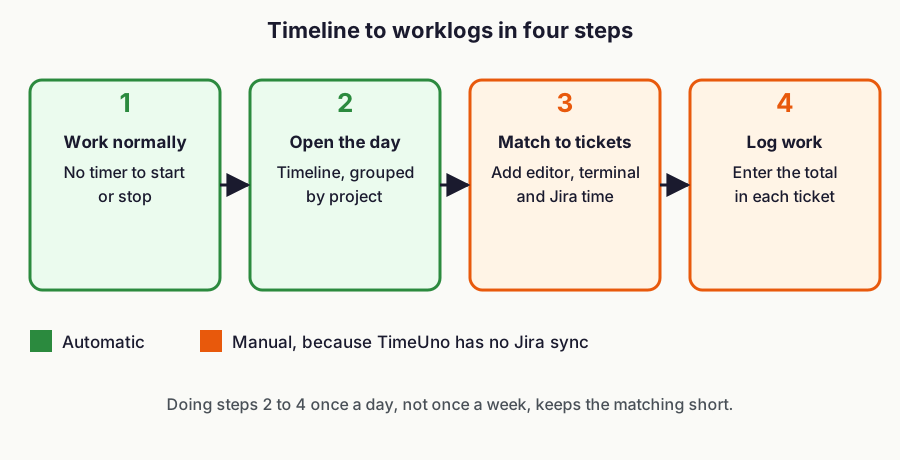
Step 3 is manual: you do the matching. That is why it works with any Jira setup and no admin approval, and why it is slower than an integration.
Worked example (illustrative numbers)
These numbers are made up to show the arithmetic. They are not a measurement.
| Ticket | Editor and terminal | Jira page | Total | Logged at 15 min rounding |
|---|---|---|---|---|
| PROJ-101 login bug | 1 h 40 min | 12 min | 1 h 52 min | 2 h |
| PROJ-102 API docs | 55 min | 8 min | 1 h 03 min | 1 h |
| PROJ-103 review | 20 min | 25 min | 45 min | 45 min |
The day shows 3 h 45 min logged against a 3 h 40 min timeline. The gap is rounding, and you can see it. A manual log from memory has no timeline to check against.
If you use AI tools, count them separately
If Claude Code or Cursor does part of a ticket, your attention time and the tool's working time are different numbers. TimeUno shows them as two timelines, so you can log your hours and still see how long the agent worked. Whether the AI time belongs in a worklog is your team's rule, not Jira's. For the setup, see how to track time spent on AI tools.
Which method should you pick?
Pick the app if your team must see timers and approvals inside Jira. Pick native logging if you log rarely and want zero tools. Pick automatic tracking if your problem is forgetting, and you are fine copying hours yourself.
- Native only: a few tickets a week, no billing tie-in.
- Tempo: finance reads Jira worklogs, you need approvals and cost reports.
- Everhour or Harvest: you want a timer on the ticket and reports outside Jira.
- Automatic tracking: you work across editor, terminal and browser and lose time between tickets.
TimeUno has gaps. It has no free tier (every plan starts with a 14-day trial, card at the start), no mobile app, no Jira sync and no invoicing. If you need hours to appear in Jira without touching them, choose a Jira app. See automatic time tracking for how the tracker works, project time tracking for grouping by project, and pricing for plans (Individual $9.99 per month, or $8.33 billed yearly).
## FAQ
### Does Jira have a built-in timer for logging time?
No, Jira's Log work form has no timer. You enter the time yourself, for example 2d 4h 30m, so the entry depends on what you remember.
Do you need a plugin to track time per ticket in Jira?
No, you can log time per ticket with Jira's own Log work action and no extra app. A marketplace app such as Tempo, Everhour or Harvest adds a timer and reports inside Jira, and a Jira admin has to install it.
Can TimeUno log hours into Jira automatically?
No, TimeUno does not sync with Jira or create worklogs. It records the time you spend in Jira automatically, and you copy the hours into Jira with Log work yourself.
Can an automatic time tracker show time per Jira ticket?
Only when the ticket key is visible in the browser tab title or page address. TimeUno records the app, window title and, with the browser extension, the site, address and page title, so a key in either place can be found in the timeline.
Why is the Remaining estimate wrong after I edit a worklog?
Jira does not recalculate it for you. Atlassian says the previous values stay and are used to work out remaining time, so correct it by hand in the Edit work log window.
Can Jira show who logged time on a ticket and when?
Yes, through worklogs and JQL. The worklogAuthor and worklogDate fields filter by person and date, as long as time tracking is enabled.
Sources
- Log time on a work item, Atlassian Support
- Configure time tracking, Atlassian Support
- Logging work on issues, Atlassian Data Center
- JQL fields, Atlassian Support
- Jira Cloud REST API, issue worklogs
- Tempo, Time Tracking Software for Jira
- Tempo Help Center, Syncing Data Between Jira and Tempo
- Tempo Help Center, Logging Time with a Tempo Tracker
- Everhour, Connecting with Jira Cloud
- Harvest Help Center, Jira: Track time from Jira issues
All vendor details as of November 2026.
See how TimeUno tracks the time you spend in Jira with no plugin: Jira time tracking with TimeUno.