

Blog Productivity Automatic time tracking: how it works, who it fits
Productivity · Nov 15, 2026
Automatic time tracking: how it works, who it fits
Automatic time tracking records your apps and sites without timers. See how it works, where it is inaccurate, what it records, and who should skip it.
What is automatic time tracking?
Automatic time tracking records what you work on from your computer activity, so you never start or stop a timer. A background app notes which app, window and site is in front of you, then groups that time into projects you can review later.
An automatic time tracker answers one question well: where did my hours actually go. It does not know why you opened a window, so you still review and correct the result.
Last reviewed: November 2026.
Which time tracker records my work automatically without starting timers?
Any app that captures app and window activity in the background lets you track time without timers. TimeUno is one of them: it is an automatic time tracker for macOS and Windows, with Chrome, Firefox and Edge extensions for sites. Our list of the best automatic time trackers compares the options side by side.
Check four things before you pick one: the platforms it runs on, what it records, who can see the raw capture, and what you can export. TimeUno has no mobile app and no Linux build. It exports CSV and PDF only, and it does not create invoices.
How does automatic time tracking work?
A desktop app reads which application is in the foreground and its window title. A browser extension adds the site and page title, because a desktop app alone only sees "browser". Idle detection marks the stretches where nothing was happening.
Each stretch then gets a category and, if it can, a project. Projects are matched from clues such as the project folder in your editor, the client name in a window title, or keywords you set up by hand.
!Five steps from computer activity to a timesheet: capture, group, review, learn, export. Three run automatically and two need you.
Figure 1: The automatic tracking loop as TimeUno runs it. You are involved at review and at export.
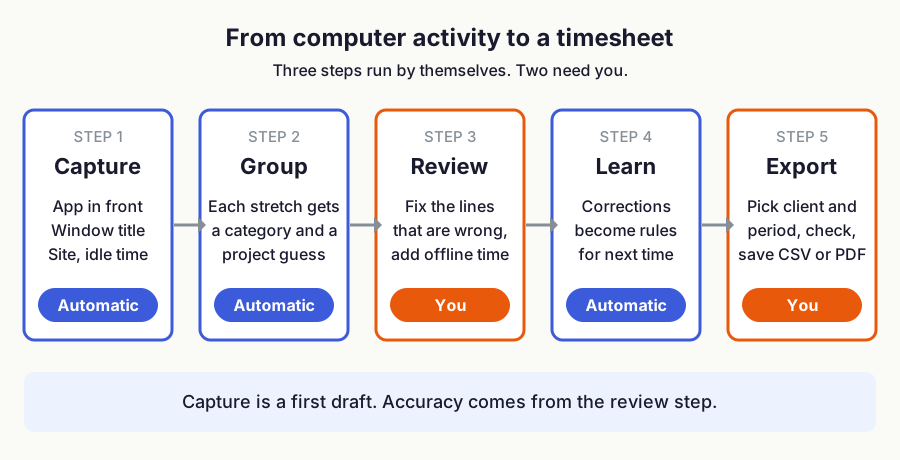
In TimeUno, every stretch of time gets a category such as coding, writing, email or meetings, and a verdict of productive or unproductive. When you correct an entry on the timeline, the correction is remembered and becomes a rule for next time.
What do automatic time trackers actually record?
It differs by product. Two examples, as of November 2026: ManicTime records apps, websites and documents on the device and works offline. Clockify's auto tracker keeps its activity on your computer, visible only to you, and you turn it into time entries yourself.
That last step is the main difference. Some tools hand you raw activity and ask you to build entries. Others label and group it for you and ask you to fix mistakes. TimeUno does the second: you correct a line once and the rule applies from then on.
| Question to ask | Why it matters | TimeUno |
|---|---|---|
| Which platforms? | A tracker on one computer misses work on another | macOS and Windows, no mobile, no Linux |
| Raw activity or labelled time? | Decides how much you assemble by hand | Labelled by category and project, you correct |
| What leaves the computer? | Privacy and policy approval | App, window title, idle time and input seconds, no screenshots |
| Can corrections stick? | Decides whether week four is faster than week one | Corrections become rules |
| What can you export? | Decides how you invoice | CSV and PDF only |
How can I automatically create timesheets from my computer activity?
Track your work in the background, then build the timesheet from the project time you already have. In TimeUno you pick a client and a period (this week, last week or this month), review one line per day or per work block, edit any line, and export a CSV or PDF.
The result is a set of automatic timesheets you check instead of write. Rounding to 6, 15 or 30 minutes is set under Settings. If you bill by the hour, the guide to tracking your work hours covers the surrounding habits.
How accurate is automatic time tracking?
It is accurate about what was on screen and blind to everything else. A call on your phone, a meeting at a whiteboard, or reading a printed contract all look like idle time. Time in a browser tab can be filed under the wrong project if the tab title does not say what the work was.
Treat the capture as a first draft. Review it at the end of the day or week and fix the few wrong entries. Most fixes come from the same few apps and sites, so rules built from your corrections save time after the first week.
| What happened | What the tracker sees | What you do |
|---|---|---|
| Wrote a proposal in a document editor | App and document title | Nothing, if the title names the client |
| Phone call with a client | Idle time | Add the call by hand |
| Several clients in one browser | Tab titles | Fix the first wrong line, the rule covers the rest |
| Read a printed contract | Idle time | Add it by hand, or skip it |
What does a first week look like?
Install it, work normally, and leave the settings alone on day one. At the end of each day open the timeline and correct the entries that landed in the wrong project. By day three or four you will notice the same two or three apps and sites causing most fixes.
Fix those with rules, then move to a weekly review. If you still correct dozens of lines a week by the end of the month, the tracker is not matching how you work, so try another tracker or go hybrid.
Is automatic time tracking private?
It depends on what the tool records and who can see it, so read the product's data list before you install. Good tools record which app or site you used, not what you typed.
TimeUno records the app in front, the window title, idle time and the seconds with any keyboard or mouse input, but never what was typed or clicked. It saves no screenshots. On-screen text is read on the computer and only the text is sent. That setting is on by default and can be turned off per computer or for a whole workspace. Data is stored on TimeUno's servers.
On a team plan, members are notified 7 days before admins can see apps and websites. For a closer look at activity capture, see the screen time tracker page. TimeUno is a timesheet tool and is not built as employee monitoring.
Manual, automatic or hybrid: which should you use?
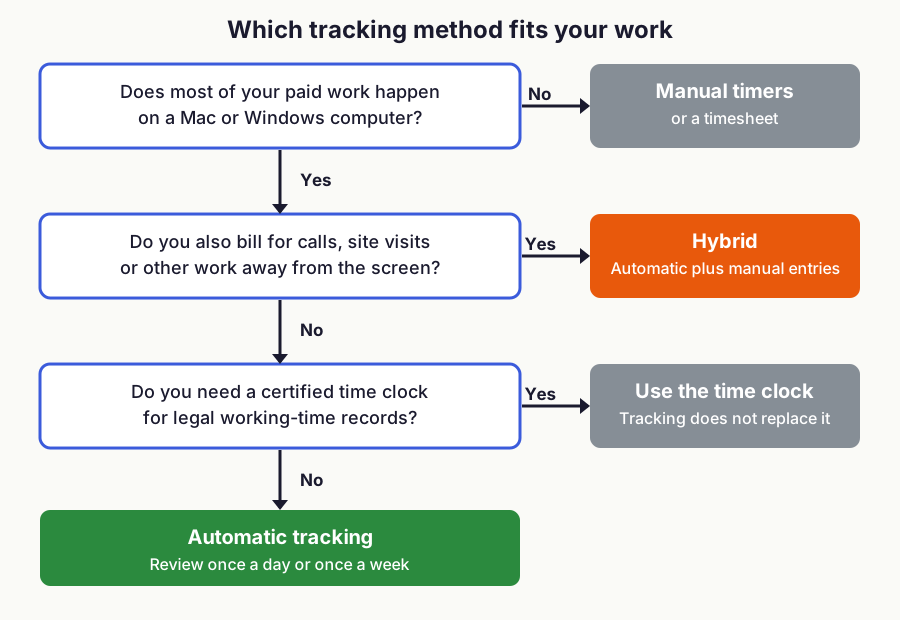
Use manual tracking when you work away from a computer, automatic tracking when your work happens on one, and a hybrid when both are true. Hybrid means the app records in the background and you add the offline time by hand.
!Decision flowchart: three questions lead to manual timers, hybrid, a certified time clock or automatic tracking.
Figure 2: Which method fits. A rule of thumb from the TimeUno team, not a study.
| Method | You do | Good for | Weak at |
|---|---|---|---|
| Manual timers | Start and stop for every task | Short, clearly separate tasks | Forgotten timers, rebuilt weeks |
| Automatic | Review and correct | Computer work across many apps | Offline work, vague window titles |
| Hybrid | Review, plus add offline time | Mixed days with calls and meetings | Still needs a weekly check |
If you have used timers before and quit, the comparison of TimeUno and Toggl Track shows the difference in daily use. If you are weighing a spreadsheet, time tracking spreadsheet vs app covers that trade.
Who should not use automatic time tracking?
Skip it if you work mostly away from a computer, on a phone, or on Linux, because TimeUno has no mobile app and no Linux version. Skip it if you need a certified time clock for legal working-time records, since automatic tracking does not replace one.
It is also a poor fit if you need invoices or accounting integrations built in. TimeUno exports CSV and PDF, so you finish the invoice in another tool. And if you want a free plan, note that TimeUno has none, only a 14-day trial, so check that before you start.
How do I track time spent on AI tools automatically?
Pick a tracker that reads AI tool sessions as well as app activity. TimeUno shows your own time and AI time side by side per project, and sends metadata only from AI tools, never prompts, answers or code. The full method is in how to track time spent on AI tools.
How much does automatic time tracking cost?
As of November 2026, TimeUno's Individual plan is $9.99 a month, or $8.33 a month billed yearly. The Team plan is $12.99 per seat a month, or $10.83 billed yearly. Every plan starts with a 14-day trial. See pricing for the current numbers.
FAQ
What is the best automatic time tracker?
It depends on your platform and what you need to export. For macOS or Windows computer work, start with the best automatic time trackers list and test one with your own week.
Can I track time without timers?
Yes. An automatic tracker records app and window activity in the background, so you review the day instead of starting and stopping clocks.
Does automatic time tracking work on a phone?
Not with TimeUno, which runs on macOS and Windows only. If most of your work happens on a phone, a manual or hybrid method fits better.
Does automatic time tracking take screenshots?
Some tools do, and some do not. TimeUno saves no screenshots.
Can automatic time tracking make timesheets for clients?
Yes, if the tool groups time by project and client. TimeUno builds a timesheet from that project time and exports it as CSV or PDF.
Is automatic time tracking the same as employee monitoring?
No. Tracking your own time to fill a timesheet is a different job from watching other people. TimeUno is built for the first, not the second.