

Blog Focus How to reduce distractions on your computer
Focus · Nov 14, 2026
How to reduce distractions on your computer
Reduce distractions on your computer by measuring first: log what pulls you away for a week, set a notification budget, block two sites, batch your checks.
How do you reduce distractions on your computer?
Measure first, then set rules. For one week, record which apps and sites pull you away, then cap notifications, block the worst two sites during work blocks and check messages in batches. Change one thing at a time so you can tell what worked.
Compare the second week with the first. Without that baseline you are guessing, and the research below shows why one rule can help one person and hurt another.
Last reviewed: November 2026
Why a few seconds of distraction cost more than a few seconds
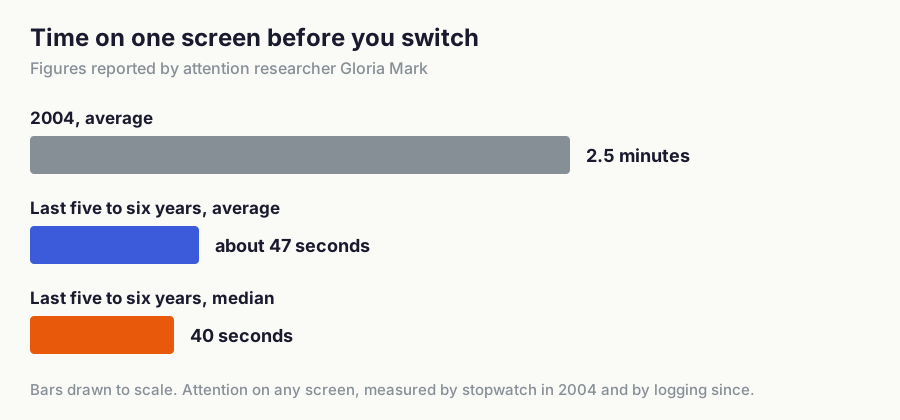
Gloria Mark, an attention researcher, reports that people stayed on one screen for an average of 2.5 minutes in 2004. Logging over the last five to six years gives about 47 seconds, with a median of 40 seconds, she said in an interview for the American Psychological Association.
!Bar chart: average time on one screen fell from 2.5 minutes in 2004 to about 47 seconds in recent years, with a median of 40 seconds
Figure 1: Time on one screen before switching, as reported by Gloria Mark in the APA podcast Speaking of Psychology. Bars are drawn to scale.
Switching has a price. In a 2008 CHI study, people finished interrupted tasks in less time with no drop in quality, but they reported more stress, frustration, time pressure and effort. In Mark's heart-rate data, more frequent switching goes with higher stress.
Part of the cost is attention residue. Sophie Leroy's 2009 experiments found that thoughts about a task you left unfinished carry over into the next one and hurt it. A ten-second glance at chat can outlast the glance.
Step 1: Measure what pulls you away
Spend five working days recording the app or site in front of you, and note every switch you did not plan. Three numbers matter: switches per hour, minutes in unplanned apps, and the three apps that take most of those minutes.
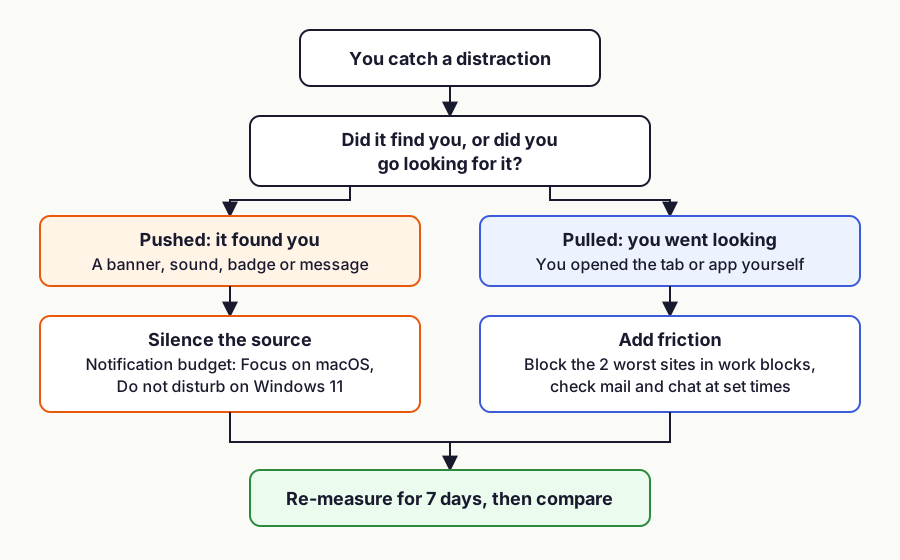
Tag each switch as pushed or pulled. Pushed means something found you: a banner, a sound, a badge, a message. Pulled means you went looking and opened the tab yourself.
The split matters because the fixes differ. Pushed distractions end when you silence the source. Pulled ones need friction, such as a block or a rule about when you check.
!Flowchart: pushed distractions get a notification budget, pulled distractions get friction, and both are re-measured for 7 days
Figure 2: Which rule fits which distraction. The rest of this post walks through each branch.
You can record by hand or automatically. By hand, keep a text file open and write the time and the destination each time you notice you drifted. It is crude and catches only what you notice, so 10 or 20 second checks mostly go unrecorded.
TimeUno is an automatic time tracker for macOS and Windows. It tracks time automatically: it records the app and window in front of you plus idle time, then gives each stretch a category (coding, writing, email, communication, social, entertainment and others) and a verdict of productive or unproductive. Idle time means a coffee break does not count as a distraction, it takes no screenshots, and a correction you make on the timeline becomes a rule.
TimeUno has no mobile app, so phone distractions need the by-hand method. Keep your habits as they are in week one, because you want a normal Tuesday as the baseline.
Step 2: Set a notification budget
A notification budget is a fixed number of interruptions you allow per hour, with everything else silenced. Start at zero during focus blocks, with a short allow list: your manager, your partner, your alarm.
- List every app that can show a banner or play a sound, and count them. You will probably find more than you expected.
- Silence everything that is not on the allow list.
- Schedule the silence. On macOS, open System Settings, then Focus, and set a schedule (Apple's Focus guide). On Windows 11, open Settings, System, Notifications and turn on do not disturb automatically (Microsoft's guide); older guides call this Focus assist. Menu names change between OS versions; these are the current ones as of November 2026.
Step 3: Block the worst two sites
Take the two pulled sites from your week-one top three and block them during work blocks with a site-blocking extension. Two is enough to test whether blocking works for you. A long blocklist makes it hard to tell which rule did anything.
Step 4: Batch the checks
Pick fixed times for email and chat, and leave them closed in between. A schedule such as 09:30, 13:00 and 16:30 works for many jobs, so adjust it to yours.
In a 2015 study of 124 adults, people who checked email three times a day for a week reported lower daily stress than in a week of unlimited checking. Same people, both weeks, which is the design you will copy in step 5.
Mark adds two scheduling details in the APA interview. Focused attention tends to peak in late morning and mid to late afternoon, so put your hardest work there. And take breaks at natural stopping points, such as the end of a section, because stopping mid-task costs more.
Step 5: Run the 7-day experiment
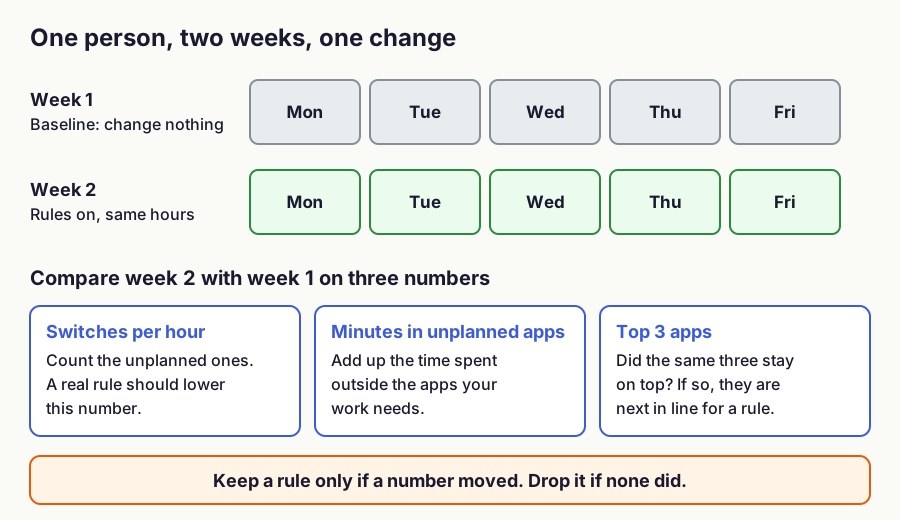
Week one is the baseline: no new rules, full recording. Week two turns the rules on with the same job and hours, and you fill in one row per day.
!Diagram: week 1 baseline with no changes, week 2 with rules on, compared on switches per hour, minutes in unplanned apps and top 3 apps
Figure 3: The two-week design. It follows the within-person comparison used by Kushlev and Dunn (2015), one week per condition.
| Day | Switches per hour | Minutes in unplanned apps | Top unplanned app | Rules on? |
|---|---|---|---|---|
| Mon | ||||
| Tue | ||||
| Wed | ||||
| Thu | ||||
| Fri |
Step 6: Read your time report
After week two, compare the three numbers with week one. Keep a rule only if a number moved. The table below covers the patterns that show up most.
| What you see | Likely cause | What to do |
|---|---|---|
| The same one or two apps hold most unplanned minutes | A pulled habit | Block them during work blocks |
| Many short switches, few minutes in total | Pushed alerts or reflexive glancing | Shrink the allow list and batch your checks |
| One long stretch in an unplanned app | A break that ran on, or a task you were avoiding | Take breaks at set stopping points |
| Unplanned minutes fell but switches per hour did not | One distraction replaced by another | Re-rank the top three and block the next one |
For a deeper way to use the quiet time you win back, read how to actually get deep work done and time management that works. If you want to see the per-app breakdown behind these numbers, the productivity tracker page shows how TimeUno scores your day.
When do blocking rules backfire?
Blockers help people who struggle to control their own habits, and they can hurt people who already have good control. In a 2018 field study of 32 information workers, participants rated their focus and productivity higher during a week with distractions blocked. Those who gained most reported less control over their work.
People with more control had a higher workload, worked longer without physical breaks and had more stress when blocking was on. Mark makes the same point in the APA interview: people with good self-regulation who used blockers could burn out by working straight through.
This was a small exploratory study, so read it as a caution. If your week-one report shows steady focus, keep the notification budget and the breaks, and skip the blocker.
## FAQ
### How long does it take to reduce distractions on a computer?
Plan two working weeks: five days to record a baseline and five days with rules on. The comparison after week two tells you which rules to keep.
Do website blockers work?
For some people. Mark's 2018 study found the largest gains in people with less control over their work habits, and more stress in people with more control, so check your own numbers before you commit.
Can TimeUno track phone distractions?
No. TimeUno runs on macOS and Windows and has no mobile app. Use the by-hand log for your phone, or the screen-time report that comes with it.
What does TimeUno record about my distractions?
It records the app and window in front of you, idle time, and a category and productive or unproductive verdict for each stretch. It takes no screenshots, and it is never employee monitoring: the report is yours.
Start with a baseline
TimeUno has no free plan, but its 14-day trial covers both weeks of the experiment. As of November 2026, Individual costs $9.99 per month, or $8.33 per month billed yearly; see pricing. If you are weighing tools first, read TimeUno vs RescueTime.
Sources
- Gloria Mark, APA Speaking of Psychology, Attention spans
- Mark, Gudith and Klocke (2008), The Cost of Interrupted Work: More Speed and Stress, CHI 2008
- Mark, Czerwinski and Iqbal (2018), Effects of Individual Differences in Blocking Workplace Distractions, CHI 2018
- Kushlev and Dunn (2015), Checking email less frequently reduces stress, Computers in Human Behavior 43
- Leroy (2009), Why is it so hard to do my work? Organizational Behavior and Human Decision Processes 109(2), summarized by strategy+business
- Set up a Focus on Mac, Apple Support
- Notifications and do not disturb in Windows, Microsoft Support