

Track your work hours How to track your work hours: five ways, and a weekly routine that works.
Paper, a spreadsheet, a timer, a calendar rebuild or an app that records on its own. Each one trades effort against accuracy. Here is how they compare, and what to do with the hours once you have them.
Start your 14-day trial 14-day trial, then $14.99 a month
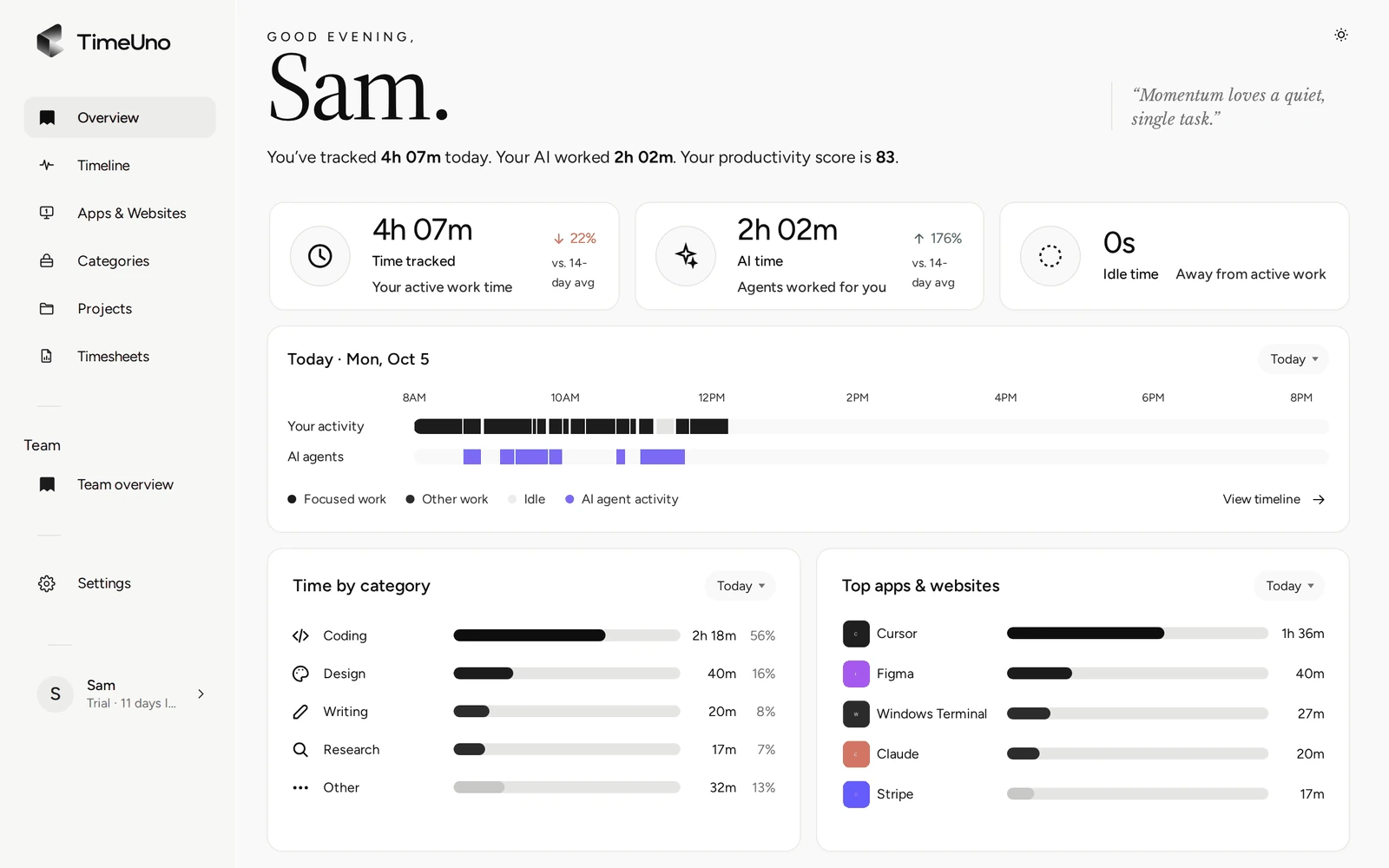
Five ways to track work hours
Every method has the same goal: a number you trust for each day, client or project. They differ in when the number gets written down, and by whom. Here are the five, starting with the oldest.
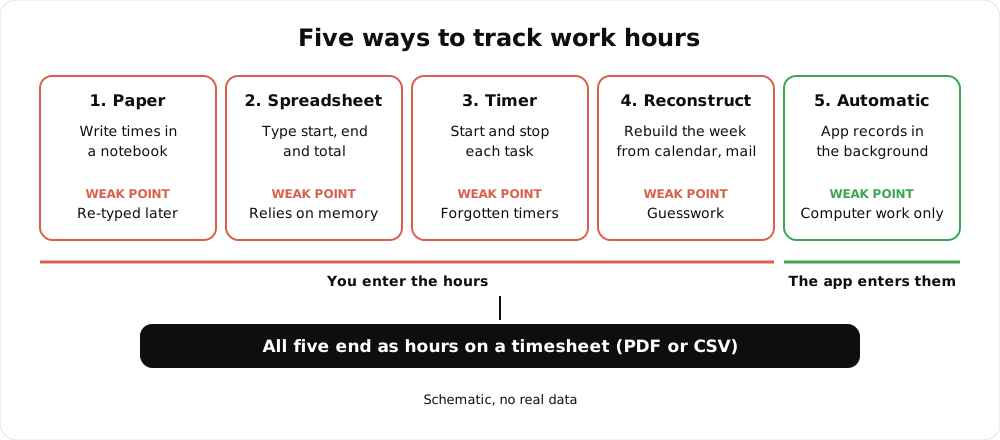
Five methods and where each one tends to break. Schematic, no real data.
1. Paper
A notebook or a printed sheet next to the keyboard. You write the start and the stop. It costs nothing and works anywhere, including away from a computer. The catch is the second step: you have to add it up, and re-type it when someone asks for a file.
2. Spreadsheet
The same idea with formulas. The sheet subtracts the start from the end and sums the week. Our free timesheet template does this. The sheet is fine, and the weak part is the person filling it in: it only knows what you remember to type.
3. Timer
Press start, work, press stop. Timers give clean numbers when the work is one task at a time. They fail on interruptions: you switch to a call, reply to a message, and the timer keeps running on the wrong task. Or you forget to start it at all.
4. Calendar reconstruction
On Friday you open your calendar, your sent mail and your files, and work out what you did. It takes no effort during the week and a lot on Friday. It also misses everything that was never in a calendar, which is most of the work.
5. Automatic recording
An app on your computer notes which program or site is in front of you, when you are idle, and which project it belongs to. You do not start anything. You read the result, fix what is off and build the timesheet. This is what TimeUno does. Its limit is clear: it records computer work only.
How the five compare
The ratings below are our judgment, not measurements. They show the shape of the trade-off.
| Method | Effort while working | Risk of missing or wrong hours | Fits best |
|---|---|---|---|
| Paper | Medium | High | Work away from a computer |
| Spreadsheet | Medium | High | A few clients, same-day entry |
| Timer | Medium | Medium | Steady work, one task at a time |
| Calendar reconstruction | None | High | A fallback, not a plan |
| Automatic | Low | Low to medium | Work done on a computer |
The automatic row is not zero risk. The app can put a stretch in the wrong project, and it cannot see work that happens off the computer. The difference is that you correct a recorded day instead of inventing one.
A weekly review routine
Tracking only helps if you look at it. A short routine once a week keeps the hours honest:
- Check the total. Open the Overview and compare tracked time, AI time and idle time with what the week felt like.
- Place unassigned time. Anything TimeUno could not file shows under Review unassigned time on the Projects page. Move it to a project.
- Fix wrong stretches. On the Timeline, move an activity to the right project and correct a session’s verdict if it was marked wrong. Corrections are remembered and repeated ones become rules.
- Add what the computer cannot see. Meetings in a room, travel and paper work go onto the timesheet by hand.
- Build and read the timesheet. Then edit it, and send it.
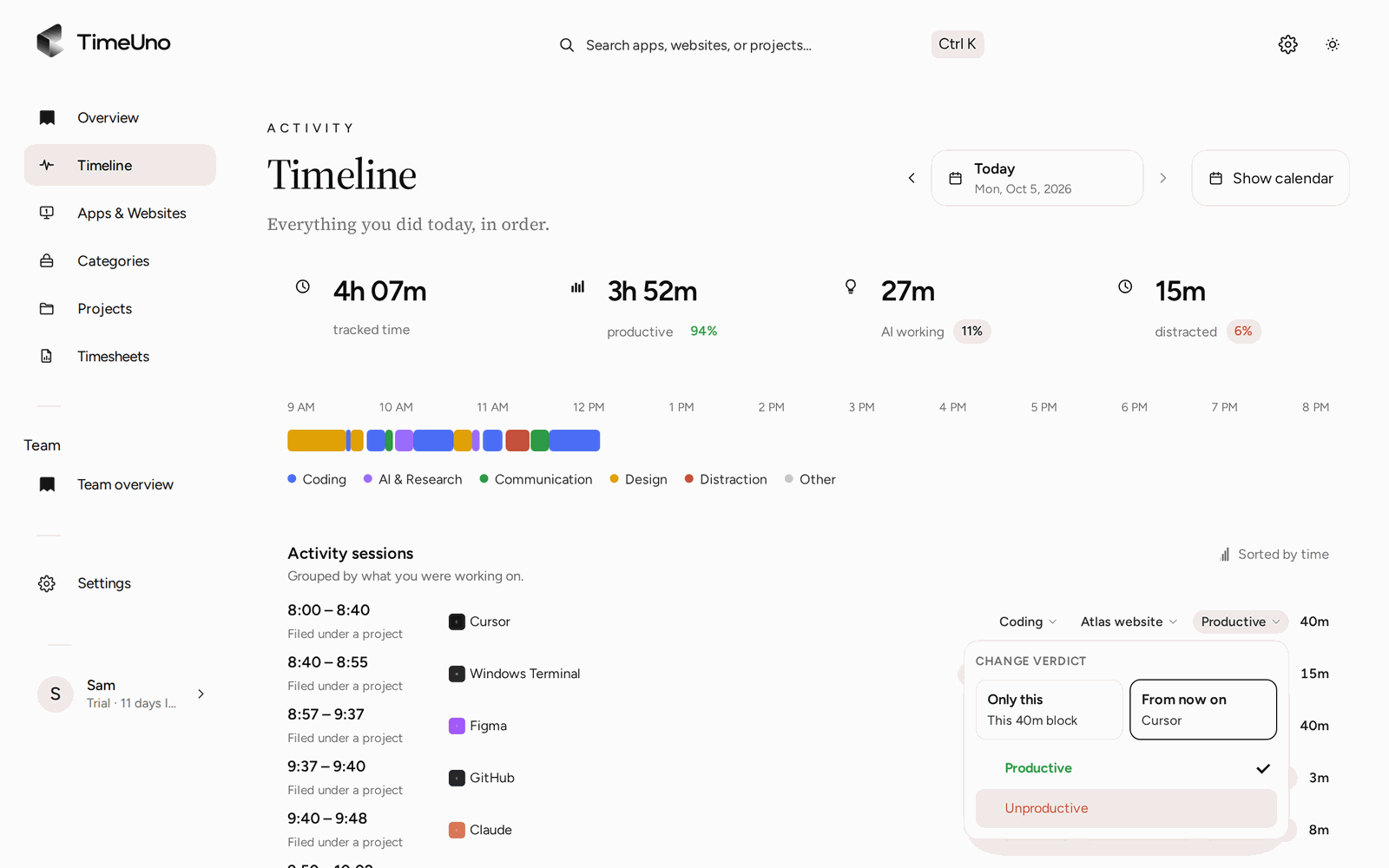
Correcting a session on the Timeline takes seconds, so the week stays easy to review.
If you need a stretch of time not to be recorded, the desktop widget has a pause menu: 15 minutes, 30 minutes, 1 hour, or until you resume.
How to turn hours into a timesheet
Hours only become useful when someone can read them. A timesheet groups them by client and period.
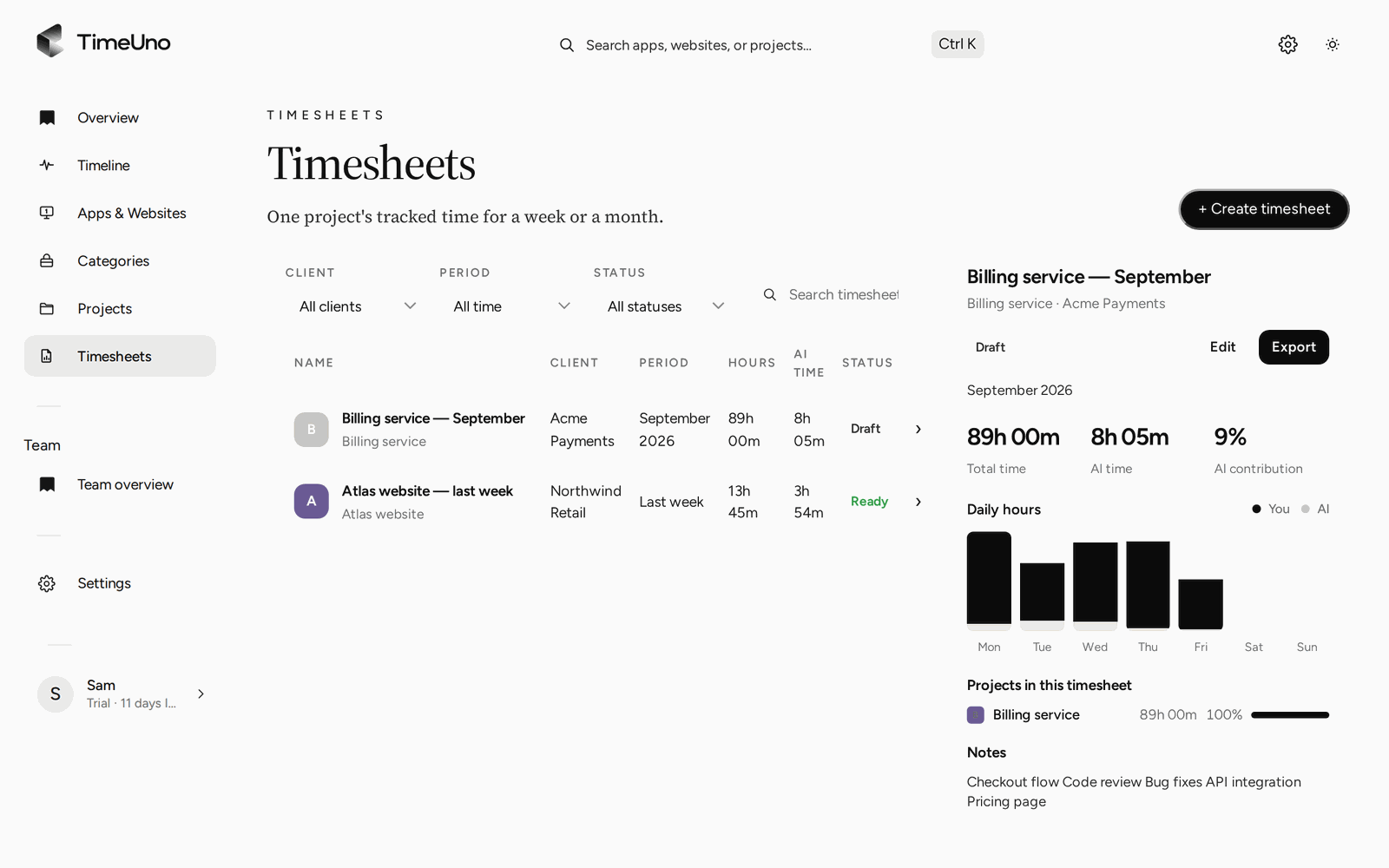
A timesheet per client and period, built from the time already tracked.
Choose the period and the client. This week, last week or this month. The timesheet is built from the project time tracked in that window.
Choose per day or per work block. One line per day gives a short sheet. One line per work block shows more detail. Every line can be edited, and AI can write the descriptions for you to read and adjust.
Choose the rounding. Owners and admins set it under Settings: none, 6, 15 or 30 minutes. Six minutes gives tenths of an hour, 15 gives quarter hours and 30 gives half hours. A coarser step gives rounder numbers and more difference from the recorded time. If you bill by the hour, agree the step with the client first.
Add rates if you bill. Set the currency and a default rate under Settings, and rates can differ per client and project, and per person on the Team plan. The timesheet then shows amounts, and members see hours only. TimeUno does not create invoices, so you carry the figures into your own tool.
Export or share. Download PDF or CSV. The PDF carries the company name, address, tax ID and logo from Settings, Company details. You can also share a client approval link, with an optional PIN and expiry, where the client can approve, reject or request changes.
For a recurring client, set a repeating draft (weekly, every two weeks or monthly), so the next timesheet is waiting for you to read.
What TimeUno records, in plain terms
The desktop app (macOS and Windows, with Linux in testing) records the app in front, its window title, idle time and the seconds with any keyboard or mouse input, never what you type. On-screen text reading is on by default and can be turned off per computer. The browser extension, live for Firefox, sends the site, address, title and up to 4,000 characters of visible page text, which on AI sites may include prompts and answers. For desktop AI tools it sends metadata only.
In a team, admins see worked time, a productivity score and AI usage per person. They never see anyone’s apps, sites or window titles.
Which way should you pick?
If most of your work is on a computer, automatic recording removes the step you are most likely to skip. If it is not, a paper log or a spreadsheet is honest and cheap. Many people mix the two: automatic for the computer, a few hand-added lines for the rest. For the longer story on what the tracker shows, read about the hour tracker and the work time tracker.
Individual is $14.99 a month, or $10.49 billed yearly. Team is $19.99 per seat a month, or $13.99 billed yearly. There is no free plan. Every plan starts with a 14-day trial, with a card added at the start. To compare tools, see the best automatic time trackers in 2026 and check each tool’s current plans.
Updated 28 October 2026
Questions people ask
What is the easiest way to track my work hours?
The one you do not have to remember. For work on a computer, that is a tracker that records in the background. If you track by hand, write times down at the moment you start and stop, not at the end of the day.
How often should I review my tracked hours?
Once a week is enough for most people. Check the total, place any unassigned time, fix wrong stretches, and only then build the timesheet. A daily glance catches problems while you still remember the day.
Does TimeUno track work away from the computer?
No. Meetings in a room, travel and paper work are not recorded. Add those hours to the timesheet by hand. TimeUno has no mobile app.
How do I turn hours into a timesheet?
Pick a client and a period, and TimeUno builds a draft from the time already tracked. Edit the lines, mark it ready and export it as PDF or CSV. There is no Excel export, but Excel opens the CSV.
Is this a legally valid record of working time?
TimeUno is not a certified time clock and makes no claim about legal requirements. If your job or employer must keep an official record, check the rules that apply to you.