

Hours worked report Hours worked report: what it contains and how to build one.
A good hours worked report answers one question for one reader. TimeUno builds the numbers from time you already tracked, so the report is a cut of existing data, not a Friday reconstruction.
Start your 14-day trial 14-day trial, then $14.99 a month
What an hours worked report is for
An hours worked report is a summary of time over a period. That is all. What changes is who reads it and what they want to decide. A client wants to know what they are paying for. You want to know where your week went. A manager wants to know whether the load is spread sensibly.
So start from the reader, not from the tool. If you cannot finish the sentence “this report lets [reader] decide [thing]”, the report will be a pile of numbers.
The four cuts
The same tracked hours can be grouped four ways. Most reports use one cut as the main structure and a second as a detail.
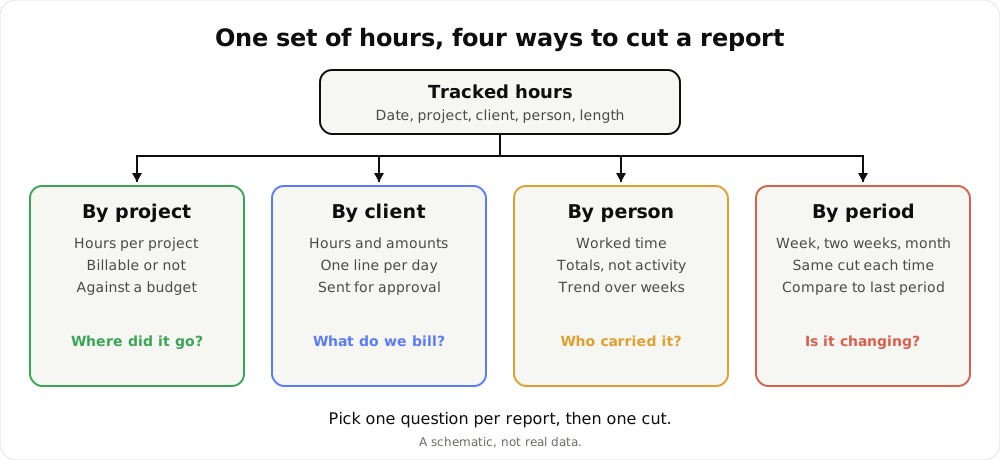
One set of hours, four cuts. A schematic, not real data.
- By project: hours per project, split into billable and non-billable, optionally against a budget. This is the report for “where did the time go”.
- By client: hours and amounts per client, one line per day or work block. This is the report you send.
- By person: worked time per person over a period. This is the report for “who carried what”.
- By period: the same cut every week, two weeks or month, so you can compare one period with the last.
What every useful report contains
Whatever the cut, a report you can act on has the same parts:
- The period, stated exactly. “Week of 19 to 25 October” beats “last week”. A report with no dates cannot be checked.
- One grouping, named. Project, client or person, not a blend.
- Hours per line, and a total. The total is what people quote, so make sure it adds up.
- A description per line when the reader is outside your team. “Homepage redesign, review round 2” beats “work”.
- Rates and amounts only for the person paying. Internal reports do not need money on them.
- A note on rounding, if any. Say whether time is as recorded or rounded to a step.
How to read it
Read a report in this order, and it takes two minutes.
Check the total first. Does it match what you expect from the days? A week with 12 hours when you worked every day means something was not tracked, or was filed elsewhere.
Look at the biggest line. Is the largest project the one you meant to work on? If your own admin outranks a client, that is the finding.
Look at the small lines. A dozen lines of a few minutes each are usually either misfiled time or interruptions worth batching.
Compare with the previous period. One number means little. A week against the last week tells you whether something moved.
Separate billable from non-billable. Dividing billable hours by worked hours gives utilization. The billable hours page covers that with an example.
Common mistakes
- Reconstructing from memory. Hours written on Friday for the whole week drift toward round, flattering numbers. Time recorded as you work does not.
- Mixing cuts. A report half by client and half by person fits neither reader.
- No descriptions on a client report. The client will ask, and you will answer from memory.
- Counting idle time as work. A computer left on over lunch is not a working hour. The report should come from recorded activity, with idle time kept apart.
- Changing rounding mid-month. Pick the step once and keep it, or two periods will not compare.
- Putting rates where members can read them. Rates are the business’s, not the team’s.
- Treating a team total as a verdict. Hours worked at a computer are not output. Read them with the work in front of you.
Where the numbers come from in TimeUno
You do not enter hours. The desktop app, on macOS or Windows, records the app in front, the window title, idle time and seconds with keyboard or mouse input (never what you type), plus the project name in an editor. Linux is in testing, and there is no mobile app. TimeUno files each stretch under a project, and you can correct it on the timeline.
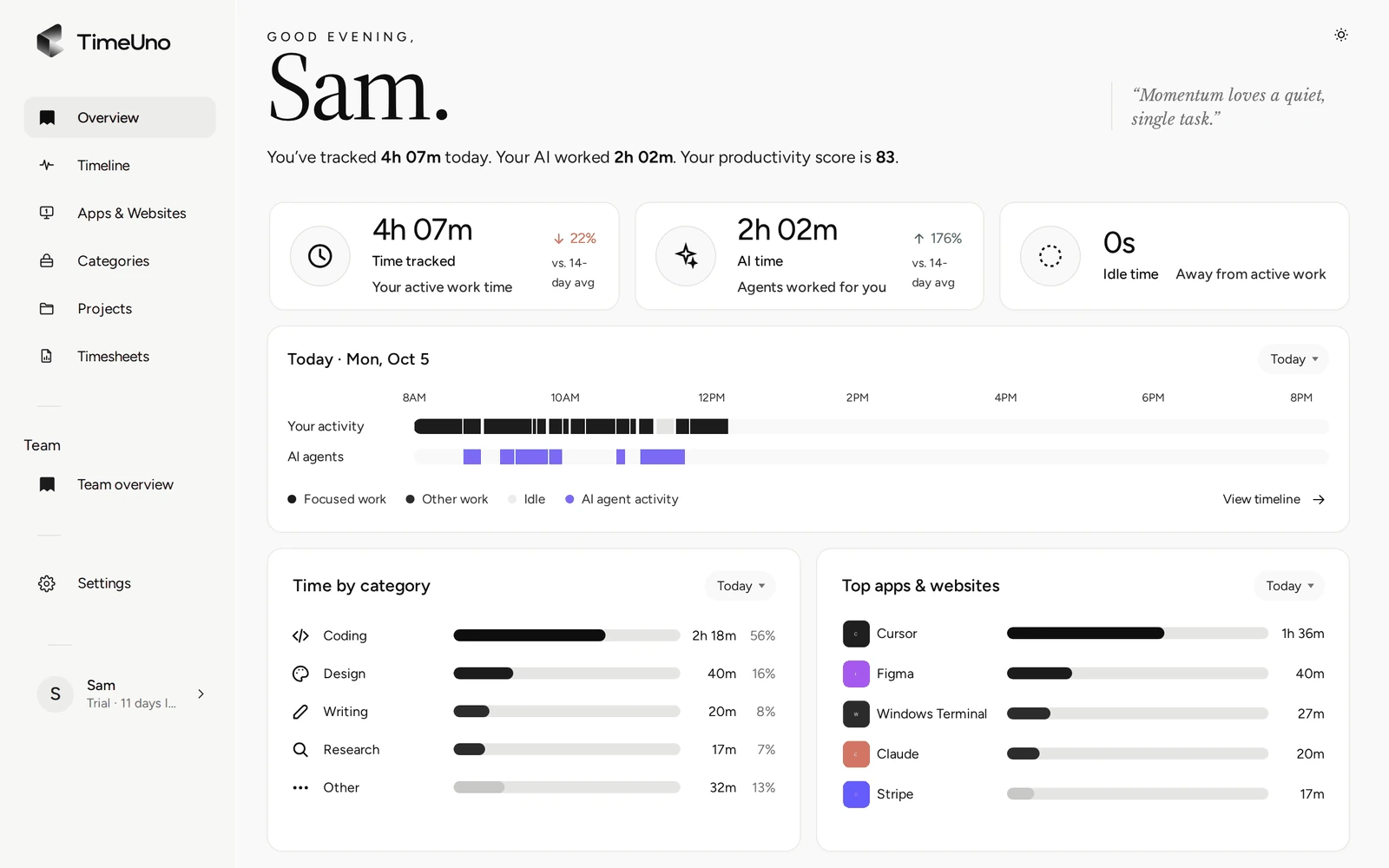
The Overview: the day behind the numbers a report summarizes.
On-screen text reading is on by default and can be turned off per computer. The browser extension sends the site, address, title and up to 4,000 characters of visible page text, which on AI sites may include prompts and answers. AI tools on the desktop send metadata only.
Per project: the Projects page
For the by-project cut, the Projects page shows time per project per day and a table with your time and AI time. Each project is billed hourly, as a fixed fee with an optional budget, or as non-billable, and non-billable projects still collect hours, so unpaid time stays visible.
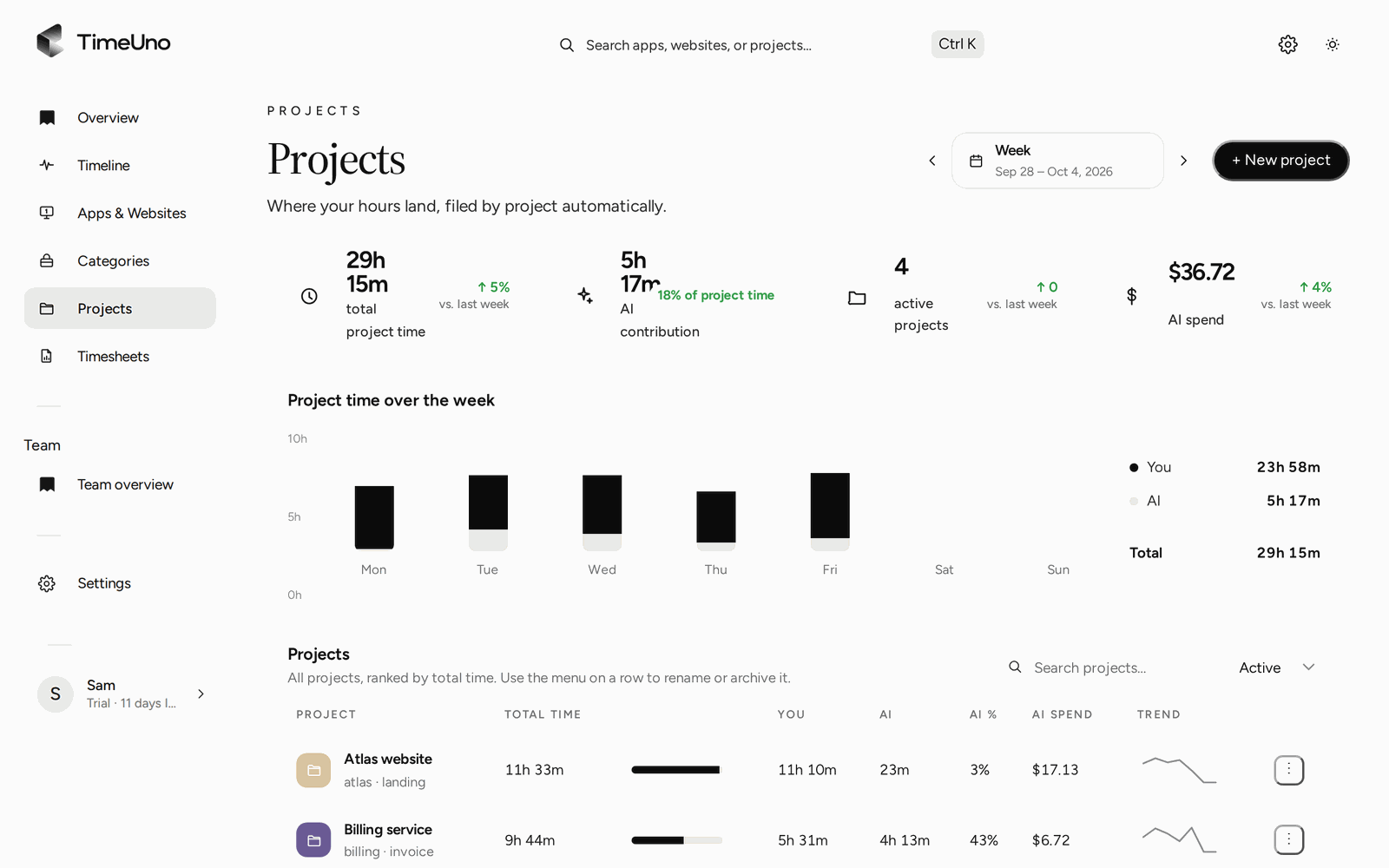
Time per project for the week. For how projects are detected, see time tracking per project.
Per client and period: the timesheet
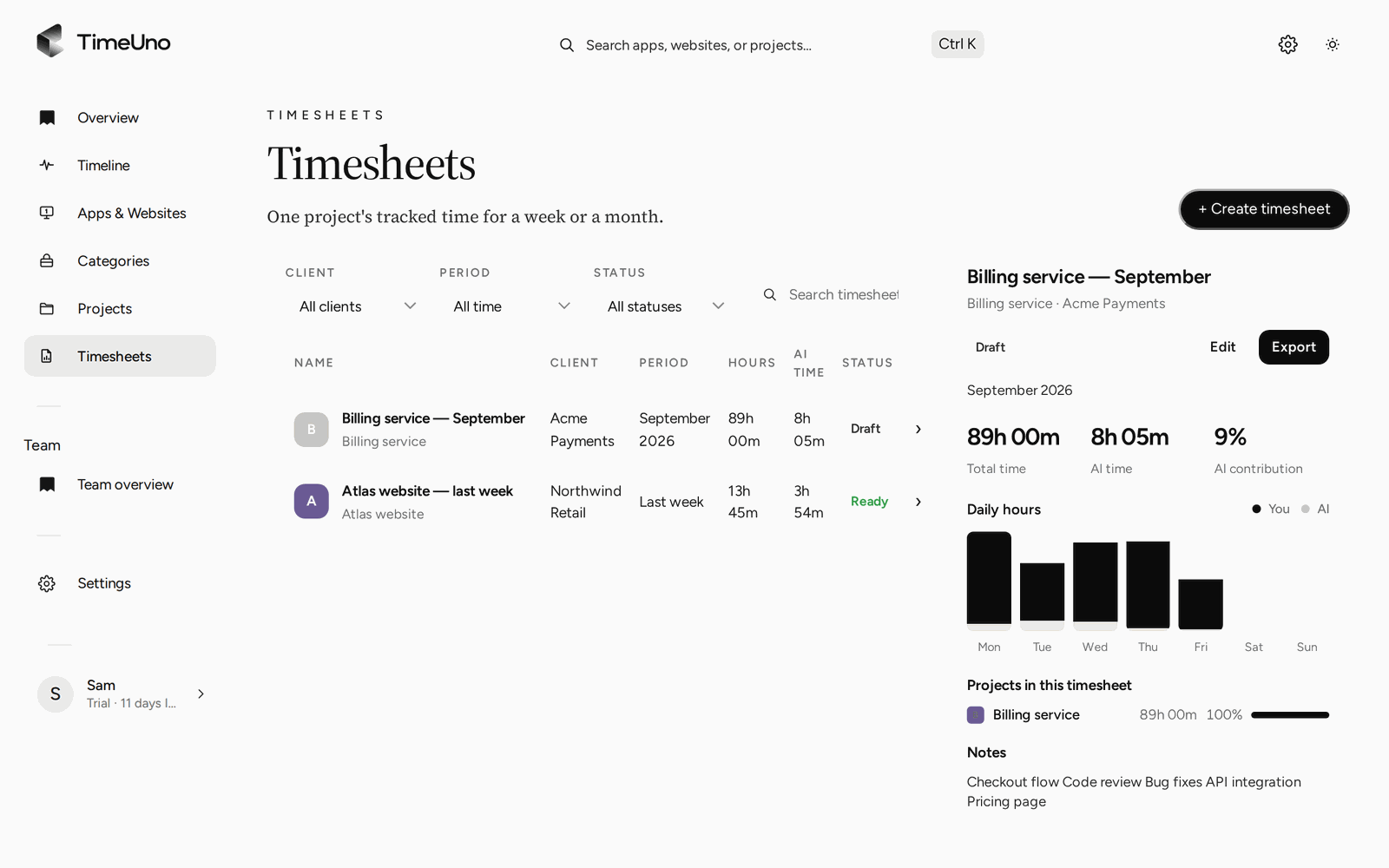
For the report you send, pick a client and a period and TimeUno builds a timesheet from the tracked project time. Choose one line per day or per work block, edit any line, and let AI write the descriptions for you to read and adjust. The timesheet shows hours and amounts, using the currency, default rate and rounding (none, 6, 15 or 30 minutes) that owners and admins set in Settings. Rates can differ per person, client and project.
Weekly, two-weekly and monthly drafts can repeat on their own, so the same cut arrives each period. When a draft looks right, use Mark ready, then export it as CSV or PDF. The PDF carries your company name, address, tax ID and logo from Settings, Company details. CSV opens in Excel or any spreadsheet.
You can also share a client approval link, with an optional PIN and expiry. The client approves, rejects or asks for changes, and the history keeps a record. TimeUno does not create invoices and has no accounting integration, so you carry the numbers into your own invoicing tool. To work out an amount by hand first, use the timesheet calculator.
Per person: the team overview
On the Team plan, owners and admins invite members and see a Team overview with worked time, productivity score, AI usage and trend per person for the last 7 days.
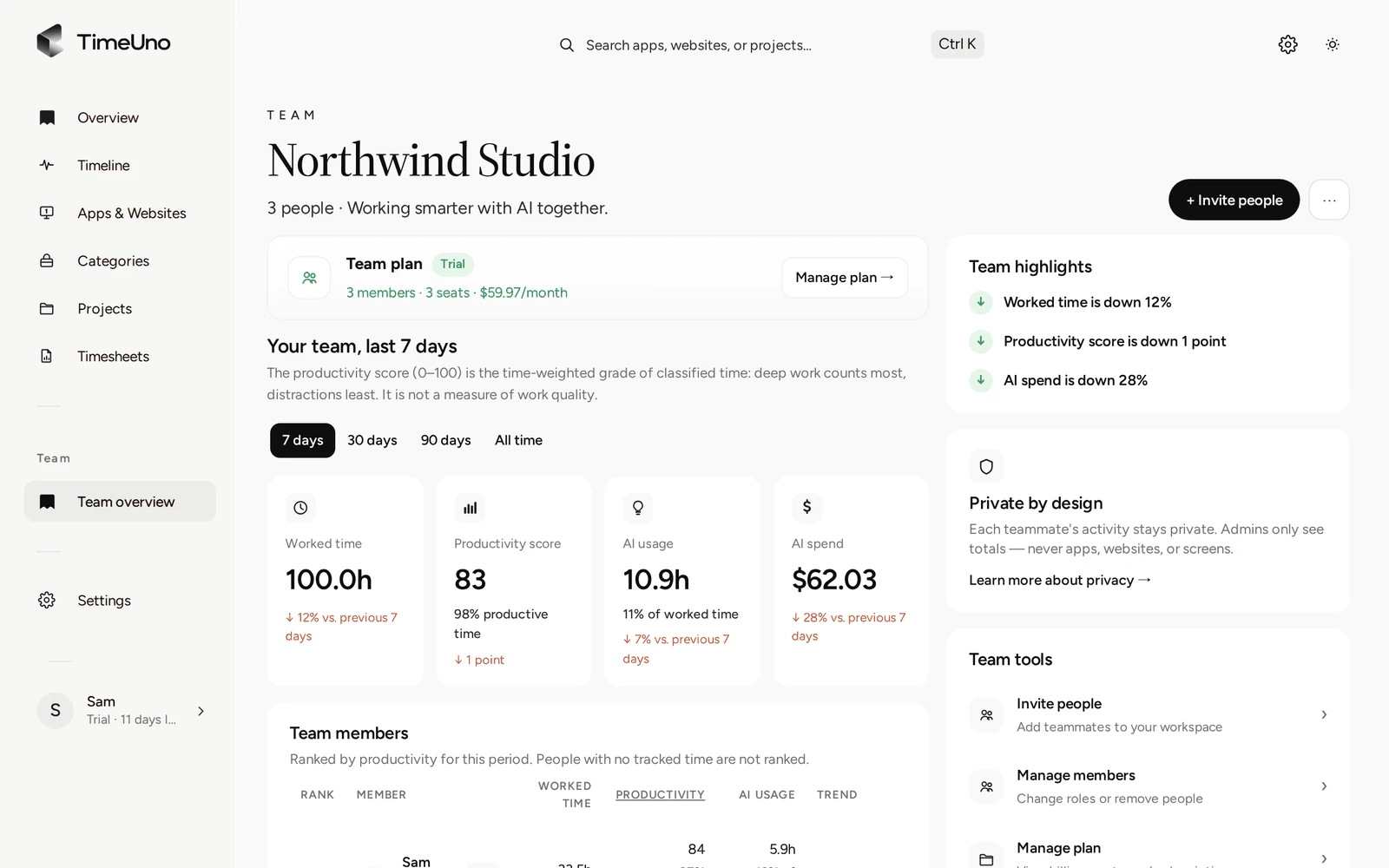
Totals per person. No apps, sites, window titles or screenshots.
This is a report of totals. Admins never see what a person looked at, and members see hours only on timesheets, not rates. For per-person lines on a client timesheet, see employee timesheets.
What it costs
Individual is $14.99 a month, or $10.49 a month billed yearly. Team is $19.99 per seat a month, or $13.99 per seat a month billed yearly. There is no free plan. Every plan starts with a 14-day trial; a card is added at the start and charged when the trial ends. To compare trackers, check each one’s current plans, for example in the best automatic time trackers in 2026.
Updated 28 October 2026
Questions people ask
What should an hours worked report include?
The period, the grouping (project, client or person), hours per line, a total, and a short description for each line when someone outside your team will read it. Add rates and amounts only when the reader is a client or whoever pays.
How do I make an hours worked report in TimeUno?
Pick a client and a period (this week, last week or this month) and TimeUno builds a timesheet from the project time already tracked. Edit the lines, mark it ready and export it as CSV or PDF.
Can I get a report as an Excel file?
TimeUno exports CSV and PDF. There is no Excel export, but Excel opens the CSV. The PDF carries the company name, address, tax ID and logo from Settings, Company details.
What can an admin see in a team report?
On the Team plan, owners and admins see worked time, productivity score and AI usage per person. They never see anyone's apps, sites, window titles or screenshots.
Does a report from TimeUno count as official working-time records?
TimeUno is not a certified time clock. It reports time recorded at a computer. If you need records for a legal duty, check your local rules.