

Team time management software Manage time by first knowing where it goes.
TimeUno measures time. It records work on each computer, sorts it by project and shows the team's worked time, productivity score and AI usage. It does not schedule or plan. You decide what to change.
Start a team trial 14-day trial, then $19.99 per seat a month
What time management software can do
Time management is mostly a question of knowing where the hours went. Teams that feel busy but behind rarely lack a plan. They lack a clear picture of what the week was spent on: how long meetings took, how much time one client absorbed, how much was lost to switching between things.
Software helps with one half of that. It can measure. It cannot decide. Choosing priorities, saying no to a request and telling a colleague their load is too high are conversations, and no tool replaces them.
TimeUno sits on the measuring side. It runs on each person’s computer, records work without a timer and turns it into numbers you can discuss. It does not schedule tasks, set deadlines or build plans. If you want a planner, keep the one you have and use TimeUno to check whether the plan matched reality.
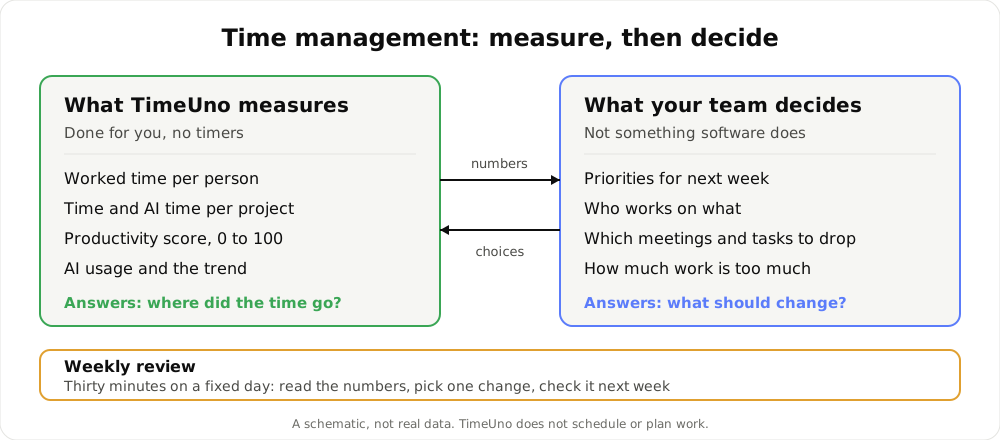
A schematic, not real data: software measures, people decide.
What the team sees
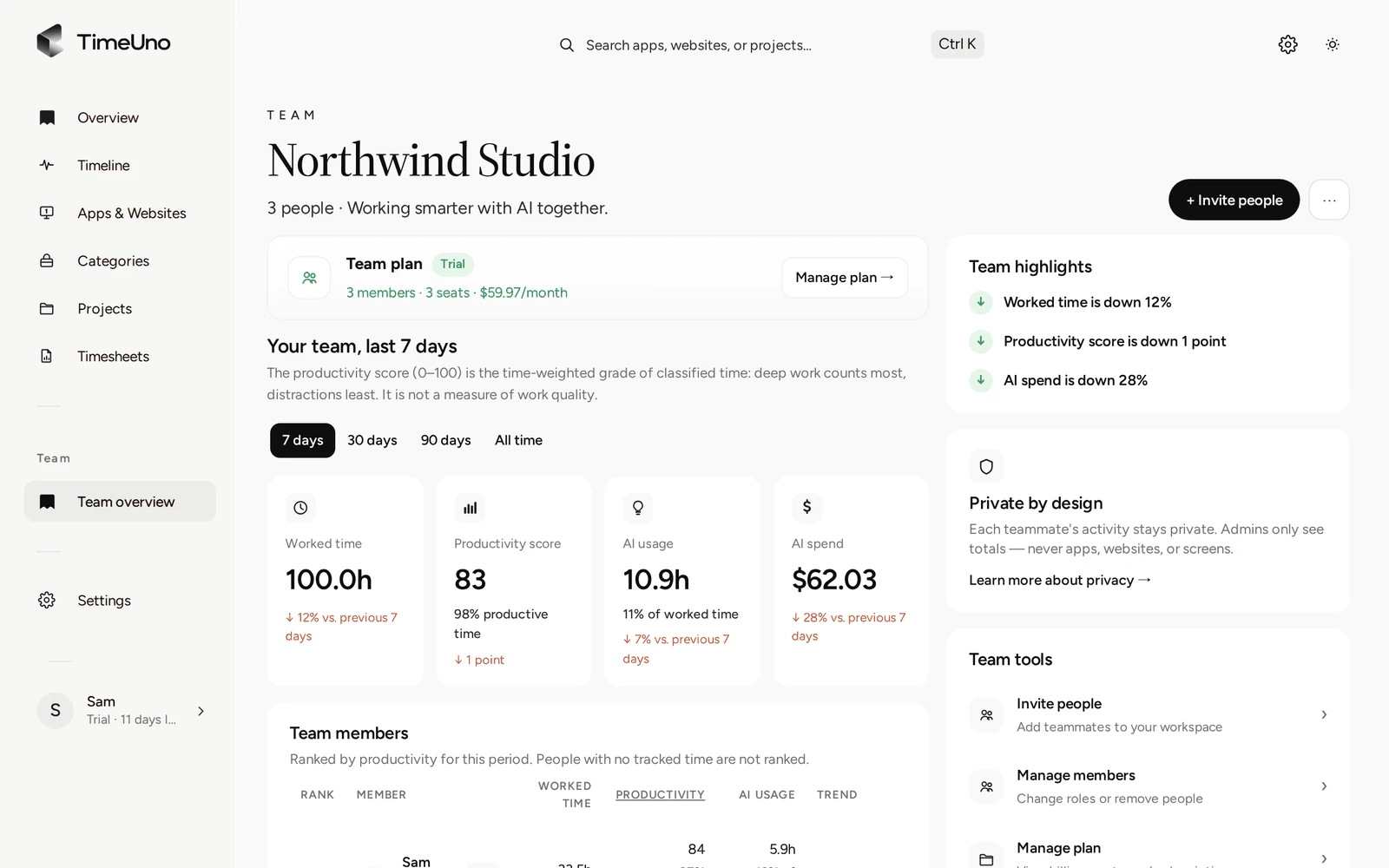
Owners and admins open the Team overview and see one row per person. Each row shows worked time, the productivity score from 0 to 100, AI usage and the trend against the previous period. You can switch between the last 7, 30 and 90 days, or all time. The overview also shows the team’s AI spend.
That is enough to ask good questions. Is one person working far more hours than the rest? Did the score drop for everyone in the same week? Did AI usage climb after you rolled out a new tool?
What admins do not see matters just as much:
| Admins see | Admins never see |
|---|---|
| Worked time per person | Apps and sites |
| Productivity score | Window titles |
| AI usage and spend | Screenshots |
| Trend against the last period | Anyone’s detailed day |
Each person keeps their own timeline, categories and corrections. This is the line between time management and monitoring. A manager who reads totals can have a useful conversation about workload. A manager who reads a minute-by-minute feed starts having a different conversation, and the team can tell.
Where each project’s time goes
Totals per person tell you how much. They do not tell you on what. For that, TimeUno files computer time under projects. It reads the project name from the code editor, or from keywords you set for things like a client’s website or a design file.
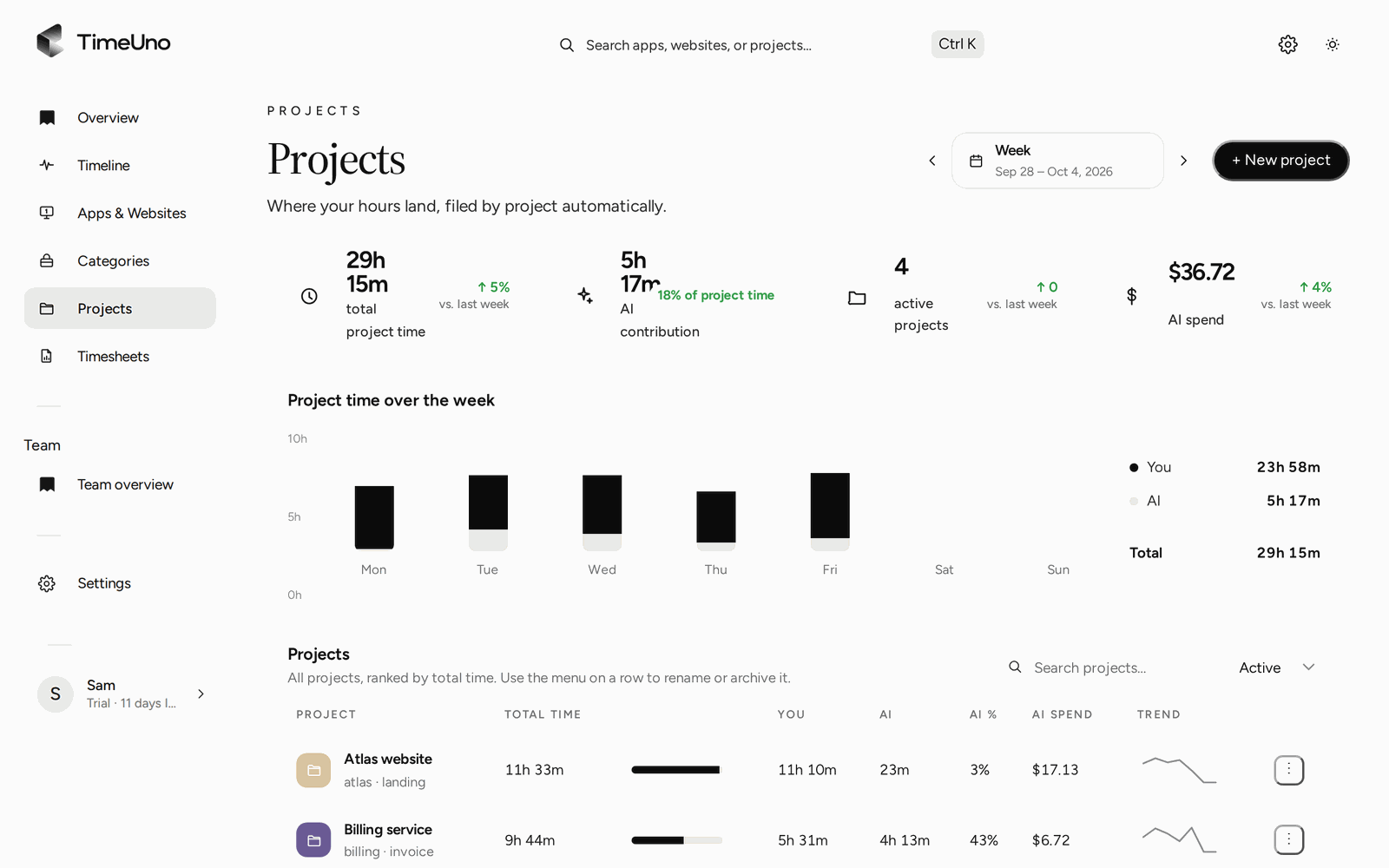
The Projects page shows time per project per day, and for each project your own time next to AI time. If a project billed as a week of work took two, you will see it here before the client does. If a client you thought was small eats a fifth of the team’s hours, that shows too.
You can set each project as hourly, fixed fee or non-billable. That keeps client work apart from internal work, which is the first step to understanding whether the team’s time pays for itself. Billable hours goes deeper on that split.
A weekly review that takes thirty minutes
Numbers do nothing unless someone looks at them. The simplest habit is a weekly review, on a fixed day, with the same few questions.
- Open the Team overview for the last 7 days. Note worked time and the trend per person. Look for large gaps, not small ones.
- Open Projects. Compare the time each project took with what you expected. Mark the biggest surprise.
- Look at the productivity score as a conversation starter. A low week can mean a meeting-heavy sprint, a broken tool or a hard problem. The number does not say which. Ask the person.
- Check AI usage and spend. See whether the tools you pay for are being used, and on what.
- Pick one change. Cancel a recurring meeting, move a client call, rebalance a project. One change you can check next week beats five you forget.
Next week, run the same review and see whether the number moved. That loop is the whole method.
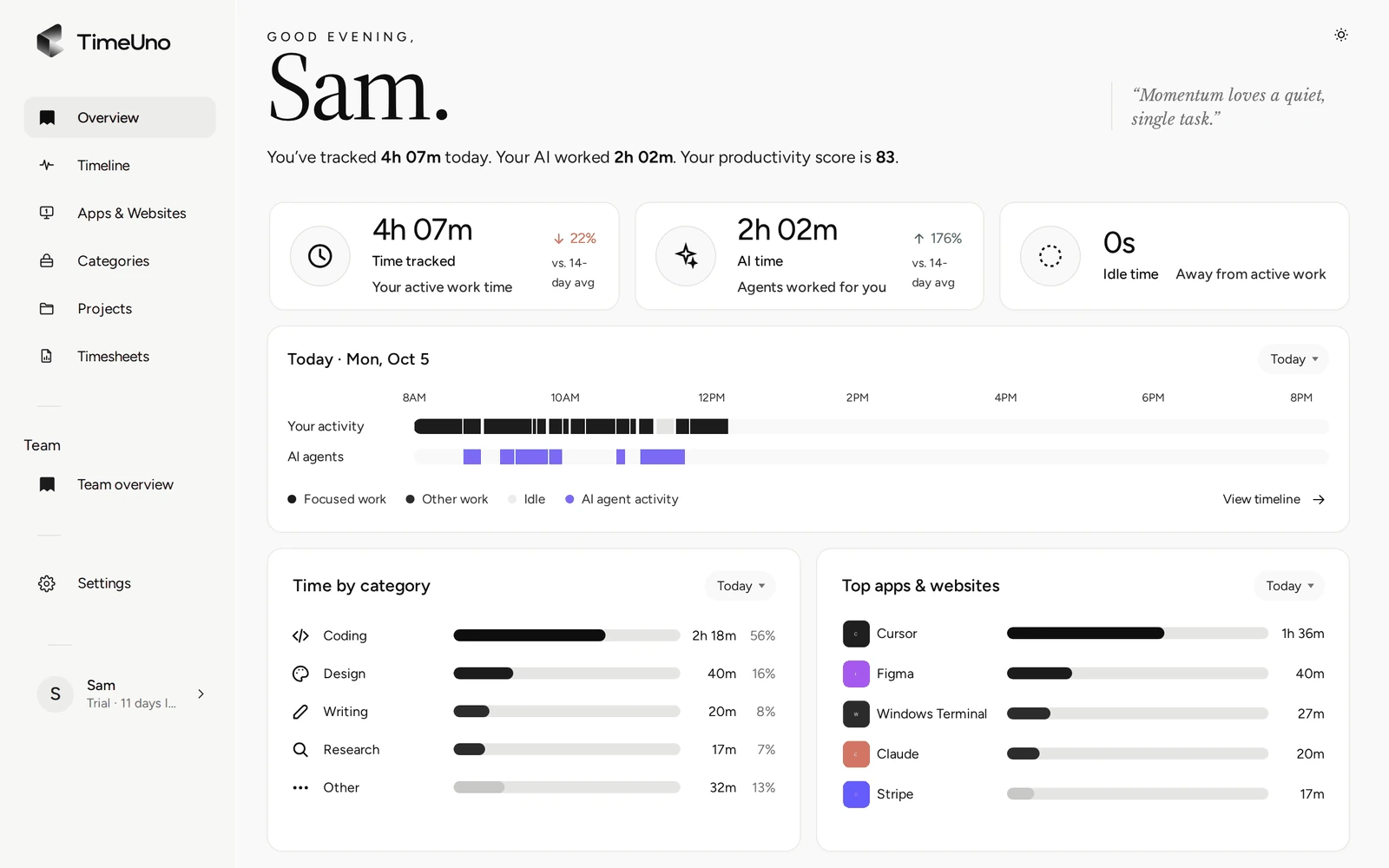
Each person has their own Overview, shown above, for their own version of this review.
How the productivity score fits in
TimeUno gives every stretch of time a category and a verdict: productive or unproductive. The score combines those verdicts, weighted by how long each one lasted. Idle time is left out.
Treat it as a trend, not a grade. The person can correct any stretch of their own timeline, and their corrections are remembered as rules. So the score reflects how that person defines productive work, not a universal standard. A designer who spends a day in a video call with a client has a different day than a developer in an editor, and both can be fine.
For more on how the score is built, see the productivity tracker page.
Setting it up
Setup takes about a minute per person.
- Start a Team plan and open Team overview.
- Click + Invite people, enter an email address and choose Member or Admin. Invitations expire after 7 days.
- Each person installs the desktop app on their computer and signs in.
- Optionally, each person adds the Firefox extension, so browser time shows the site instead of only the browser.
Each member is one seat, and the seat count changes as people join or leave. For a longer walkthrough of roles, see employee time tracking.
What the app records, and how to limit it
Be clear with your team about what runs on their computers. The desktop app records the app in front, the window title, idle time and the seconds with keyboard or mouse input, never what is typed. In a code editor it also records the project name. By default it reads on-screen text to classify work, and this can be turned off per computer.
The Firefox extension sends the site, address, title and up to 4,000 characters of visible page text. On AI sites, that text may include prompts and answers. From desktop AI tools, TimeUno sends metadata only, and prompts, answers and code stay on the device.
None of this is shown to admins. They see the totals above and nothing underneath.
Where TimeUno is the wrong fit
TimeUno tracks work done on a computer. It is not a scheduler, task manager or project planner. It has no mobile app, no shift scheduling and no payroll export. If your team works shifts, on the road or on site, a different tool will count their hours better.
It is also not a certified time clock. If you need working-time records for a legal duty, check your local rules.
Pricing
The Team plan is $19.99 per seat a month, or $13.99 per seat a month billed yearly. Solo users pay $14.99 a month, or $10.49 billed yearly. Every plan starts with a 14-day trial, a card is added at the start and it is charged when the trial ends. There is no free plan.
If you are still choosing, our comparison of automatic time trackers lays out the options. Check each vendor’s current plans before you decide.
Updated 28 October 2026
Questions people ask
Does TimeUno schedule tasks or plan my team's week?
No. It has no calendar, task board or planner. It measures: how long each person worked, on which projects, how much of it was productive and how much AI was used. Planning stays in whatever tool you already use.
What can a team admin see per person?
Worked time, productivity score from 0 to 100, AI usage and the trend against the previous period, for the last 7, 30 or 90 days or all time. Admins never see anyone's apps, sites, window titles or screenshots.
Is this employee monitoring?
No. Monitoring tools show managers what each person did minute by minute. TimeUno shows totals only. The detailed timeline, categories and corrections belong to the person whose day it is.
How much does it cost for a team?
The Team plan is $19.99 per seat a month, or $13.99 per seat a month billed yearly. Each member is one seat. Every plan starts with a 14-day trial, then the card you added at the start is charged. There is no free plan.
Does it track work done away from a computer?
No. TimeUno records computer work on macOS and Windows, with a Firefox extension and an agent for remote servers. Linux is in testing. There is no mobile app, so calls on a phone or site visits are not tracked.