

Create a weekly timesheet How to create a weekly timesheet, and the faster way to do it.
Five steps make a weekly timesheet: the period, the lines, the totals, the notes and a sign-off. Here is each one done by hand, then done by TimeUno, which fills the lines from the time you already tracked.
Start 14-day trial 14-day trial, then $14.99 a month
Five steps, whatever tool you use
A weekly timesheet is a short document, but the order you build it in matters. Do it in this sequence and the usual errors never get a chance.
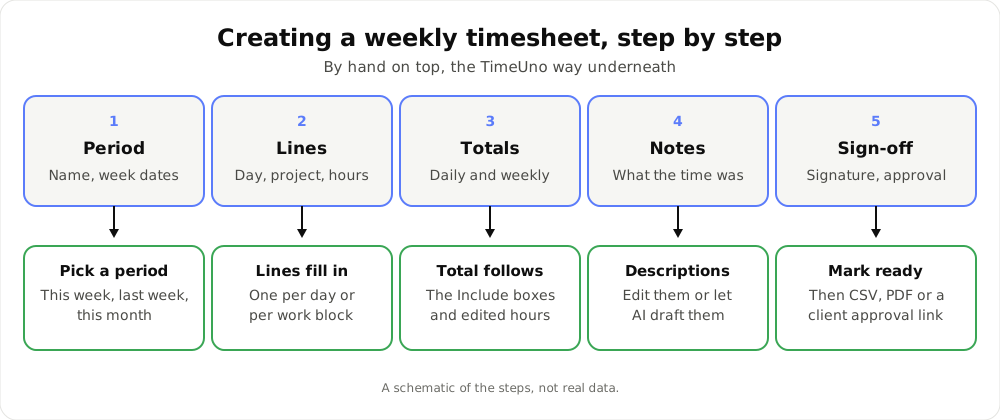
A schematic of the steps, not real data.
1. Choose the period
Write the person’s name and the first and last day of the week. Decide the week once and keep it: Monday to Sunday is common, but any seven days work as long as every sheet uses the same ones. A sheet that starts on a different day each time is hard to compare.
2. Add one line per day
Each line holds a date, the project or client, and the hours. If you bill clients, a line is the unit they read, so keep one project per line. If one day covered two projects, write two lines for that day.
You can also list work blocks with a start and end time. That is more detail than most clients want, but it helps when a day was split across the morning and evening.
3. Work out the totals
Add each day, then the week. Subtract unpaid breaks first, and write hours as decimals when a rate will multiply them: 7 hours 30 minutes is 7.5. Check the weekly total against the days. If you set a rounding rule, apply it the same way on every line and say which one you used.
4. Write the notes
An hours figure says how long. A note says what for. Write one short line per row, in the client’s terms: “Reviewed checkout flow and fixed two bugs” beats “development”. Add a separate note for anything odd, such as a day off or a correction.
5. Sign off
Someone confirms the sheet is final. For an employee that may be a manager’s signature. For a freelancer it is your own check, then the client’s approval. Once a sheet is signed, stop editing it, or you will end up with two versions.
Where weekly timesheets go wrong
- Built on Friday from memory. The numbers are estimates written as facts, and Tuesday is the day nobody remembers.
- Totals that do not match the rows. A break subtracted twice, or a day edited without the total being redone.
- Vague notes. “Work” does not survive a client question.
- No sign-off. The sheet changes after it is sent, and nobody knows which copy is right.
The first one is the root of the others. If the hours are right from the start, the sums and the notes are easy.
Do it by hand: template and calculator
For a one-off sheet, a spreadsheet is fine. The free timesheet template has the weekly layout with days, start, end, break and total, and the timesheet calculator works out hours from start and end times. You still type every figure, so this suits a few people or a few sheets.
Create it in TimeUno
TimeUno records your work in the background (the app and window title in front of you, idle time and the seconds with any keyboard or mouse input, never what you type), so the hours exist before you open a sheet. The desktop app runs on macOS 11+ and Windows, and Linux is in testing. Creating the sheet is then a short job.
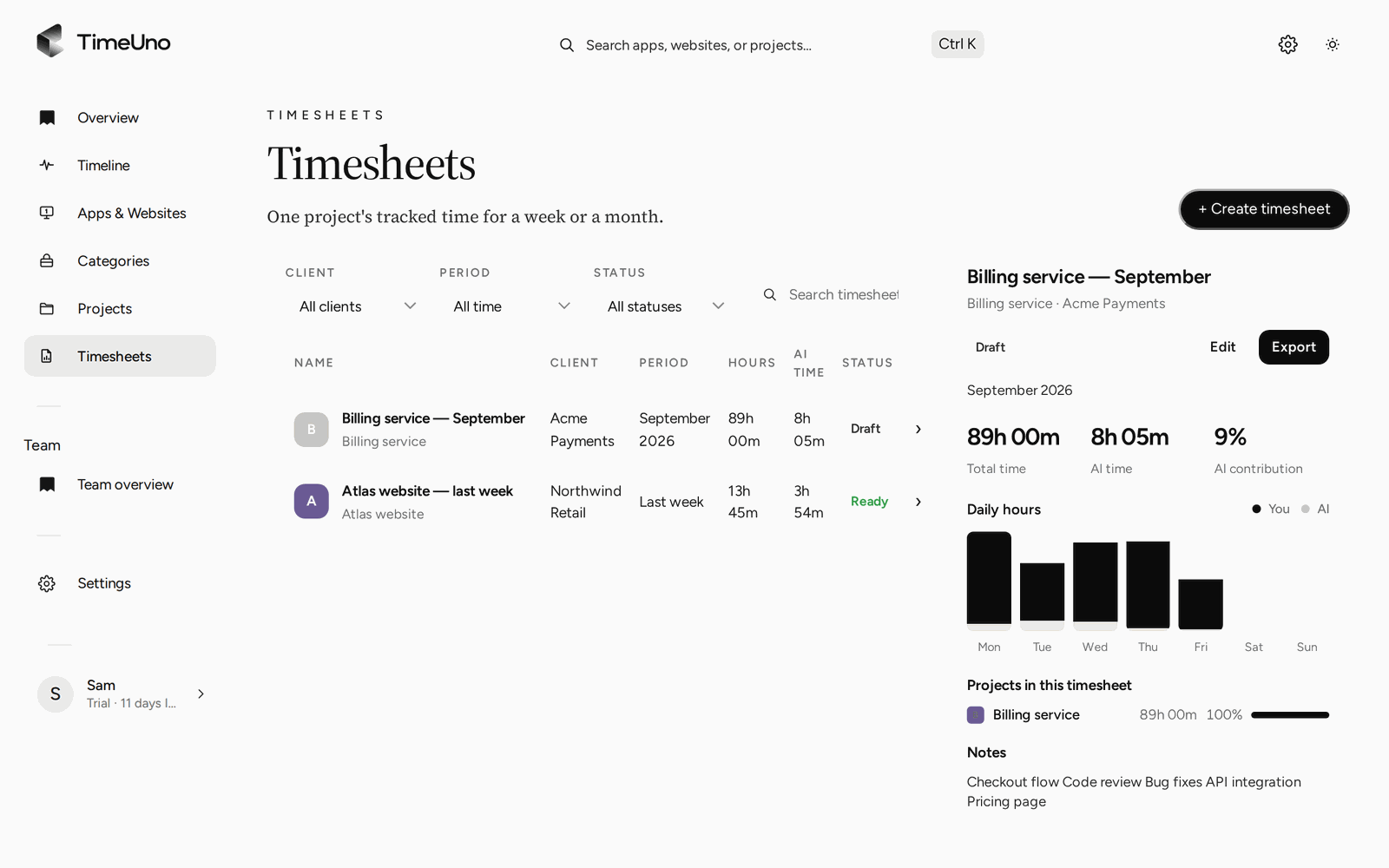
- Open Timesheets and click + Create timesheet.
- Choose This week, Last week or This month, the project and, if you like, a client. That is step one, the period.
- TimeUno fills one line per day with the time tracked on that project. Under Lines, switch to One line per work block to see start and end times. That is step two.
- The total follows the lines. Untick Include to leave one out, or change its hours. That is step three.
- Edit the descriptions, or click ✦ Write descriptions to have AI draft them. It only fills lines that still have TimeUno’s own text, never one you wrote. That is step four.
- Click Mark ready when it is final. A ready timesheet is locked. That is step five.
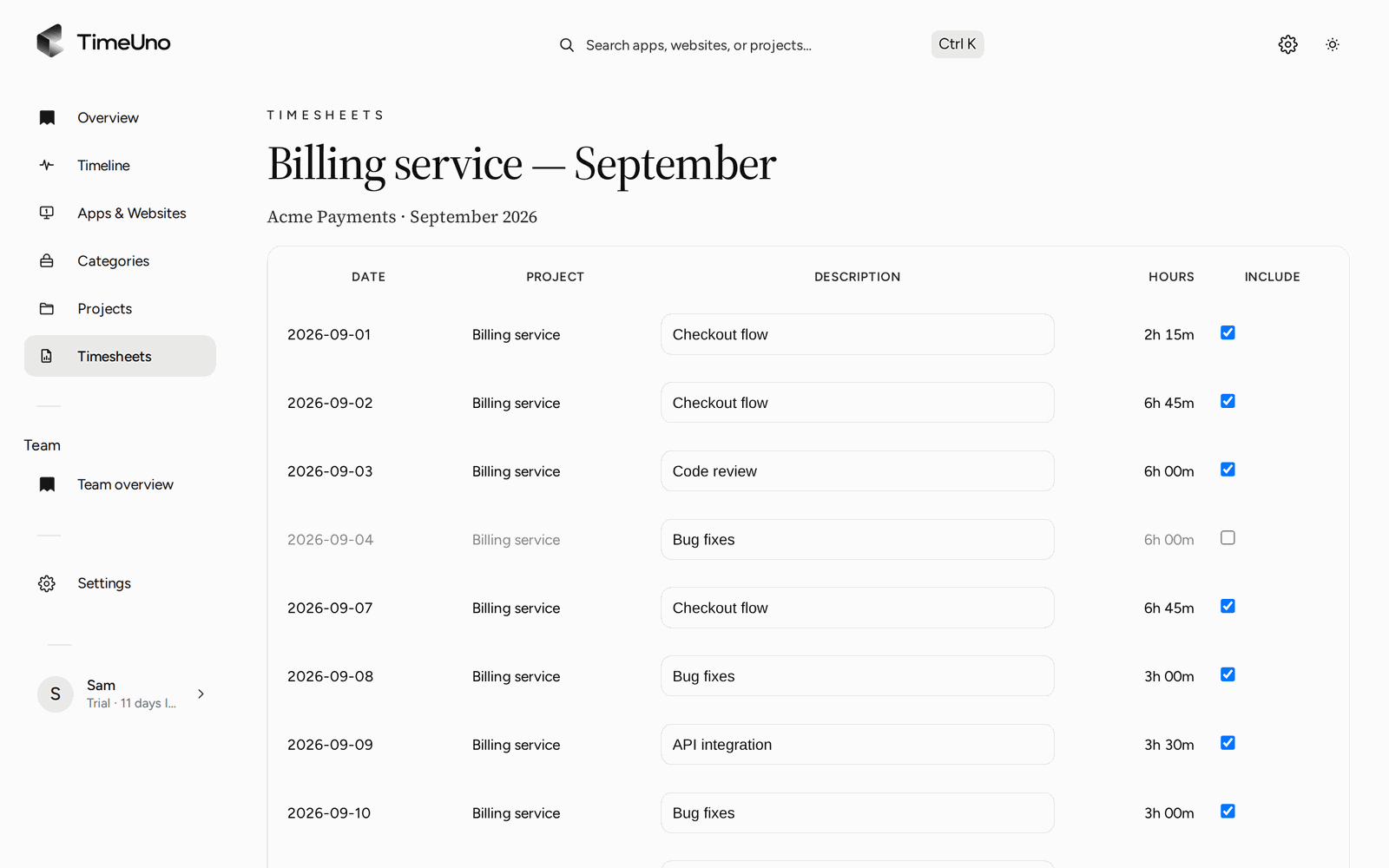
The editor: one line per day, hours, a description and an Include box on each line.
If you tracked more time after creating the draft, click Refresh to rebuild the lines. A description you edited keeps your text. The History section under the editor records what happened to the sheet and when.
Send it
Click Download CSV or Download PDF. The PDF has your company name, address, tax ID and logo at the top if you added them under Settings, Company details, then the period, the lines, the totals and, once there is one, the client’s answer.
If a client needs to sign off, share the approval link. You can protect it with a PIN and set an expiry. The client approves, rejects or asks for changes, and a comment comes back with their answer. The list shows a small badge for each sheet so you can see which links were opened. The approval is for you and your client. TimeUno is not a certified time clock, so check your local rules if you must keep official working-time records.
Make it weekly without remembering
Open Repeat on a timesheet to have a draft appear every week, every two weeks or every month, once the period has ended. Periods with no tracked time are skipped. You still review and mark each draft ready, so nobody signs a sheet unread.
Rates and amounts
Owners and admins set the currency, default rate and rounding (none, 6, 15 or 30 minutes) under Settings. Rates can sit on a person (Team plan), a client or a project, and a project is billed Hourly, as a Fixed fee or as Non-billable. Timesheets then show amounts. Members see hours only. TimeUno does not create invoices, so the sheet is the supporting document you attach to your own.
For more on how the sheet fits into billing, read about billable hours and the timesheet app.
What it does not do
- It does not export Excel or Word files. CSV and PDF only.
- It does not create invoices or connect to accounting software.
- There is no mobile app, so you cannot start a sheet from a phone.
- It tracks work on a computer. If your week is mostly away from one, a paper sheet may fit better.
On Team plans, admins see worked time, the productivity score and AI usage per person. They never see anyone’s apps, sites, window titles or screenshots.
Pricing
There is no free plan. Every plan starts with a 14-day trial, a card is added at the start and it is charged when the trial ends. Individual is $14.99 a month ($10.49 billed yearly). Team is $19.99 per seat a month ($13.99 billed yearly). The timesheet template and calculator are free.
To see how automatic trackers compare, read TimeUno compared with Toggl Track and check each tool’s current plans.
Updated 28 October 2026
Questions people ask
How do I create a weekly timesheet?
Choose the week, list one row per day with the project and hours, add up the daily and weekly totals, write a short note on what the time was for, then sign it. In TimeUno you open Timesheets, click Create timesheet, choose the period and the rows fill from tracked time.
What should a weekly timesheet include?
The person's name, the week's dates, one row per day with hours, a weekly total and notes. For client work add the client or project and a description per line. If it goes out for approval, add a place for a sign-off.
Can I create a timesheet without typing the hours?
Yes, in TimeUno. The lines come from time the desktop app tracked on a project, on macOS or Windows. You edit a description, untick a line or add one by hand. Nothing is typed from memory unless you add it.
Can TimeUno make the timesheet every week?
Yes. Use Repeat to have a draft appear every week, every two weeks or every month once the period has ended. Periods with no tracked time are skipped, and you still check and mark each draft ready yourself.
What formats can I send it in?
CSV and PDF. The PDF carries the company name, address, tax ID and logo from Settings, Company details. There is no Excel or Word export, so open the CSV in a spreadsheet if you need one.