

Windows time tracking app Automatic time tracking on Windows, from the system tray.
TimeUno is a Windows time tracking app for Windows 10 and 11. It sits in the system tray, records the app and window in front of you, and files the time under your projects. There is no timer to start.
Download for Windows 14-day trial, then $14.99 a month
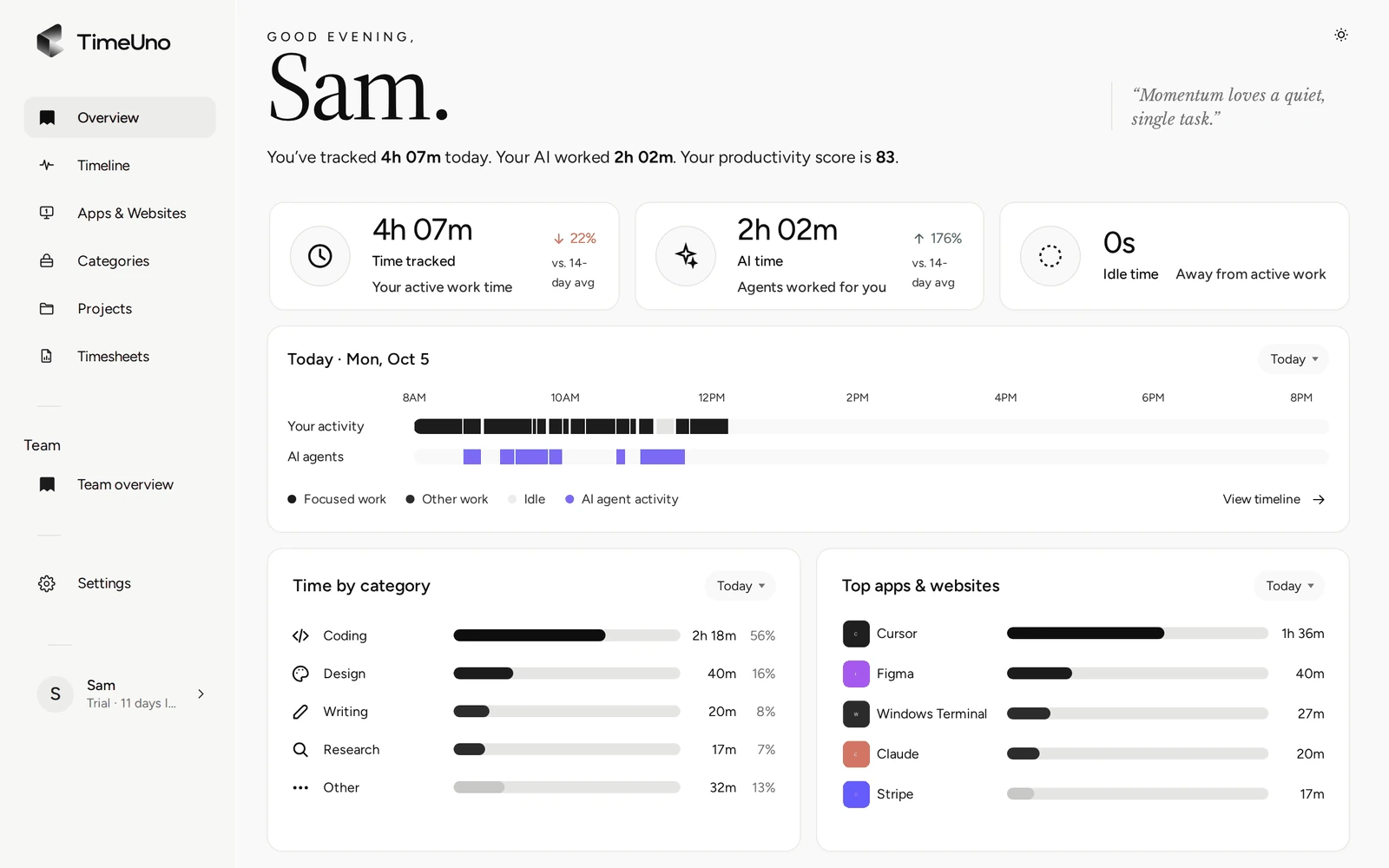
What the TimeUno Windows app tracks
The TimeUno Windows app records which app is in front of you, its window title, and when you were idle. It counts how many seconds had keyboard or mouse input, never what you typed or clicked. In an editor it reads the project name, so time lands under the right project on its own.
It also tracks AI tools on your PC, such as Claude Code, Cursor and Codex CLI, including when they work in a background terminal. You see your time and your AI tools’ time side by side, as the AI time tracker page explains. Their prompts, answers and code stay on your computer; TimeUno sends only metadata such as session times and the project folder.
If you search for automatic time tracking on Windows, this is the whole idea: the record exists because you worked, not because you remembered to press a button.
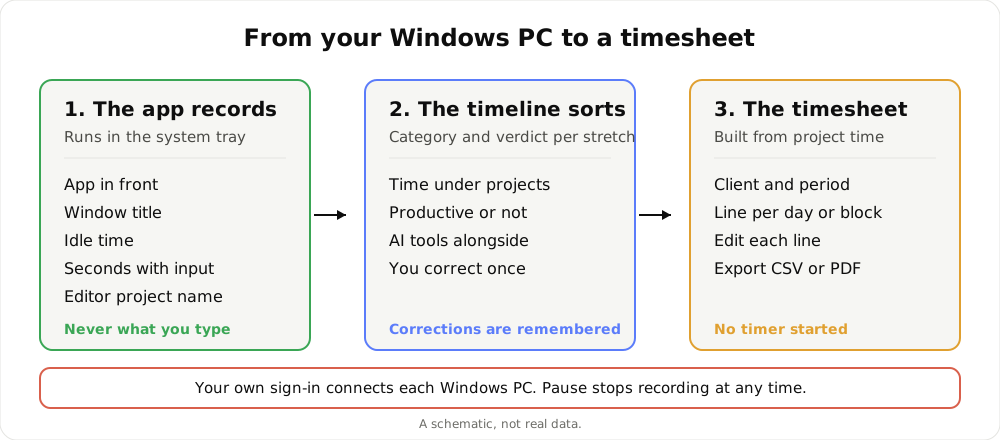
From your PC to a timesheet in three steps. A schematic, not real data.
How to install TimeUno on Windows
The install guide covers Windows 10 and 11. It takes a few minutes.
- Download the installer from the download page and run
TimeUno-setup.exe. - If Windows SmartScreen says it protected your PC, choose More info, then Run anyway.
- TimeUno opens in the system tray with a small always-on-top widget. Click Sign in with your browser.
- A browser tab opens. Sign in or create your account, then click Connect this computer.
- The app shows You’re all set. Click Start tracking.
Only approve a connection you started yourself. If someone sends you a connect link, close the page. The connect a device guide explains why. Every PC you connect appears on the Devices page, where Disconnect cuts it off.
The app updates itself: it checks when it starts and every 6 hours. When an update is ready, the tray menu offers Restart to update, and time not yet sent is saved on your computer and sent after the restart.
Tray icon and floating widget
TimeUno starts when your computer starts, so tracking is on from the first minute of the day. You can turn that off in Settings.
The widget stays above your windows in three sizes. The dot shows the TimeUno mark, with a marker when an AI tool is working or when TimeUno has a question. The pill shows what you are doing, the time and your productivity score. The panel shows the live session, or the whole day if you switch This session to Today. Drag the widget anywhere; it remembers the spot.
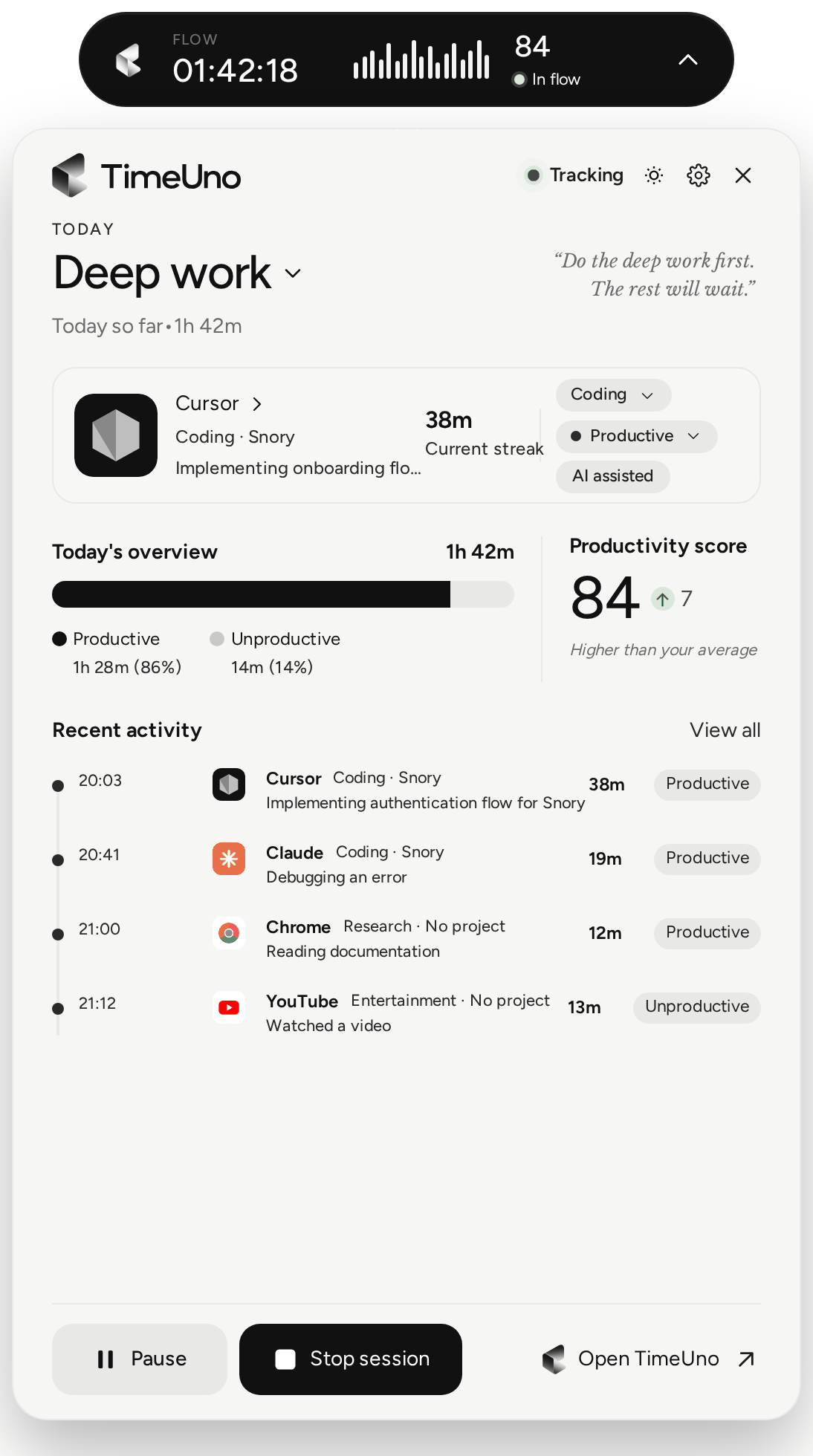
From the panel you can pause, stop the session or open your dashboard. Pause lasts 15 minutes, 30 minutes, an hour or until you resume. A paused computer records nothing about your screen and sends nothing until you resume.
Your current session, and fixing mistakes
On the dashboard, the current session card shows what you are doing right now, with its category, verdict and project. Change any of them from there.
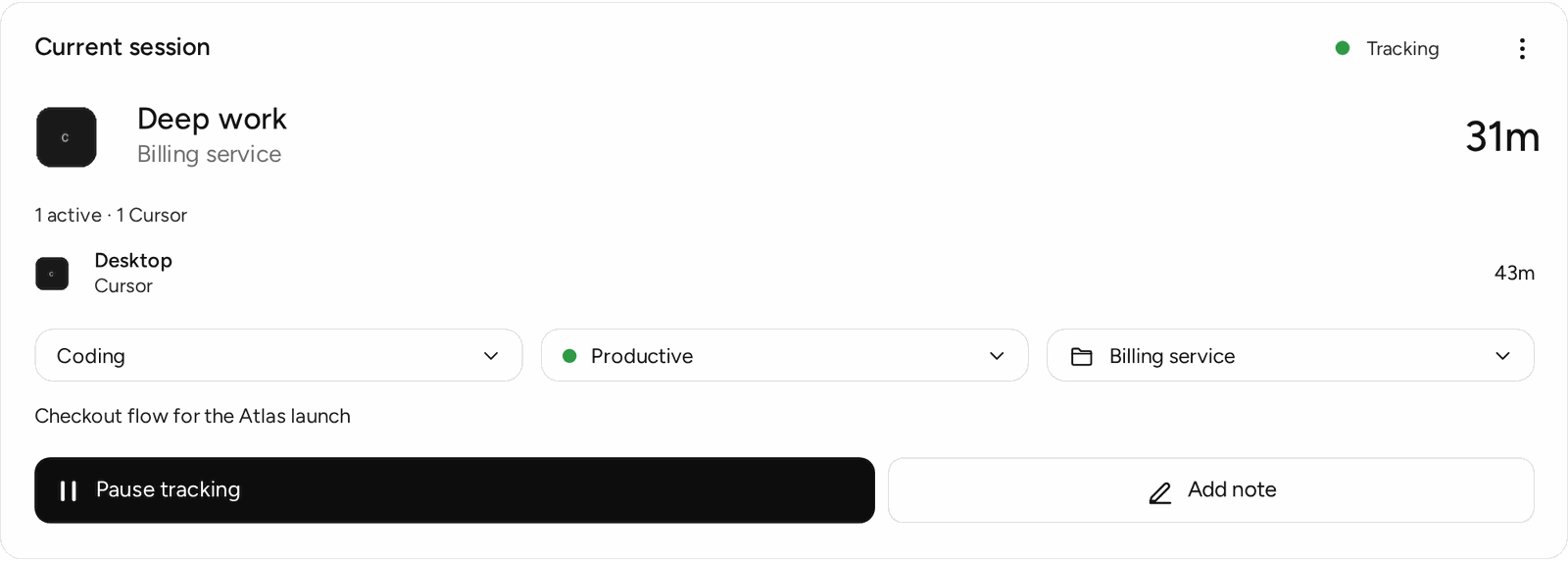
TimeUno can get a stretch wrong. An app like Slack or YouTube can be work or not, depending on the moment. You set the verdict, Productive or Unproductive, and correct stretches on the timeline. The correction is remembered, and repeated corrections become rules. TimeUno does not move time between projects on its own, so a quick look at the timeline before you build a timesheet is worth it.
Editors, terminals and the browser
In editors, TimeUno reads the project name. It detects projects from files like package.json, Cargo.toml, go.mod and pyproject.toml, or from the folder name. You can also add a project by hand with keywords. The first time it sees a new project folder, the widget asks whether to track it as a project.
On Windows, TimeUno reads the text in the window you are using when you switch windows and every so often while you work. That is how it spots AI tools running inside a terminal or a remote session. See the next section for how to switch it off.
Browsers show up as just “Firefox” without the extension. The Firefox extension adds the site, address and title, and up to 4,000 characters of visible page text. On AI sites that text may include your prompts and answers. It links to the desktop app by itself when both are connected to the same account, and nothing is counted twice. See the browser extension guide.
Windows time tracking without timers
Most time tracking apps for Windows are timers: you start one when a task begins and stop it when you switch. That gives clean entries if you remember, and gaps when you do not.
| Timer app | TimeUno | |
|---|---|---|
| Starting work | Start a timer | Nothing to do |
| Switching tasks | Stop and start | Recorded as it happens |
| Forgotten time | Lost | Still on the timeline |
| Time per project | Picked by hand | Filed from your editor project or keywords |
| Timesheets | From timer entries | From tracked project time, as CSV or PDF |
A timer app suits you if you want to log only the work you choose, or if you need a free plan. TimeUno has a 14-day trial, not a free plan: you add a card at the start and it is charged when the trial ends. After that it is $14.99 a month ($10.49 billed yearly) for Individual, or $19.99 per seat a month ($13.99 yearly) for Team.
From tracked time to a timesheet
Tracked project time becomes a timesheet for this week, last week or this month, with a client attached. You get one line per day or per work block, editable line by line, with descriptions the AI can write for you. Export it as CSV or PDF. The PDF carries your company name, address, tax ID and logo from Settings, Company details. TimeUno does not create invoices, so the export goes into whatever tool you invoice with. The automatic timesheets page covers the workflow.
Privacy on Windows
On-screen text is read on your computer and is on by default. Screenshots never leave your computer. Only the text is sent with your activity, may be used to classify it, and is deleted once your time is sorted. Password managers and private windows are skipped. Turn it off in the app’s Settings under Privacy with the Read on-screen text switch, or add apps to a never-read list. With it off, only app names and window titles are recorded.
For teams, owners and admins see worked time, productivity score and AI usage per person. They never see anyone’s apps, sites, window titles or screenshots.
TimeUno runs on servers at Hetzner in Germany, and your data is never sold or used for advertising. If you also work on a Mac, the same account covers both; see the Mac time tracking app page.
Updated 28 October 2026
Questions people ask
Which Windows versions does TimeUno support?
Windows 10 and 11. Download TimeUno-setup.exe from the download page, run it and sign in with your browser.
Windows SmartScreen blocked the installer. What do I do?
The install guide says to choose More info, then Run anyway. Only do this for the installer you downloaded yourself from the TimeUno download page.
Does TimeUno record what I type?
No. It counts how many seconds had keyboard or mouse input, never which keys or where you clicked. It does record the app name and window title, and it reads on-screen text on your computer unless you turn that off.
Can I stop TimeUno from starting with Windows?
Yes. It starts when your computer starts by default. Turn that off in the main window's Settings (Start when my computer starts) or in the widget's settings (Launch on login).
Is there an Android or iPhone app?
No. TimeUno has desktop apps and a browser extension, and no mobile app. On Windows you use the desktop app, plus the Firefox extension if you want sites tracked.