

Employee time clock An employee time clock without the clock-in, for people who work on computers.
TimeUno is not a punch clock and not a certified time clock. It records work on each person's own computer, and worked time shows in the Team overview and in timesheets. Here is who that fits and who needs a real terminal.
Start 14-day trial 14-day trial, then $19.99 per seat a month
The honest answer first
If you searched for an employee time clock, you probably want a punch clock: a terminal, a card or a button where each person clocks in at the start of a shift and out at the end. TimeUno is not that. It has no clock-in, no kiosk and no punch records, and it is not a certified time clock.
What it does instead is record work as it happens, on each person’s own computer. The desktop app notes which app or site is in front, how long, and when the person was idle. Worked time per person then shows up in the Team overview and in timesheets. Nobody has to remember to press anything.
For some teams that is a better fit than a clock. For others it is the wrong tool. This page helps you tell which one you are.
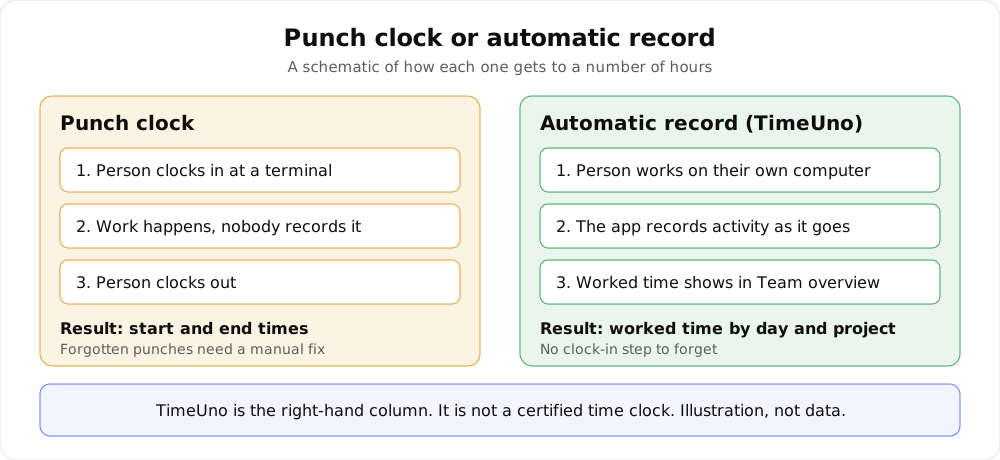
A schematic of the two approaches. It illustrates the method, not real data.
Punch clock or automatic record
A punch clock answers one question: when did this person start and stop. That is its strength. It is simple, it is visible, and it produces a record that a person confirmed by clicking or tapping.
Its weakness is the same step. Someone has to do it, and when they forget, somebody fixes the day by hand. It also says nothing about the hours in between.
An automatic record answers a different question: how was the worked time spent. It has no step to forget, so a day is not missing because a button was not pressed. It also does not prove a person was at a terminal at a set minute.
| Punch clock | TimeUno | |
|---|---|---|
| How time gets recorded | Person clocks in and out | Desktop app on the person’s computer |
| What you get | Start and end times | Worked time by day and project |
| If someone forgets | Manual correction | Nothing to forget |
| Fits | Shifts, floor work, fixed sites | Computer-based work |
| Certified for clock-in rules | Some products are | No |
Who TimeUno fits
TimeUno suits people whose work happens on a computer, wherever the computer is.
- Computer-based staff. Designers, developers, support, finance, marketing. The work already runs through apps and sites, so recording it needs no extra step.
- Small teams. A founder or manager who wants one place to read the week, without chasing messages on Friday.
- Contractors and remote workers. A contractor can see their own hours and send a timesheet that matches them. Nobody needs to share a desk or a terminal.
In all three, you read hours that were recorded instead of asking people to report them.
Who needs a real clock-in terminal
Some jobs need a punch clock, and a computer tracker will not replace one.
- Shift and hourly floor work. Retail, hospitality, warehouse, care, production. Hours are tied to a place and a shift, and many of these people do not sit at a computer.
- Clock-in requirements. In some places the law or a contract asks you to keep clock-in records in a particular form. TimeUno is not a certified time clock and makes no legal claims. Check your local rules, or ask an adviser, before you pick any tool.
- Mixed teams. If half your people work a counter and half work at laptops, you may run a clock for the first group and TimeUno for the second.
TimeUno also has no mobile app. If your people need to record time from a phone, it does not do that.
What admins see, and what they do not
An automatic record can sound like surveillance. It should not be, and here is what TimeUno does about it.
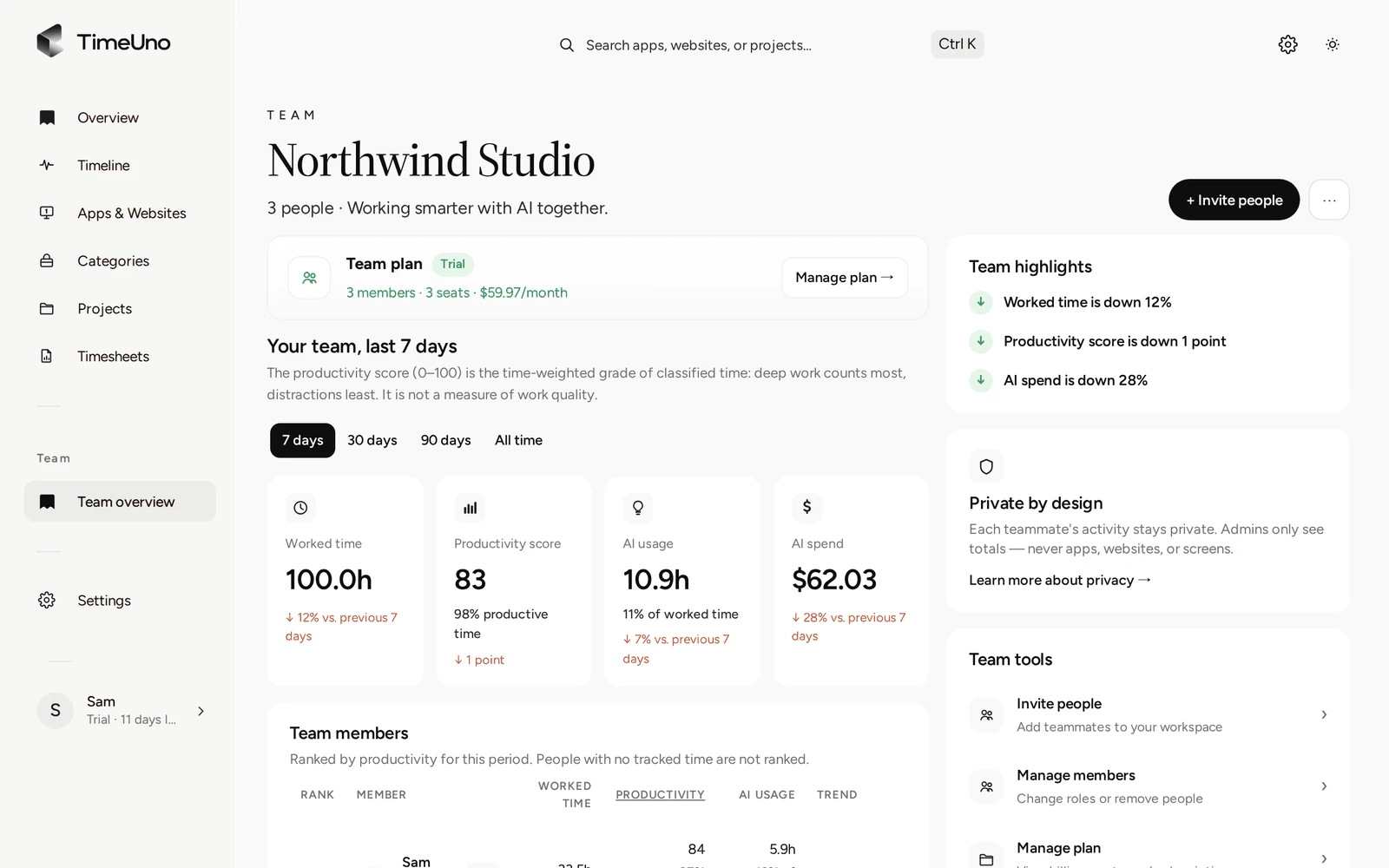
Admins see worked time, a productivity score from 0 to 100 and AI usage per person, with a trend. They never see anyone’s apps, sites, window titles or screenshots. The Team overview is a list of people and numbers, not a view into anyone’s screen.
Worked time, productivity score and AI usage per person. No apps, sites or screenshots.
Each person sees their own day in more detail. That is their record first and the team’s second.
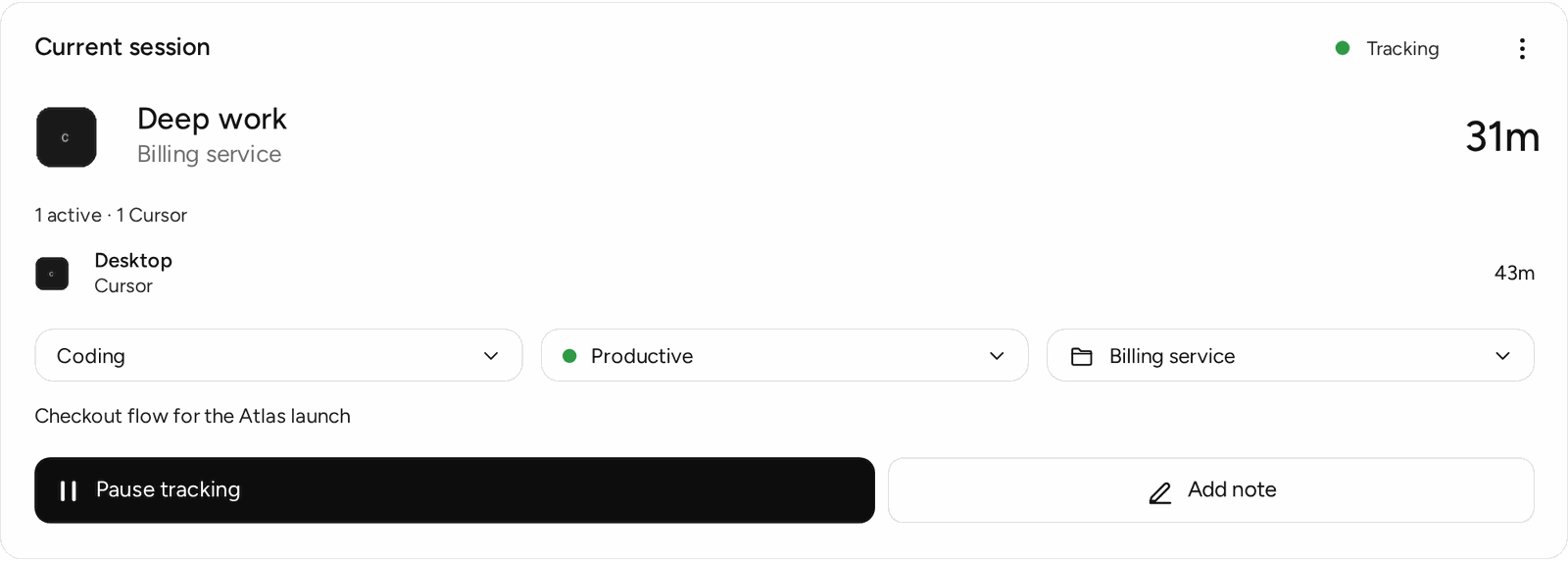
Each person can see what is being recorded as it happens.
Be open about this with your team before you start. People accept being recorded more easily when they know what is recorded, who sees it and what they can correct. For more on the privacy side, see the employee time tracker page.
What gets recorded on a computer
So you can answer questions from your team, here is what the desktop app records: the app in front and its window title, idle time, the seconds with any keyboard or mouse input (never what is typed) and the project name in an editor. On-screen text reading is on by default and can be turned off per computer. The browser extension sends the site, address, title and up to 4,000 characters of visible page text. On AI sites that may include prompts and answers.
That is data about the person’s own work, shown to them. Admins get the totals described above, not this detail.
From worked time to a timesheet
Once time is recorded, a timesheet is built from it. Pick this week, last week or this month, and a client. Owners and admins set a currency, a default rate and rounding to 6, 15 or 30 minutes under Settings. Rates can be set per person, per client and per project, and a project can be Hourly, Fixed fee or Non-billable. Members see hours only, never rates.
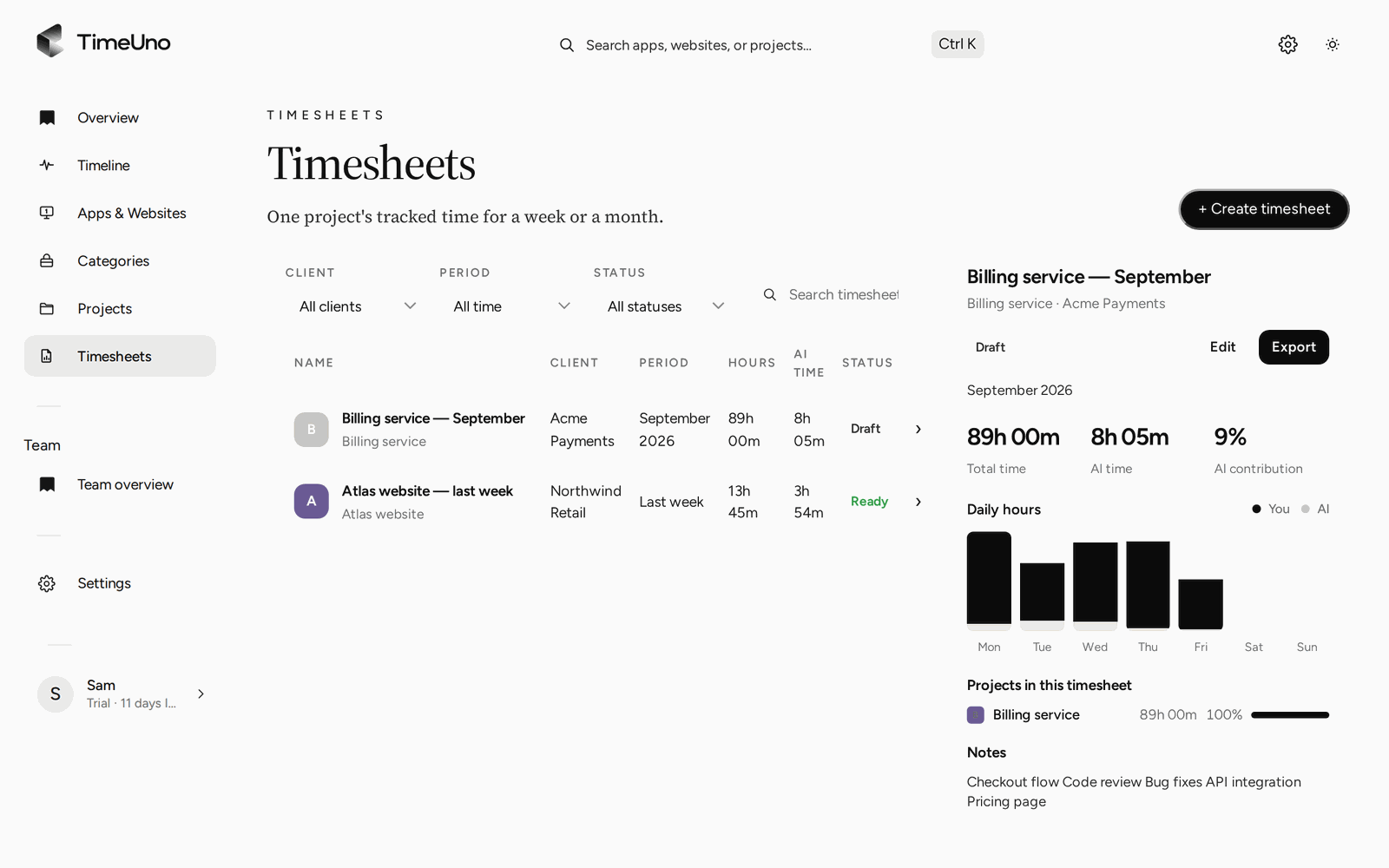
A timesheet built from recorded time, ready to edit and export.
Edit any line, then use Mark ready. Export as CSV or PDF; the PDF carries the company name, address, tax ID and logo from Settings, Company details. A client approval link with a PIN and an expiry lets a client approve, reject or ask for changes. Repeating drafts start the next sheet for you. For the full flow, read about employee timesheet software. TimeUno does not export to Excel, create invoices or connect to accounting software.
A short way to decide
Ask three questions.
- Do your people work on a computer most of the day? If not, buy a clock-in terminal.
- Do you have to keep clock-in records by law or contract? If so, check your local rules first. TimeUno will not stand in for a certified clock.
- Is the real problem forgotten timers and timesheets rebuilt from memory? Then an automatic record fixes the cause, and the 14-day trial lets you try it on real days.
Pricing is $19.99 per seat a month for Team, or $13.99 billed yearly. A solo person can use Individual at $14.99 a month ($10.49 billed yearly). There is no free plan, and a card is added when the trial starts.
Updated 28 October 2026
Questions people ask
Is TimeUno a time clock?
No. TimeUno has no clock-in button, no terminal and no punch records. It records work automatically on each person's computer. It is not a certified time clock, so check your local rules if you must keep clock-in records.
Can employees clock in and out with TimeUno?
No. Nobody clocks in or out. The desktop app records activity on the computer, and worked time appears per person in the Team overview and in timesheets.
What do admins see?
Worked time, the productivity score and AI usage per person, plus a trend. Admins never see anyone's apps, sites, window titles or screenshots.
Does it work for shift or hourly floor staff?
Not as a time clock. TimeUno records work on a computer on macOS and Windows (Linux is in testing). If your people work at a counter, a line or a site, you need a clock-in terminal or a mobile-ready clock. TimeUno has no mobile app.
Does TimeUno make us compliant with working time law?
No. We make no legal claims. Rules on recording working time differ by country and sometimes by role, so check your local rules or ask an adviser.